Client settings
Most of the smart client’s behaviour on a PC comes from its configuration file, plus a few server-side switches. This page collects the settings admins get asked about most.
The .sysconfig file
Section titled “The .sysconfig file”Each client install reads an XML configuration file from its Config folder, normally ..\Config\default.sysconfig (a shortcut can point at an alternate file). Each setting is a tag with a value attribute:
<CultureCode value="enu" />You can edit it in a text editor, or with ConfigEditor.exe in the client folder, which shows each setting as a field. Quick way to find it: right-click the Epicor shortcut, Open file location, then go into the Config folder.
Settings worth knowing:
| Setting | What it does |
|---|---|
CultureCode |
The client’s language, e.g. enu |
LoginDefault / LastLoginID |
What the user name box shows at sign-in: the last user, a list of recent users, the Windows user, or nothing |
LaunchType |
MainMenu starts the Classic tree menu, Shell starts the Modern Shell (tile) menu |
Switching sign-in from Epicor Identity Provider to Basic
Section titled “Switching sign-in from Epicor Identity Provider to Basic”If a client is set up for Epicor Identity Provider (IdP) sign-in and you need it to use a normal Epicor user name and password instead (for example on a shared shop-floor PC, or while IdP is being set up), change the authentication setting in the .sysconfig:
- Open the client’s
.sysconfigand search for the authentication setting (search forAuth). - Change its value from the identity-provider mode to
Basic. The value is case sensitive. - Save and restart the client.
The server has to allow Basic sign-in for the environment as well; this only changes what the client asks for.
Classic or Kinetic forms
Section titled “Classic or Kinetic forms”If you’re moving users over, read Migrating to Kinetic first: Classic customizations don’t apply to the Kinetic forms. Look into the conversion workbench if you are unsure where to begin.
Desktop pop-ups for reports and processes
Section titled “Desktop pop-ups for reports and processes”Users who run long reports or processes (or who want to know when a scheduled job finishes) can have the System Monitor show a Windows notification balloon:
- Find the System Monitor icon in the Windows notification area, right-click it and choose Restore.
- In the System Monitor, open Actions > Retrieval Properties.
- Tick the pop-ups the user wants: successful reports, report errors, successful processes, process errors.
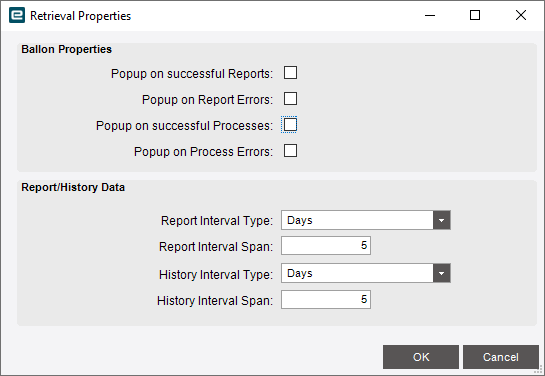
The same window sets how many days of report and history data the monitor keeps.