Quick searches
A quick search is a custom search panel built on a BAQ. It appears alongside (or instead of) the standard search for a field, with only the criteria your users need: “parts by class and description”, “contacts by name”, “customers by bill-to city”. The BAQ decides what can be found and shown; the quick search decides how users ask for it and which column is sent back to the field.
Before you start
Section titled “Before you start”- The user building it needs Can Maintain Quick Search ticked in User Account Security Maintenance.
- Find out where the search should appear: which screen, and which field’s search button. Then look up the column that field holds with Field Help (technical details), for example
Customer.CustID. That column is the quick search’s key.
1. Build the BAQ
Section titled “1. Build the BAQ”- Create a BAQ (with a prefix, such as
XX_CustomerByBillTo) and tick Shared. - Add the tables and display columns users should see in the results, plus every column they’ll search by, plus the key column the field needs (for a customer search,
Customer_CustID). Without the key column the quick search can’t return anything. - Keep criteria open. The quick search supplies the filters.
2. Create the quick search
Section titled “2. Create the quick search”- Open the screen where the search should live, right-click the field next to its search button and choose Quick Search Entry. This opens Quick Search Maintenance with the Context Key (Like) and Called From already filled in from that field and screen.
- Click New and enter a Quick Search ID and Description.
- Select your BAQ.
- Set Return Column to the key column, such as
Customer_CustID. This is the value written back to the field when a user picks a row. It needs to be the same kind of value as the context key (the same “like” column), though not necessarily from the same table. - Set the options (see the table below) and save.
3. Add criteria
Section titled “3. Add criteria”On the criteria card, add one row per search box. For each:
- Criteria Column: the BAQ column to search, such as
Customer_City. - Caption: the label users see.
- Condition: how the value is compared. BEGINS is the friendliest for text because users can type the start of a value. Use = for check boxes and codes.
- Criteria Type:
- Prompt: users type a value. Every quick search needs at least one prompt criterion.
- Constant: a fixed filter users can’t change, such as
Customer_State = MN. - Value List or Radio Set: a fixed set of choices you define as value items (display text and stored value).
Tick Filter On Null on a criterion to leave out rows whose column is NULL.
4. Test
Section titled “4. Test”Use Test Quick Search (Kinetic: Overflow menu) to try it. Then open the screen, click the field’s search, and pick your quick search. In Classic, log out and back in if it doesn’t appear straight away.
The options
Section titled “The options”| Option | Effect |
|---|---|
| Shared | Available to all users in the company, not just its creator. |
| All Occurrences | Offered on every search whose field shares the same context key, not only on the screen it was created from. A Part_PartNum quick search then shows up in Sales Order Entry, Job Entry and everywhere else a part is searched. |
| Context Default | Listed near the top of the field’s context menu. |
| Base Default | Replaces the standard search: the search button opens this quick search instead. |
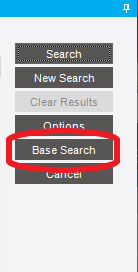
| Suppress Base | With Base Default, hides the Base Search button so users can’t switch back to the standard search. Holding Shift while clicking the search icon still opens the base search. |
| Validation Only | Uses the quick search to validate typed entries instead of as a search. A value is only accepted if the quick search would return it. Not available when any criterion is a prompt. |
For a search that should be available wherever the key appears, tick Shared and All Occurrences. For one that should only exist on one screen, leave them clear.
Example: a contact search for case entry
Section titled “Example: a contact search for case entry”Users logging support cases want to find a contact by name without scrolling the standard contact search.
- BAQ: the
PerContable (people and contacts), displayingPerCon_PerConID,PerCon_Nameand whatever else helps pick the right person, such as email and phone. - Return Column:
PerCon_PerConID. Context Key (Like):PerCon.PerConID. Called From:Erp.UI.HelpDeskEntry(Case Entry). - Criteria:
PerCon_Name, caption “Name”, condition BEGINS, type Prompt. - Base Default ticked, so the search button goes straight to it.
Matching the standard part search
Section titled “Matching the standard part search”When you replace the base Part search, users expect the same filters. These are the columns behind its search fields:
| Search field | Column |
|---|---|
| Part | Part.PartNum |
| Search Word | Part.SearchWord |
| Description | Part.PartDescription |
| Class | Part.ClassID |
| UOM | Part.IUM |
| Type Code | Part.TypeCode |
| Non-Stock | Part.NonStock |
| Product Code (group) | Part.ProdCode |
| Inactive | Part.InActive |
| BOM | Part.Method |
| Phantom BOM | Part.PhantomBOM |
| Qty Bearing | Part.QtyBearing |
BAQ searches
Section titled “BAQ searches”A lighter alternative is a BAQ search. In the BAQ designer, open BAQ Search and move the columns that should match searchable fields into the “Like” list. Any search panel whose field shares a column’s like property then offers the BAQ as a search type, with no criteria to set up. The order of the like columns matters: the search uses the first one that matches the field.
Troubleshooting
Section titled “Troubleshooting”- The quick search doesn’t appear. Check it has at least one criterion. Then check the context key: the field you right-clicked isn’t always the column the search button actually searches. Open the same search from another screen that uses it, or trace the search call, to find the real key.
- Picking a row puts the wrong value in the field. The Return Column is wrong, or the BAQ returns a different column than you think under that alias.
- The Classic toolbar binoculars search isn’t a place quick searches can be added; build them on a field’s search instead.
Sources
This page is written in our own words. It was informed by: