Browser client, Power Tools and user settings
Kinetic is a web application. The browser client is the main way to use it, and Epicor’s direction is for it to be the only one. The desktop client still exists, and for Epicor Cloud there is a separate download, Kinetic Power Tools, for the developer and admin tools that need a desktop program. This page covers getting people into the right one, plus two user settings administrators get asked about.
Browser client URLs
Section titled “Browser client URLs”The browser client lives under /Apps/Erp/Home/ on the application server:
https://<app-server>/<instance>/Apps/Erp/Home/- Epicor Cloud: the address is shown as the Web Client Link on the instance’s Summary tab in the Cloud Management Portal, along with the Web MES link.
- On-premises: the server name and instance path are whatever your installation uses, for example
https://epicor-app01.example.com/Kinetic/Apps/Erp/Home/.
You can open straight into a company and site by adding them to the home route, which is handy for bookmarks and desktop shortcuts when people work in more than one company:
https://epicor-app01.example.com/Kinetic/Apps/Erp/Home/#/home?company=EPIC06&site=MAINMES runs from the same address with an MES route and mode:
https://epicor-app01.example.com/Kinetic/Apps/Erp/Home/#/home/MES/home?mode=MESBrowser shortcuts need the Edge Agent for local printing and for opening Classic forms.
Kinetic Power Tools
Section titled “Kinetic Power Tools”Power Tools is a desktop download for Epicor Cloud that gives administrators and developers tools that aren’t available in the browser client. Install one copy per environment you work in.
- Grant access. Add the user to the Power Tool User security group in User Account Security Maintenance. The user signs out and back in.
- Download it. On the browser client home page, open the account panel at the bottom left. A Download Power Tools button appears once the group is assigned. You can also download it from the Kinetic cloud downloads on EpicWeb.
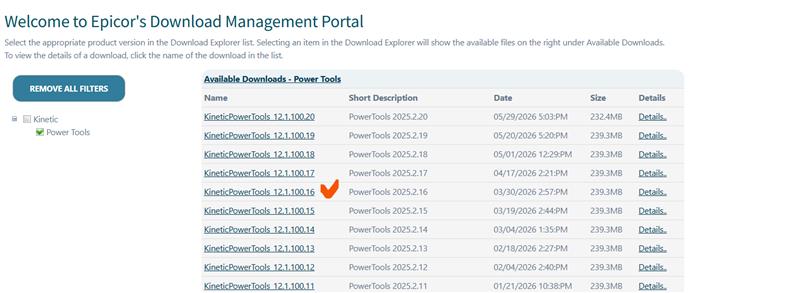
- Match the version. Download the Power Tools build that matches the environment’s release (for
example
12.1.100.16for a 2025.2.16 environment), not simply the newest. The environment’s version is shown on its CMP Summary tab. - Install it to its own folder. Change the install folder name from the default, for example
PowerTools-Pilot. If you later install Power Tools for another environment into the default folder, it overwrites the first. - Point it at the server. When prompted, enter the environment’s server URL (on the CMP Summary tab), not the web client link.
Preview features
Section titled “Preview features”Epicor ships some new browser features switched off, as preview features, so you can try them before they become standard. Examples have included an advanced grid filter and automatic column sizing.
Security managers can turn previews on for themselves or for the whole company. Ordinary users only see and use features that a security manager has enabled for the company:
- Log in as a security manager.
- Open your user settings panel and select the Preview Features tab.
- In the drop-down, change For me to For this company.
- Turn on each feature other users should be allowed to use, or All Features.
- Log out. Users log out and back in (or refresh) to pick the change up, then turn the features on for themselves.
Preview features can change or disappear between releases. Send Epicor feedback on them through Support.
Loading more than 5000 records in a search
Section titled “Loading more than 5000 records in a search”Search results and landing page grids load records in batches. In Options on the search results’ overflow menu, you can set how many records to retrieve at a time, up to 5000.
To go past 5000:
- Set the number of records to 5000 and run the search.
- Use the preload control next to the overflow menu to switch into Preload mode.
- A Get More button appears. Each click loads another batch, so you can page through well beyond 5000 records. Ticking Select All switches the button to Select More.
Click the preload control again to go back to loading as you scroll. Preload mode also enables grouping and filtering on some columns, such as UD columns, that aren’t otherwise available.