Pages, tabs and slide-outs
The Application Map designer shows how an application’s pages hang together: the landing page, the tabs, the pages under each tab and any slide-out panels. This page covers the page types you’ll meet and the three ways to split content into tabs.
Page types
Section titled “Page types”Select a page in the Application Map to see its properties. Page Type decides how it behaves:
| Page type | What it is |
|---|---|
| Apps / Dashboard (landing) | The root. Defines what users see when the app opens, usually a grid bound to the LandingPage data view |
| Tab | A top-level tab shown after a record is selected. Its child pages appear in the navigation tree under it |
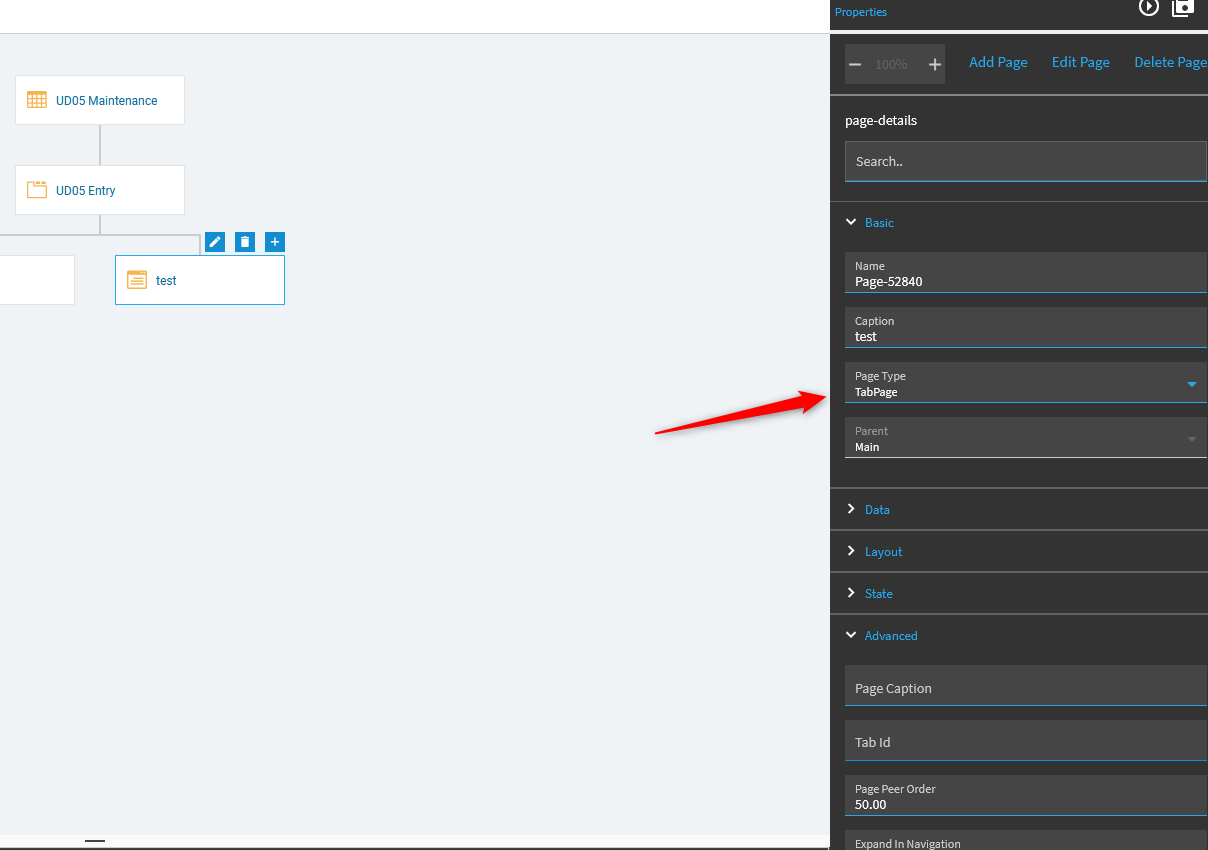
| TabPage | An ordinary content page. This is the type you use for new pages and for pages shown in a tab strip |
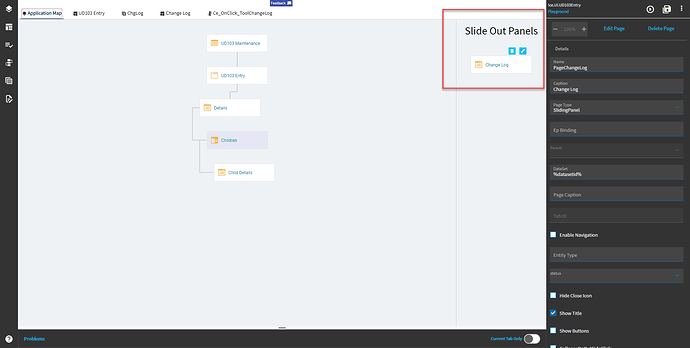
| SlidingPanel | A panel that slides in from the right when an event opens it. These sit in the separate Slide Out Panels area of the map |
You’ll also see virtual pages. These aren’t a type you pick. A panel card with Enable FullScreen turned on shows up in the map as a page, because clicking its full-screen button behaves like navigating to a page.
Other page properties worth knowing:
- Page Caption can include placeholders, for example
Job {JobHead.JobNum}, to show the current record in the title. - Tab Id says which tab the page belongs under.
- Page Peer Order sets its position among its siblings.
Add a new page
Section titled “Add a new page”-
In the Application Map, select the page that should be the parent and click Add (the + icon).
-
Select the new page and set Name, Caption and Page Type (keep TabPage).
-
Click Edit and add controls.
-
Save the layer and preview.
Tabs inside a panel card
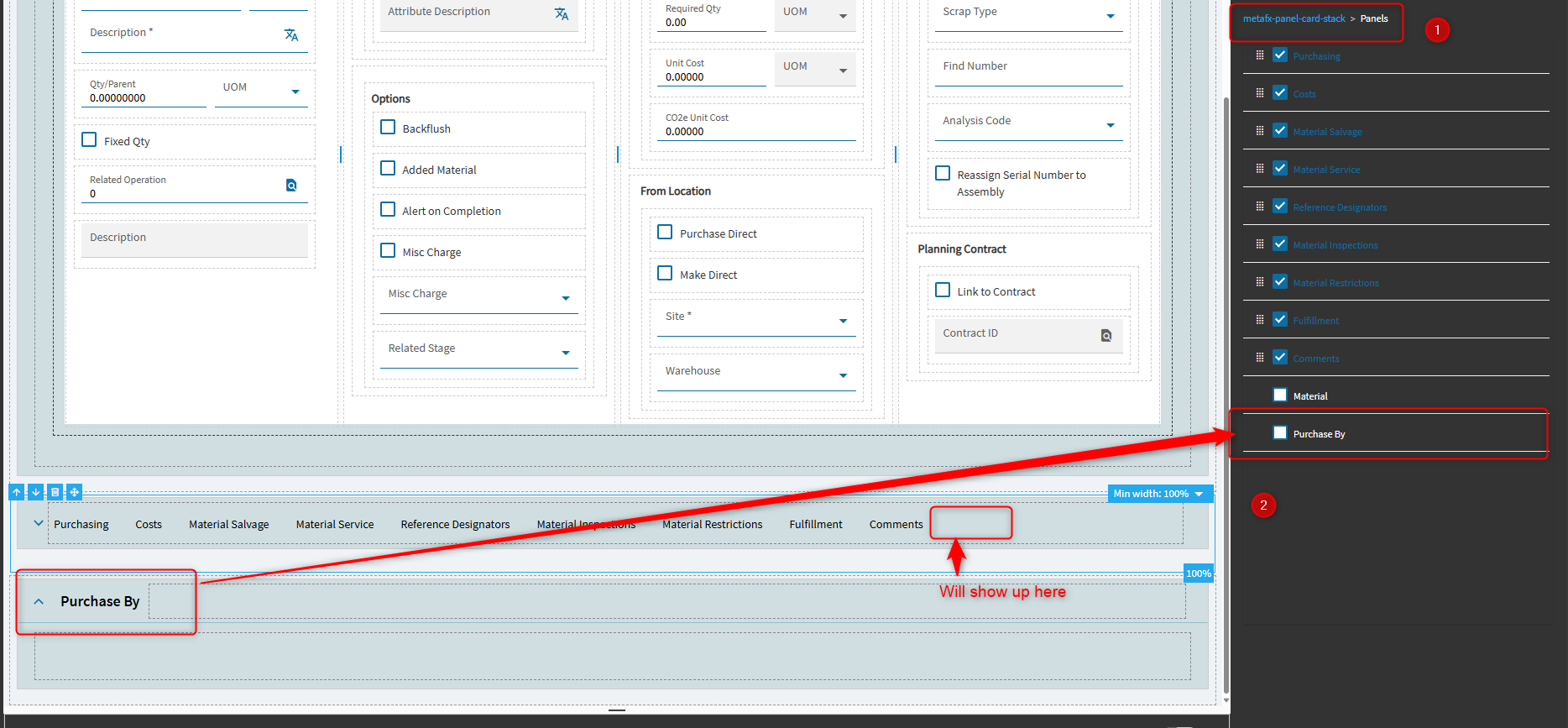
Section titled “Tabs inside a panel card”To split a panel card’s content into tabs, use a panel card stack (metafx-panel-card-stack). It shows a row of tab headers, each switching to a different panel card.

- Add the panel cards that should become tabs to the page first. Each one is a separate panel card on the same page.
- Select the panel card stack (or add one from the Toolbox) and open its Panels property.
- The list shows every panel card on the page. Tick the ones that should appear as tabs and drag them into order.
A panel card that isn’t ticked stays a normal card on the page. Ticking it moves it into the stack as a new tab.
A panel card grid also has a Make Card Stack button at the top of its properties, which looks like a quicker way to start a stack from an existing grid card.
One tab per grid on a dashboard
Section titled “One tab per grid on a dashboard”For a dashboard with several grids, separate TabPage pages plus a tab component on the parent page give a cleaner result than stacking grids in one card.
-
In the Application Map, add a page under the dashboard’s main page for each tab. Set Page Type to TabPage.
-
Edit each TabPage and put its grid (and anything else for that tab) on it. Anything meant to show inside a tab has to be built on that TabPage, not on the parent.
-
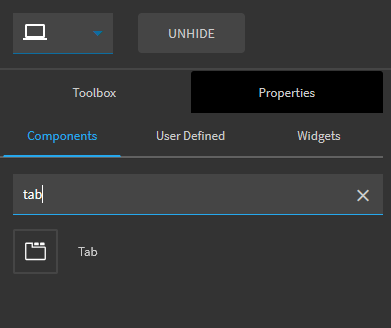
Edit the parent page and add a Tab component from the Toolbox (search for “tab”).
-
In the tab component’s data properties, add an entry per tab: an Id, a Title and the Page to show.
-
Save and preview.
Keep each TabPage’s Name, its Tab Id and the tab’s Title consistent. Mismatches are a common reason a tab shows up blank.
Slide-out panels
Section titled “Slide-out panels”A slide-out is a page with Page Type SlidingPanel. It doesn’t appear in navigation. An event opens it.
-
In the Application Map, add a page and set its Page Type to SlidingPanel. It moves to the Slide Out Panels area.
-
Note its Name, for example
XX_PageHistory. -
Edit it and add content, typically a panel card grid bound to a data view.
-
In the event that should open it (a button or tool click), end the chain with the
slider-openwidget and set its Page parameter to the panel’s Name.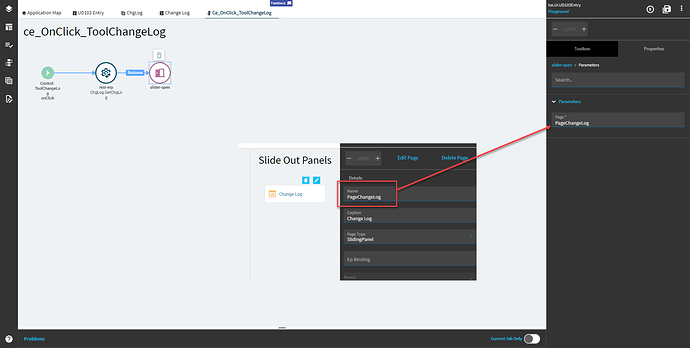
Load the data before slider-open in the same event, so the panel opens already filled. Calling BAQs, services and functions has a full example that fetches a record’s change log and shows it in a slide-out.
Slide-out properties include Show Title, Show Buttons, Hide Close Icon and Collapse On Outside Click, plus Add Buttons for buttons along the panel that can trigger events of their own.