Reporting overview
Almost every printed document in Epicor, from sales order acknowledgments to pack slips, AR invoices and job travelers, is a Microsoft SQL Server Reporting Services (SSRS) report. Changing one means working in two places: Epicor decides which data goes to the report, and an SSRS layout file decides how it looks. Once you see how the pieces connect, most reporting jobs follow the same few steps.
The four pieces
Section titled “The four pieces”| Piece | Where you maintain it | What it controls |
|---|---|---|
| Report (Report ID) | Report Style Maintenance | The report as a whole, e.g. OrderAck, PackSlip. Menu items point at a Report ID |
| Report style | Report Style Maintenance | One variation of the report: its data definition, the RDL file it renders with (Report Location), its output location, routing rule, images and which companies can use it |
| Report data definition (RDD) | Report Data Definition | Which tables, BAQs, fields, relationships and parameters Epicor extracts when the report runs |
| RDL file | SSRS report server; edit in Microsoft Report Builder | The layout: datasets, tables, text boxes, expressions and images |
When a user prints, Epicor reads the style, gathers the data the RDD describes, writes it to temporary
tables in the database, and asks SSRS to render the style’s RDL file. The RDL’s dataset queries read
those temporary tables back. That is why every Epicor dataset query joins tables named like
OrderHed_ + Parameters!TableGuid.Value: each report run gets its own set of tables, identified by a
GUID.
The upshot:
- A field that isn’t in the RDD can’t appear on the report, whatever you do in Report Builder.
- A field in the RDD doesn’t appear on the report by itself either. The RDL’s dataset query and field list must ask for it, and a text box must display it.
Add a field to a report walks through both halves.
Kinds of report
Section titled “Kinds of report”- System reports ship with Epicor. You can’t change the system RDD or the system style, which guarantees the standard version always runs. You copy them instead.
- Custom reports are copies of system reports. You duplicate the RDD, copy the report style, point
the copied style at the copied RDD, and edit the copied RDL. Epicor places the copied RDL under the
CustomReportsfolder on the report server. - BAQ reports get their data from one or more BAQs instead of Epicor’s report tables. See BAQ reports.
Where things live
Section titled “Where things live”The Report Location on a style is a path on the report server, such as
reports/CustomReports/SalesOrderAcknowledgement/SOAck. Standard reports sit in their own folders
under reports; copies you make go under reports/CustomReports. You never edit these on the server
directly. You Download SSRS Report from the style, edit locally, then Upload SSRS Report. See
Deploy and upgrade reports.
Report data isn’t kept as a file. SSRS reports store their extracted data in the database under the run’s GUID, and it’s cleaned up after a short time. If you need to reprint or preview the same run later, set an Archive Period when you print. The archived run can then be reopened from the System Monitor until the period ends.
Permissions and tools
Section titled “Permissions and tools”-
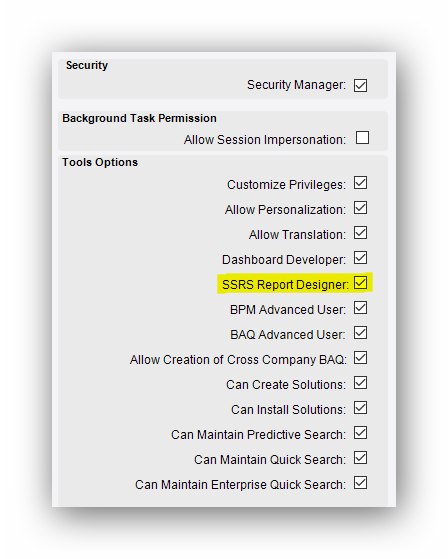
Downloading, uploading and creating SSRS reports needs the SSRS Report Designer option in User Account Security Maintenance. Without it, those items on the Actions menu of Report Style Maintenance stay disabled.
-
Edit RDL files with Microsoft Report Builder (free from Microsoft). Install the version that matches your report server’s SQL Server version. When Report Builder asks to connect to a report server on opening a downloaded file, you can cancel; you’re editing a local copy.
Finding the Report ID for a menu
Section titled “Finding the Report ID for a menu”Most tasks start with “which report is this?”. For report-type menu items, Menu Maintenance shows the report the item runs. A few you’ll meet often:
| Menu or document | Report ID |
|---|---|
| Sales Order Acknowledgment | OrderAck |
| Packing slip | PackSlip |
| AR invoice | ARForm (RDD ARInvoice) |
| Quote form | QuotForm |
| Scheduled Shipments | SchedShip |
| Pro forma invoice | ProFormaInvc |
| Customer Statements | CustSt |
| AP invoice form printed from AP Invoice Entry | APDebitMemoForm |
Pages in this section
Section titled “Pages in this section”- Report data definitions: tables, exclusions, relationships and linked tables, and the field limit that breaks reports.
- Add a field to a report: the full round trip from RDD to printed field, with pack slip and scheduled shipment examples.
- BAQ reports: BAQ Report Designer versus an RDD built on BAQs, option fields, filters and passing report parameters into the layout.
- SSRS expressions and custom code: nested
IIF, blank values, line breaks, check boxes, date ranges, counting distinct records and page footers. - Images, logos and barcodes: replaceable images, logos per company or site, part pictures and Code 39 barcodes.
- Printing and routing: client and server printing, Advanced Print Routing rules, alternate styles and email lists.
- Deploy and upgrade reports: downloading and uploading,
the
reports.ziplayout, moving reports between environments and upgrading old reports. - Troubleshooting: the SSRS and Epicor reporting errors that come up most.
To print a report automatically when data changes, use the Auto Print widget in a BPM; see Send email and auto-print from a BPM.
Sources
This page is written in our own words. It was informed by: