BPM conditions
Most directives start with a Condition widget that decides whether the rest of the flow should run. A condition that is too loose makes the BPM fire on every save; a condition that is too strict makes it silently do nothing. This page covers the condition types you’ll use most and how to keep them precise and fast.
How the Condition widget works
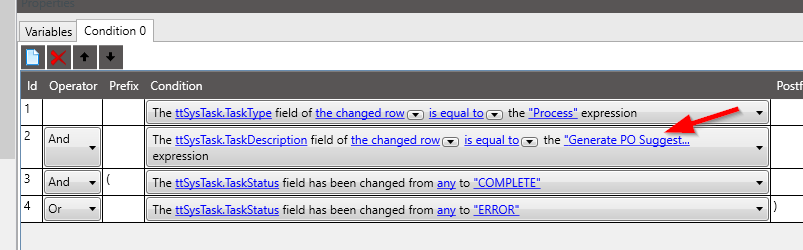
Section titled “How the Condition widget works”A Condition widget has a list of condition lines and two exits, True and False. Lines are joined with And / Or, and you can add opening and closing brackets in the prefix and postfix columns to group them. Connect the rest of the flow to the exit you care about; an unconnected exit simply ends the directive.
Check for a change, not a state
Section titled “Check for a change, not a state”The most common mistake is testing what a field is rather than whether it changed.
Say you want a message when an order is put on hold. A condition of “OrderHed.OrderHeld is equal
to true” is true on every later save of that order too: change the ship date and the message appears
again. The same happens when one save calls the method more than once, which is why users sometimes
see the message twice.
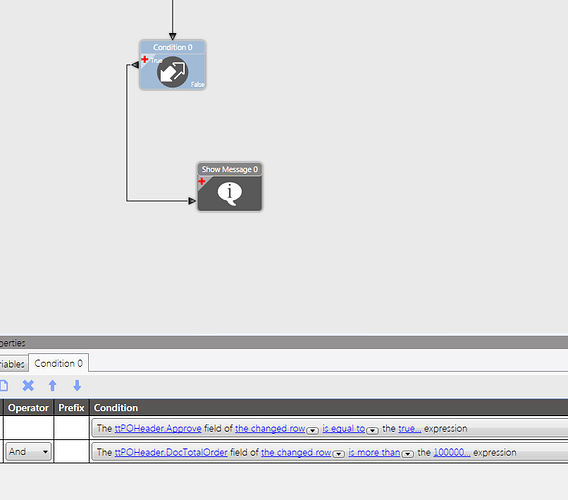
Use the change-based statement instead: the specified field has been changed from false
to true, on the changed row. That is only true on the save where the change actually
happened, because it compares the edited row with its before-image (see
The BPM tableset).
| You want to react when… | Condition |
|---|---|
| A checkbox is ticked | Field changed from false to true |
| A status moves to a specific value | Field changed from any to "VALUE" |
| Any edit to a field | Field changed from any to another |
| A record is created | There is at least one added row in the table |
Restrict by who is calling
Section titled “Restrict by who is calling”Conditions can test the calling user, for example “the user who called the method belongs to the specified group”. Combined with a change check, this gives you simple permission rules without code.
Example: stop members of a sales security group converting a prospect into a customer.
- Create a pre-processing directive on
Erp.BO.Customer.Update. - Add a Condition with two lines joined by And:
- The calling user belongs to the
XX_Salessecurity group. Customer.CustomerTypeof the changed row has been changed from any to"CUS".
- The calling user belongs to the
- Connect True to a Raise Exception widget with a message such as “Sales users can’t convert prospects to customers. Ask Credit Control to do this.”
Because it’s a pre-processing directive, the exception cancels the save and the customer stays a prospect.
Designed-query conditions
Section titled “Designed-query conditions”The “number of rows in the designed query” condition lets you run a small query that can join the directive’s tableset to database tables. It’s the no-code way to ask questions such as “does a related record already exist?”.
Example: is this the first record of its kind? Suppose you want to act on the first labor entry ever recorded against a job.
-
In a pre-processing directive on
Erp.BO.Labor.Update, add a Condition line: number of rows in the designed query is equal to 0.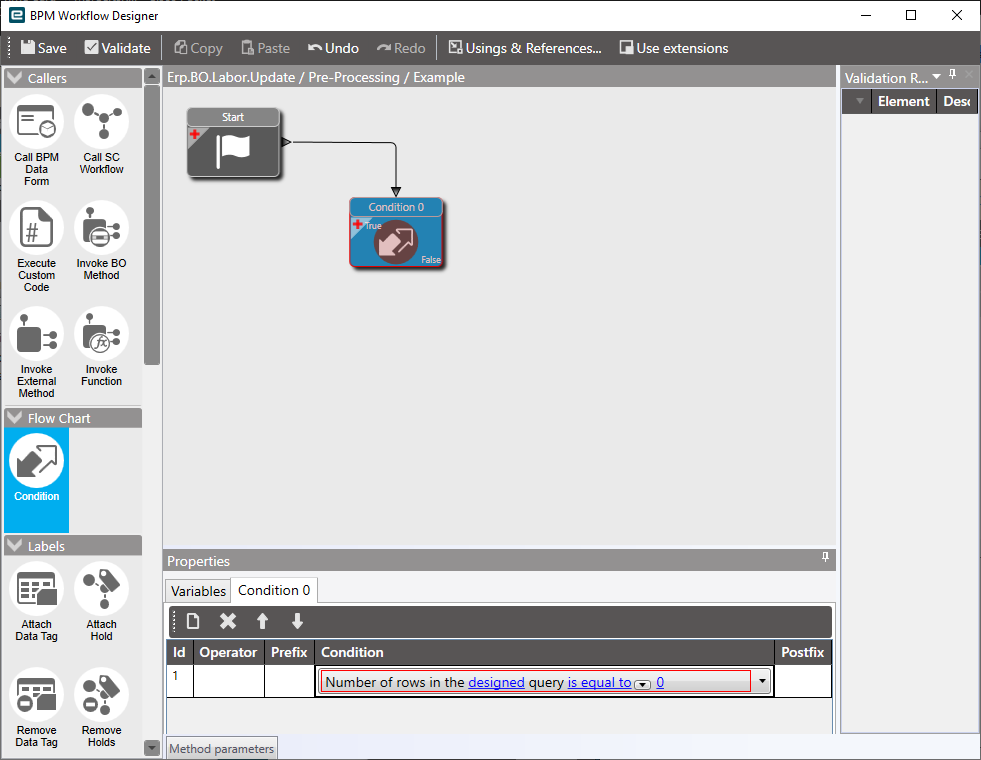
-
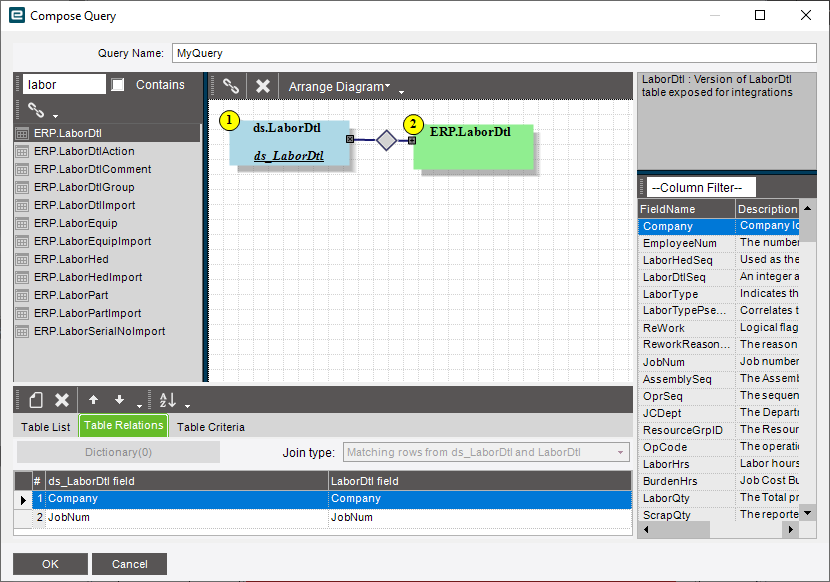
In the query, add the tableset’s
LaborDtltable and the databaseErp.LaborDtltable. -
Join them on
CompanyandJobNum, and filter the tableset table to added rows. -
If the query returns no rows, nothing for that job is in the database yet, so the row being added is the first.
This has to be pre-processing: in post-processing the new row is already saved, so the query would always find it.
Keep conditions cheap
Section titled “Keep conditions cheap”A directive on Update runs on every save of that screen, so its first condition runs a lot.
- Put cheap checks (row state, a field value, a change check) in a first Condition widget, and the designed query in a second one connected to its True exit. The query then only runs when it might matter.
- In designed queries, join and filter on indexed key fields (company, job number, order number). The Data Dictionary Viewer lists each table’s indexes.
- Avoid conditions that scan whole tables with no filter from the current row.
When widgets aren’t enough
Section titled “When widgets aren’t enough”Some tests are awkward or impossible to express with condition lines, particularly ones that need several tables or a loop. You have two options:
- Add a Custom Code widget that works out the answer and stores it in a directive variable (for
example a
boolcalledshouldRun), then follow it with a Condition on that variable. The rest of the flow can stay as widgets. - Write the whole check and action in code. This is often clearer than a long chain of widgets, and it means the condition and the change live in one place.
// Custom Code widget: decide whether the rest of the directive should runshouldRun = ds.OrderHed.Any(r => r.RowMod == IceRow.ROWSTATE_UPDATED && r.OrderHeld && ds.OrderHed.Any(o => o.RowMod == "" && o.OrderNum == r.OrderNum && !o.OrderHeld));Related
Section titled “Related”- Common BPM problems covers directives that fire twice or not at all.
- Messages and exceptions covers what to do on the True exit.
Sources
This page is written in our own words. It was informed by: