Company settings, branding and country functionality
A few company-level settings come up again and again for administrators: making companies look different so users know which one they are in, and switching on country-specific features. All of them are set per company, so repeat them in each company that needs them.
For adding a site within a company, see Add a new site.
Company color and logo
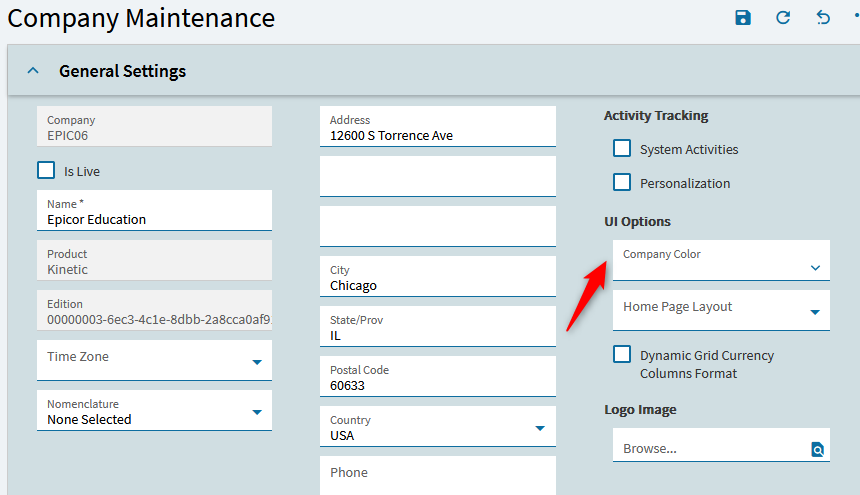
Section titled “Company color and logo”Open Company Maintenance (System Setup > Company/Site Maintenance > Company Maintenance). On General Settings, under UI Options:
- Company Color sets the accent color for the company. Giving each company, and each non-production environment, its own color is a cheap way to stop people entering live transactions in Pilot or in the wrong company.
- Logo Image (just below it) sets the company logo shown in the application.
Save, then have users log out and back in to see the change.
Country Specific Functionality (CSF)
Section titled “Country Specific Functionality (CSF)”Country Specific Functionality adds the localized features (tax reporting, statutory formats, e-invoicing and so on) that a particular country requires. A CSF has to be licensed and enabled for the environment, and then assigned to the company that needs it.
Epicor Cloud: open an EpicCare case and ask Epicor to enable the CSF for your tenant and company.
On-premises:
- On the Epicor server, open the Epicor Administration Console.
- Expand Server Management, your server, and the environment you need.
- Open Licensing and double-click your license.
- On the CSF tab, enable the country and click OK.
- Go to Companies and double-click the company.
- In the Country field, select the country you just enabled, then Select and OK.
After enabling a CSF, users need to log out and back in. Some CSFs have their own setup steps and conversion programs. Check the installation notes for the country on EpicWeb before you start.