Layers
Every change you make in Application Studio lives in a layer: a named set of modifications applied on top of the base application. The base is never edited. That’s what makes layers survive upgrades. Epicor replaces the base screen, and your layer is applied to the new version. You may still need to fix a layer after an upgrade if it referenced something that moved.
Layers, base and personalizations
Section titled “Layers, base and personalizations”| Term | What it is | Who sees it |
|---|---|---|
| Base | The application as Epicor ships it (or as you built it, for your own dashboards and apps) | Everyone, when no layer is applied |
| Layer (customization) | Your changes on top of the base | Users whose menu item points at the published layer |
| Personalization | Changes a single user makes to their own screen (hiding columns, moving fields) | Only that user |
A layer can be scoped to all companies (the default) or to one company. Layers also have a Device Type. Any Device is the default. A Phone or Tablet layer is a child of an Any Device layer and loads automatically on matching devices.
Create a layer
Section titled “Create a layer”- Open the application and launch Application Studio.
- Click the layer name at the top right (it shows <New Layer> on a fresh session). The Layer Selection panel opens.
- Enter a Layer Name and Description. Both are required. Use a consistent prefix such as
XX_so your layers are easy to find. - Leave CGC Code blank unless you’re building a country-specific localization.
- Choose the Company, or leave it as all companies.
- Click Save Layer.
To open an existing layer instead, go to Layer Selection > Change Layer, find it in the list and click Edit.
Save, preview and publish
Section titled “Save, preview and publish”- Save validates every open tab and stores the layer as a draft. If a tab fails validation, the focus jumps to it and the error shows in the Problems panel.
- Preview opens the application with your layer applied in a new window. It doesn’t refresh itself when you make more changes. Save and click Preview again.
- Publish (overflow menu) makes the layer usable: only published layers can be attached to a menu, merged or used as a parent layer. Each publish adds an entry to Publish History.
Put a layer on a menu
Section titled “Put a layer on a menu”- Open Menu Maintenance and find (or create) the menu item for the application.
- For a new item, set Program Type to Kinetic App and pick the application in Kinetic Application.
- In the Kinetic Customizations field, click the search button and select your published layer. The field looks greyed out but is editable.
- Save. Users need to reload Kinetic (log out and back in) before the menu picks up the change.
Copy a layer
Section titled “Copy a layer”Use Save As from the Application Studio overflow menu. It saves the current layer under a new name, which gives you a safe copy to experiment on without touching the original. Save As is also how you move a layer to a different company, for example from a test company to a live one.
Exporting and re-importing isn’t a reliable way to copy a layer within the same environment. Use Save As.
Merge layers
Section titled “Merge layers”If an application has several layers you want to combine:
- Open Layer Selection > Change Layer > Merge Layers.
- Tick the layers to merge. Only published layers are listed.
- Drag them into order. Layers are applied first to last, so when two layers change the same thing, the last one wins. Changes that don’t conflict are all kept.
- Click Merge Layers. The result is a brand-new layer, so give it a name and description and save it.
Promote a personalization to a layer
Section titled “Promote a personalization to a layer”When one user has personalized a screen in a way everyone should get, you can turn their personalization into a layer. You don’t have to be that user.
- Open the application and launch Application Studio.
- Open Layer Selection > Change Layer > Merge Layers.
- Tick Load from Personalization.
- Pick the user whose personalization you want and click Promote.
- Check the result in the Layout designer, give the layer a name and description, then save and publish as usual.
Export and import layers
Section titled “Export and import layers”The Application Studio home page (System Management > Kinetic Application Management > Application Studio) can move layers between environments, for example when rebuilding a test database or migrating to a new version.
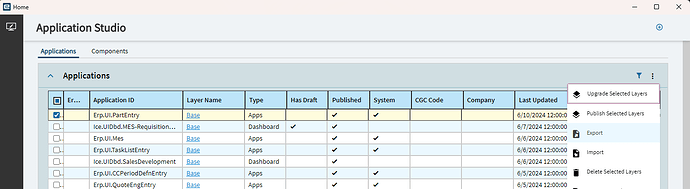
- In the Applications grid, tick the rows (layers) you want.
- Open the grid’s overflow menu and choose Export. You get a file containing the selected layers.
- In the target environment, open the same menu and choose Import, then select the file.
The same overflow menu also has Publish Selected Layers, Upgrade Selected Layers and Delete Selected Layers for bulk work.
For planned deployments, a Solution Workbench solution with a KineticApp element (plus the menu item) is the more controlled route. See Build a dashboard step by step.
Imported layer is empty
Section titled “Imported layer is empty”Symptom: after importing a layer, it opens in Application Studio with none of your changes, even though the export came from a layer that clearly has content.
Cause: the imported record has the System (base) flag set. Kinetic treats a layer flagged as base as if it were Epicor’s own base, so the modifications inside it aren’t applied as a customization. You can see the flag in the System column of the Applications grid on the home page.
Fix: the flag can’t be cleared from the UI. Ask Epicor Support for a data fix to clear it on the affected layer, then reopen the layer.
Sources
This page is written in our own words. It was informed by: