Events
An event is a chain of actions that runs when something happens: a button is clicked, a field changes, a row is selected, a system event finishes. Events replace the C# event handlers of Classic customizations. Instead of writing code, you connect widgets (actions) on a canvas.
For ready-made recipes, see Common event patterns.
Anatomy of an event
Section titled “Anatomy of an event”Every event has:
- An ID: the name shown in the Events list. Use your prefix (
XX_...) so custom events stand out from system ones. - A trigger: three settings that say when it runs:
- Type: what kind of thing to listen to (a control, a data view, another event…)
- Hook: which moment (on click, column changed, after, override…)
- Target: which specific control, view, binding or event
- A chain of widgets: actions connected left to right. Many widgets have more than one exit.
conditionhas True and False, and service calls have success and error paths, so an event can branch. - Disabled: a checkbox at the top right to switch the event off without deleting it.
- Allow interaction during events: by default the screen blocks input while an event runs. Tick this for long-running events that shouldn’t lock the user out.
An event with no trigger never runs on its own. It sits under User Defined Actions and other events call it with event-next, which makes it a reusable subroutine.
Trigger types
Section titled “Trigger types”The Events sidebar groups events by trigger type. The ones you’ll use most:
| Type | Hook | Target | Use it for |
|---|---|---|---|
| Control | On Click | A control or toolbar tool ID | Buttons and custom tools |
| EpBinding | On Click, On Search | A binding such as TransView.XX_Jobs |
Bound buttons, search fields and search chip selectors |
| DataView | Row Changed | A data view | Reacting when a different row becomes current, such as clicking a grid row |
| DataTable | Column Changed | A data view, plus the Columns to watch | Reacting when a field’s value changes, whether the user typed it or an event set it |
| Event | Before, After, Override | An existing event ID | Adding to or replacing system behavior |
| Window | load hooks | The form | Running something as the form loads (for example Form_OnLoad) |
The sidebar groups these as Component (Control, Grid, Page, Tree, Window), Data (DataTable, DataView, EpBinding), General (Event) and User Defined Actions (no trigger).
Create an event
Section titled “Create an event”- Open Events in the sidebar and click Add New. For a button, you can instead select the button and use Behavior > On Click, which creates the event with the trigger already set.
- Rename the event with your prefix.
- Set Type, Hook and Target in the trigger properties.
- Drag widgets from the Toolbox onto the canvas and connect them. The first one attaches to the trigger automatically.
- Select each widget and fill in its parameters.
- Save the layer and preview.
Widgets you’ll use most
Section titled “Widgets you’ll use most”| Widget | What it does |
|---|---|
row-update |
Sets one or more columns on the current row of a data view. The workhorse. |
condition |
Evaluates an expression and branches True / False |
switch |
Branches on a value into several cases |
event-next |
Runs another event, such as a system refresh or one of your user-defined actions |
erp-baq |
Runs a BAQ into a data view (get) or saves an updatable BAQ (update) |
rest-erp |
Calls a business object method or an Epicor Function |
property-set |
Changes a property of a control, such as hidden |
row-find / row-current-set |
Finds a row by expression, then makes it the current row |
dataview-condition |
Branches on whether rows in a view match an expression |
slider-open |
Opens a slide-out panel |
app-open |
Opens another application or menu item |
url-open |
Opens a web page |
search-show / search-value-set |
Opens a search and writes the selected values back |
control-focus-set |
Moves the cursor to a control |
console-write |
Writes to the browser console, which is handy for debugging |
Expressions in these widgets use {View.Column} placeholders and can run JavaScript. See Expressions and JavaScript.
Extending and overriding system events
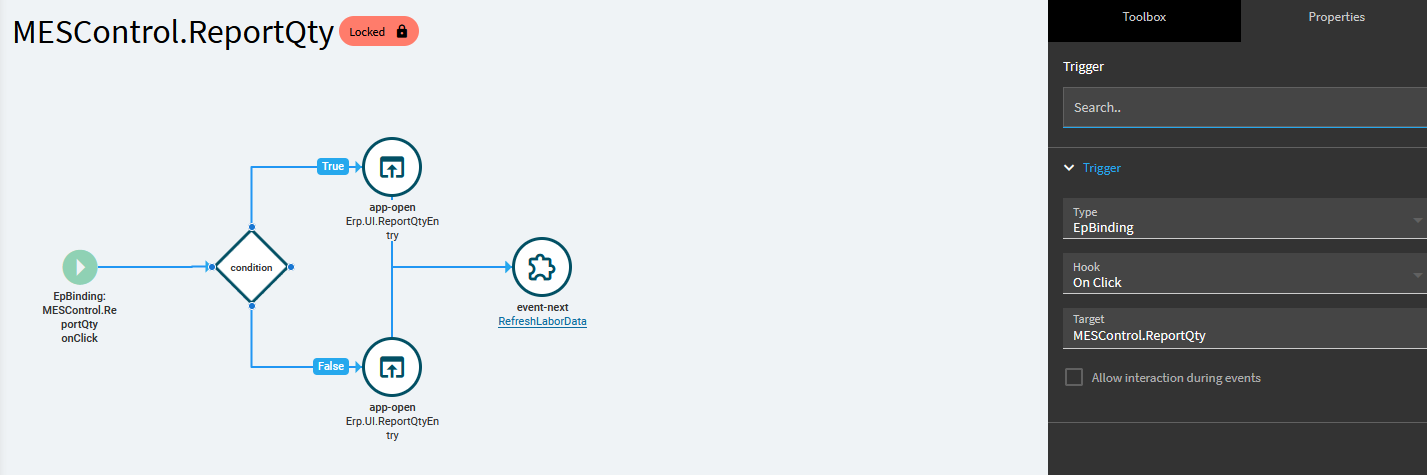
Section titled “Extending and overriding system events”System events (those in the base application) are shown Locked. You can’t edit them in place, but you can hook them. To add behavior, create your own event with trigger Type Event, Target the system event’s ID, and one of these hooks:
| Hook | Effect |
|---|---|
| Before | Your event runs, then the system event |
| After | The system event runs, then yours. This is the safest and most common choice |
| Override | Your event runs instead of the system event |
To find the right system event to hook, turn on tracing (Ctrl+Alt+8 in the browser console) and perform the action in the base screen. The log shows each event by name in the order it runs. See Debugging.
Override example: open your own screen instead of the base one
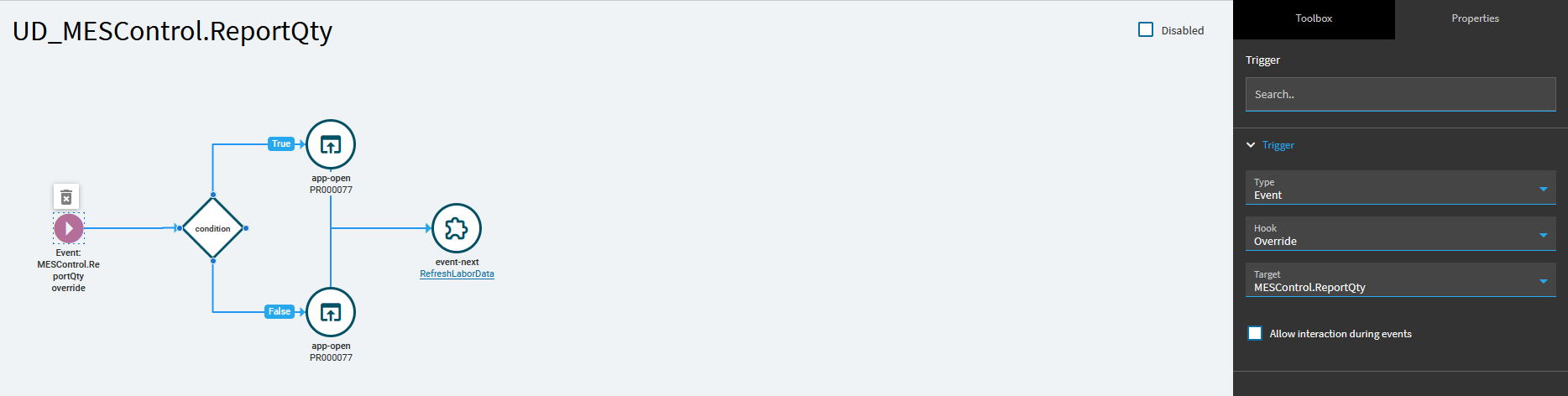
Section titled “Override example: open your own screen instead of the base one”Say a button runs a system event that opens a base application with app-open, and you want it to open your customized version (a menu item whose layer you built).
- Open the system event and note its ID and how its chain is built. Here it’s a
conditionchoosing between twoapp-openwidgets, followed by anevent-nextthat refreshes data. - Create a new event with Type
Event, HookOverride, Target the system event’s ID. - Rebuild the same chain in your event, changing only what you need. Here that’s pointing each
app-openat your custom menu item instead of the base application. - Keep everything else the original did, including the trailing refresh, or you’ll lose that behavior.
Events and data rules
Section titled “Events and data rules”Events are one-off: they run, change data, and finish. Data rules are continuous: they re-evaluate every time the data changes. If an event and a rule both set the same property of the same control (for example disabled), the rule wins and the event’s change appears to do nothing. Let the event set a flag in the data (say TransView.XX_AllowEdit) and make the rule’s condition use that flag, so only the rule decides the property.