Label templates and data fields
A BarTender template (.btw) holds the label layout: text, barcodes, graphics and which data field
feeds each object. This page covers where to store templates, how to connect a template to the fields
Epicor sends, and how to handle labels that need more than one page.
Where to keep templates
Section titled “Where to keep templates”The template is opened by BarTender at print time, from the path in the report style’s Report Location. It is also opened by whoever designs or edits labels. So store templates in one shared folder that both can reach:
- On-premises: a network share, for example
\fileserver\share\Bartender\Templates, readable by the BarTender service account and writable by label designers. - Cloud: a folder on the BarTender server, or on a share it can reach. Only the BarTender server
needs to open templates; Epicor only needs to write the path into the
.btfile.
Write the report style path exactly as the BarTender server sees it. A drive letter mapped on a
designer’s PC (Z:\…) won’t work unless the BarTender service has the same mapping.
Design against real Epicor fields
Section titled “Design against real Epicor fields”The easiest way to get the right field names into a template is to use a real .bt file as the
design-time data source.
- Print one label from Epicor so a
.btfile is created, and take a copy of it before the integration moves it (or copy it back from the processed folder). - Open the copy in a text editor and delete the command header lines at the top, the ones
holding
%BTW% … %END%, so the file starts with the row of field names. - Save it with a
.txtextension. - In BarTender Designer, set the template’s database connection to that text file (delimited text, with field names in the first row).
- Bind label objects to the named fields, then save the template to the shared templates folder.
If you skip step 2 and point Designer at the raw file, the command line is read as if it were data, and the database field list shows one meaningless field instead of the real columns:
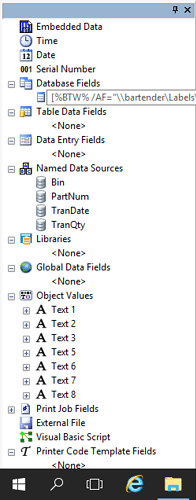
The header lines are only meant for the integration. At print time the integration reads them to find the template and printer, and passes the data rows to the template.
Printing several pages per label
Section titled “Printing several pages per label”If one record needs more than one printed page, for example a carton label and a matching contents label, you have two options:
- Add another template to the same BarTender document. Each template prints as a further page for every record. This only works when all the pages go to the same printer on the same label stock and layout.
- Print separate documents. When the pages need a different size, margins or printer, make them separate label documents, each printed on its own (for example two report styles, or two Auto Print widgets), rather than forcing them into one document.
Related
Section titled “Related”Sources
This page is written in our own words. It was informed by: