Layout, controls and toolbars
The Layout designer is where you place and configure controls on a page. Open it from the Application Map by selecting a page and clicking Edit (the pencil). This page covers the parts of the designer you’ll use on every job, then three recurring tasks: hiding things, toolbar tools and the data tree.
Finding your way around
Section titled “Finding your way around”The right-hand panel has two tabs:
- Toolbox: things you can drag onto the page, split into Components (text boxes, grids, panel cards, tabs…), User Defined and Widgets (for example the Website widget). Use the search box. It’s quicker than scrolling.
- Properties: settings for whatever is selected on the canvas. A breadcrumb at the top shows where you are when you drill into nested settings, for example
metafx-panel-card-grid > Grid Model > Provider Model. Click a breadcrumb segment to go back up.
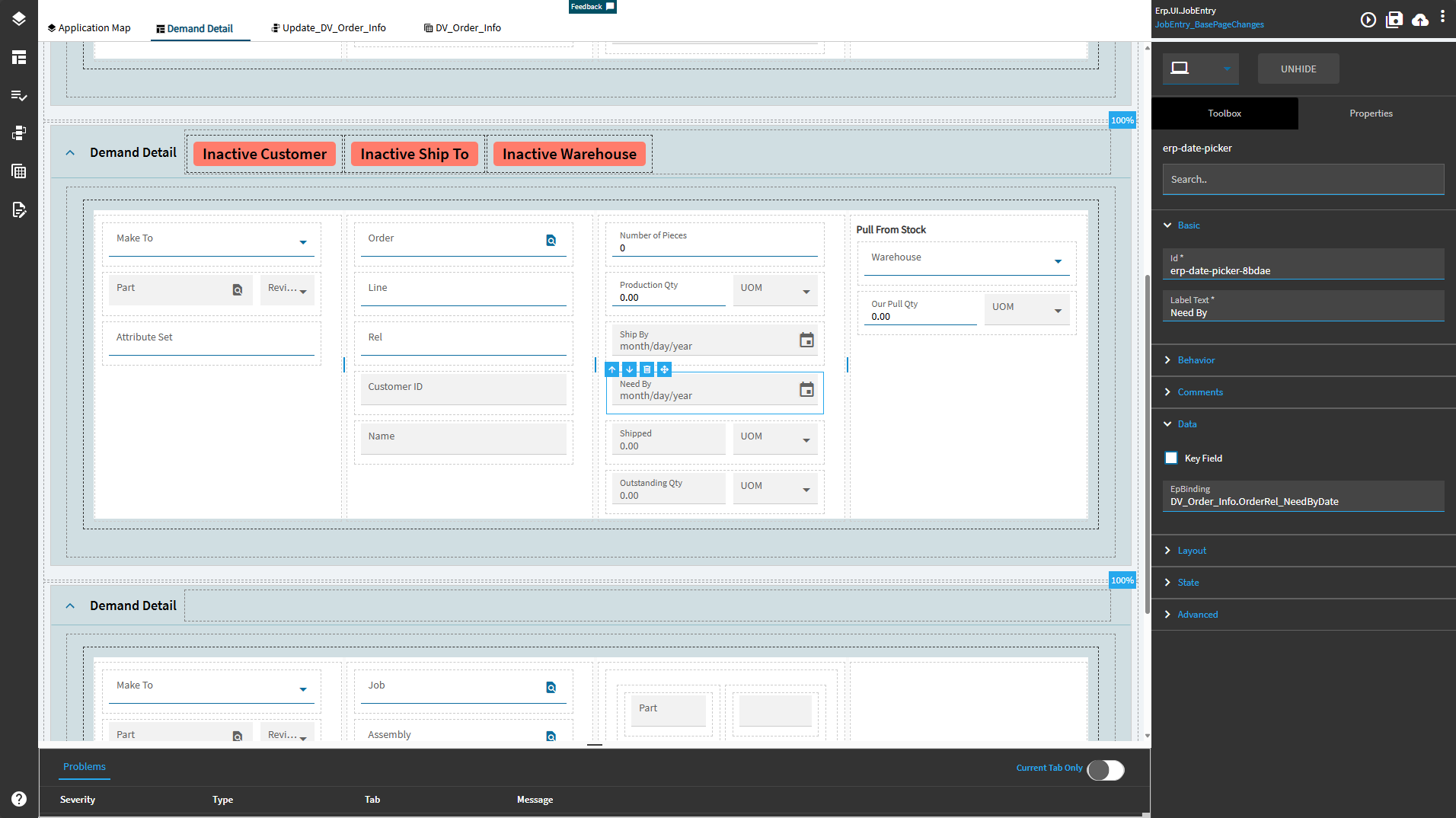
Properties are grouped the same way on most controls:
| Group | What’s in it |
|---|---|
| Basic | Id (unique control ID, used by events) and Label Text |
| Data | EpBinding (the View.Column the control shows and edits) and Key Field |
| Layout | Width and flex settings |
| State | Personalizable (users can hide/show it), Customizable (child layers can change it), Hidden |
| Behavior | Shortcuts to create events such as On Click for the control |
| Advanced | Control-specific settings: combo box lists, grid options, page tools |
| Comments | Developer notes. Only visible in Application Studio, never to users |
The device switch above the Toolbox resizes the canvas to preview desktop, tablet and phone widths.
Binding a control to data
Section titled “Binding a control to data”A control’s EpBinding decides what it shows. Set it to DataView.Column, for example OrderHed.PONum. Controls never hold their own value, so:
- Two controls bound to the same column always show the same value.
- To store a value that doesn’t belong in the database, like a filter input, a flag or a pasted list, bind to a new column on
TransView, such asTransView.XX_FilterText.TransViewis the screen’s scratch data view. - If a bound control stays empty, the problem is the data view, not the control. Check it with Ctrl+Alt+V (see Debugging).
Containers
Section titled “Containers”Controls sit inside containers. The ones you’ll use most:
- Panel card: the collapsible card with a title bar. Most pages are a stack of these.
- Column (shown as
metafx-divin the Properties header): groups controls in one area. Advanced > Columns sets how many columns (1 to 10) and Orientation lays them out vertically or horizontally. Label Text adds a bold heading above the group. - Group box: a bordered group inside a card.
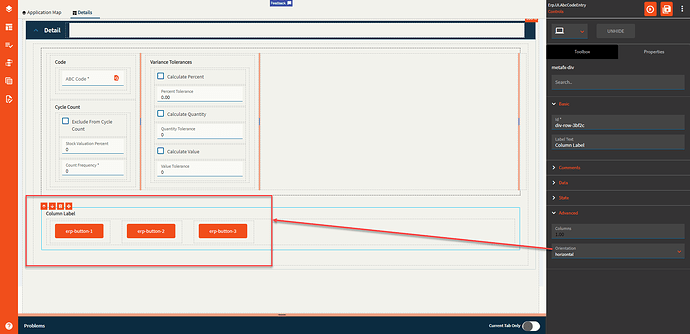
With Flex Layout turned on (it is by default on the main page), each panel card and group box shows a Minimum Width drop-down on the canvas. Set three cards to 33% to put them side by side.
Hiding and disabling controls
Section titled “Hiding and disabling controls”There are three ways to hide a control. Pick by when it should be hidden:
| When | Use | How |
|---|---|---|
| Always | The control’s State > Hidden property | Tick Hidden |
| Whenever some data condition is true | A data rule | Action SettingStyle.Invisible (or SettingStyle.Disabled) on the control’s bound field. See Data rules. |
| At one moment, as part of an event | The property-set widget in an event |
Target the control, set the hidden property to true, or to a binding such as {TransView.XX_HideDetails} so the data decides |
Prefer the data rule when the condition depends on data. A rule re-evaluates every time the data changes, while an event only runs when triggered, so an event-based hide can get out of step. If you use both on the same control, the rule wins. See Troubleshooting.
Toolbar tools
Section titled “Toolbar tools”A page’s toolbar buttons (Save, New, Refresh, custom tools) are defined on the page itself.
-
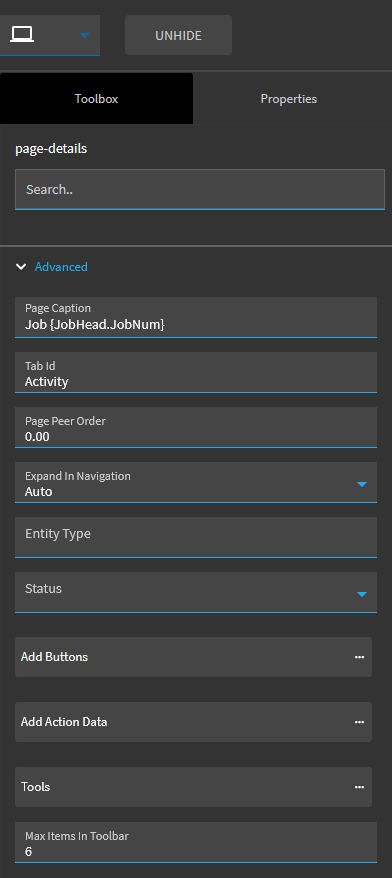
Click the page’s header area on the canvas so the Properties panel shows
page-details. -
Expand Advanced and open Tools.
-
Pick an existing tool from the drop-down to change it, or click + to add a new one.
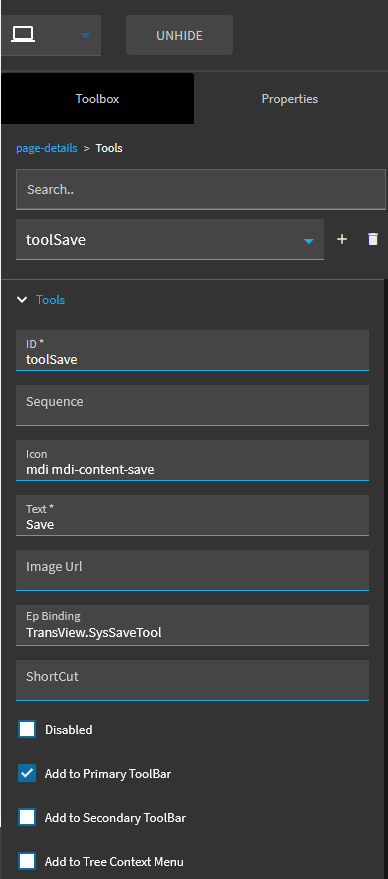
Each tool has these settings:
| Setting | Notes |
|---|---|
| ID | Referenced by events: trigger Control > On Click > your tool ID |
| Sequence | Position relative to other tools |
| Icon | A Material Design Icons class, written mdi mdi-<name>, for example mdi mdi-content-save |
| Text | Tooltip / menu text |
| Ep Binding | Optional. Lets data rules disable or hide the tool by binding |
| ShortCut | A keyboard shortcut for the tool |
| Disabled | Turns the tool off |
| Add to Primary ToolBar / Secondary ToolBar / Tree Context Menu | Where the tool appears |
Max Items In Toolbar on the page limits how many tools show before the rest move into the overflow menu. To hide a base tool, select it and untick the toolbar options, or tick Disabled.
Panel cards and panel card grids have their own tools under Advanced > Action Data. That’s where you add a Save button to an editable grid, for example (see Updatable BAQ grids).
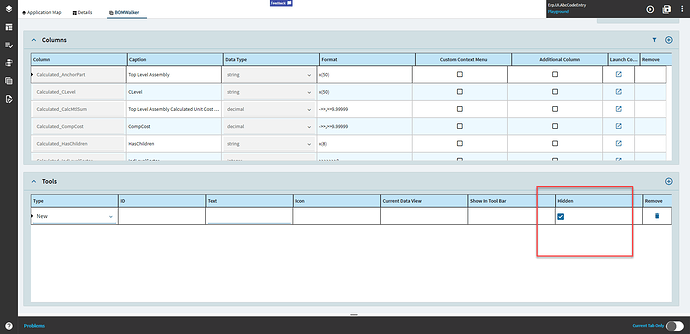
Remove the New button from a panel card grid
Section titled “Remove the New button from a panel card grid”The New (and Delete) buttons on a grid come from the tools defined on its data view, not the grid. To remove one:
- Open the grid’s data view in the Data Views designer.
- In the Tools section, add a row with Type
New. - Tick Hidden.
The same approach should work with a Delete tool for the delete button.
Data tree captions
Section titled “Data tree captions”On screens with a tree (such as method or job trackers), you can control what each node shows:
- Select the page and open
page-details> Advanced > Data Tree. - Pick the data view from Data Views.
- Tick Override Tree Captions.
- Open Show Columns to toggle which columns appear in the node text, rename their labels and drag them into order.
Expect some trial and error before the captions look right. Preview after each change.
Sources
This page is written in our own words. It was informed by: