Grids and panel card grids
The panel card grid (metafx-panel-card-grid) is a grid inside its own collapsible card. It’s the main way to show lists of data in Application Studio, on dashboards and on customized screens alike. Nearly all of its behavior is set in two places: the Grid Model (what the grid shows) and, inside that, the Provider Model (where the rows come from).
Where the settings live
Section titled “Where the settings live”| Path | What it controls |
|---|---|
| Basic | Id and Title of the card |
| Data > Grid Model | Grid behavior: Columns, editable, Resizable, Sortable, Filterable, Advanced Filter |
| Data > Grid Model > Columns | The columns users see, in order, with titles and editors |
| Data > Grid Model > Provider Model | The data source: Ep Binding (target view), Baq ID, Baq Options (Where), Svc / Svc Path / Rest Params for service-backed grids, Client Filter, and an Auto Load Grid option |
| Advanced | Auto Fill Container, Expand at Runtime, Enable FullScreen, View Options, Action Data (tools) |
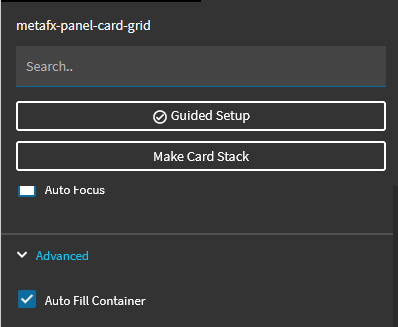
The top of the properties panel also has Guided Setup, a wizard that walks through the source and columns. It’s a good place to start on a new grid.
Bind a grid to a BAQ
Section titled “Bind a grid to a BAQ”-
Drag a Panel Card Grid from the Toolbox onto the page.
-
Select the grid area (click where it says “No records available”) and open Properties.
-
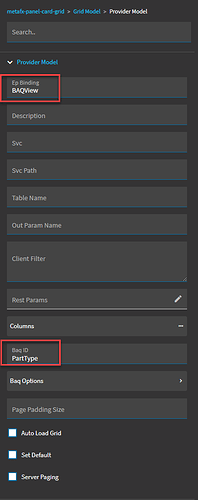
Go to Data > Grid Model > Provider Model:
- Ep Binding: the data view the rows load into. Point it at a view you created when events, rules or other controls need to use the same data.
- Baq ID: the BAQ.
- Baq Options > Where: optional filter, e.g.
Part_PartNum = '??{KeyFields.PartNum}'. See BAQ data views. - Tick Auto Load Grid if it should load without the user asking.
-
Add columns (next section).
-
Save and preview.
Add columns
Section titled “Add columns”Add columns in Data > Grid Model > Columns, with the + button:
- Field: the column name in the view. For a BAQ that’s the alias, e.g.
OrderHed_OrderNum. - Title: the column header users see.
- Erp Editor: the editor type, such as text or number.
Spelling matters. A typo in Field can stop the whole grid from loading, so preview after every few columns. Columns appear in the order you add them.
The wizard-created grid that errors
Section titled “The wizard-created grid that errors”Symptom: a dashboard or app built with the Basic Application Wizard from a BAQ that has subqueries throws a SQL error about invalid columns when the grid loads.
Cause: a known wizard bug adds columns from every subquery to the grid, not just the top-level query. The provider then asks the BAQ for columns that don’t exist at its top level.
Fix: open the grid’s Grid Model > Columns and delete every column that isn’t in the BAQ’s top-level display fields. On newer releases you can also re-run the grid wizard to rebuild the column list.
Size and loading
Section titled “Size and loading”- Auto Fill Container (under Advanced) makes the card fill the space available to it. If you only resize the grid itself, it still loads more records as you scroll, but the card’s visible size doesn’t change.
- Expand at Runtime (under Advanced) opens the card when the page loads. A collapsed card doesn’t fetch data. The expansion is what triggers the load, so on a dashboard that should show data straight away, tick this.
- Enable FullScreen adds a full-screen button, turning the card into a virtual page.
Grid options
Section titled “Grid options”Under Grid Model, tick Resizable, Sortable, Filterable and Advanced Filter to give users the usual column resizing, sorting and filtering. Tick the grid model’s editable option (and mark individual columns editable) for editable grids. See Updatable BAQ grids.
View options
Section titled “View options”Advanced > View Options lets one grid offer several pre-set views, each with its own description and BAQ where clause, such as “All” and “Unapproved only”. Tick Set Default on the one to load first.
Service-backed grids
Section titled “Service-backed grids”A grid doesn’t have to use a BAQ. The provider model can call a service method instead, with Svc / Svc Path naming the endpoint and Rest Params supplying the arguments as JSON. Values can use the same placeholders as where clauses:
{ "fromDate": "??{XX_Filters.FromDate}", "toDate": "??{XX_Filters.ToDate}", "onlyOpen": true}The parameter names must match the method’s. Look at the method’s request in the browser’s Network tab to see what it expects. Many base screens use this for their own grids, so it’s also useful for reading how an existing grid gets its data.
Hide the New and Delete buttons
Section titled “Hide the New and Delete buttons”Those buttons come from the grid’s data view, not the grid. See Remove the New button from a panel card grid.
Add a field the grid’s data doesn’t include
Section titled “Add a field the grid’s data doesn’t include”If the column you want isn’t in the grid’s data at all, you can add it on the server. See Add columns to an existing grid.
Sources
This page is written in our own words. It was informed by: