Data rules
A data rule is a standing instruction: whenever these conditions are true for a row, apply these actions. Unlike an event, a rule doesn’t run once. The framework re-evaluates it every time the data it depends on changes. That makes rules the right tool for anything that should always reflect the current data: making a field read-only, hiding a button, highlighting a value, defaulting one field from another.
Anatomy of a rule
Section titled “Anatomy of a rule”Open Data Rules in the sidebar and click Add New. The designer has three sections.
Header
| Setting | Notes |
|---|---|
| Name | Use your prefix, e.g. XX_DefaultReference |
| Description | What it does, in plain words |
| Action Data View | The view whose rows the actions apply to |
| Row Rule Criteria | Leave on Conditions for the normal “when… then…” rule |
Conditions: one or more rows, each with:
- Not: inverts the condition
- Data View and Field: what to test
- Operator: for example
Equal,Contains - Value/Field: whether to compare against a literal Value or another Field
- Value: the literal, or the other field
With several conditions, click the operator between them to toggle AND / OR. A rule with no conditions applies its actions all the time.
Actions: what happens when the conditions are true:
| Action | Effect |
|---|---|
SetColumnValue |
Sets a field to a literal value or to another field’s value |
SettingStyle.Disabled |
Makes the field (or the control bound to it) read-only |
SettingStyle.Invisible |
Hides the control bound to the field |
SettingStyle.Status |
Highlights the field with a status color such as Warning |
DisableRow |
Makes the whole row read-only, with an Except these columns list for fields that should stay editable |
In Field, enter the column name without the data view prefix (for example Reference, not XX_View.Reference). For a button or tool, that means the column part of its EpBinding.
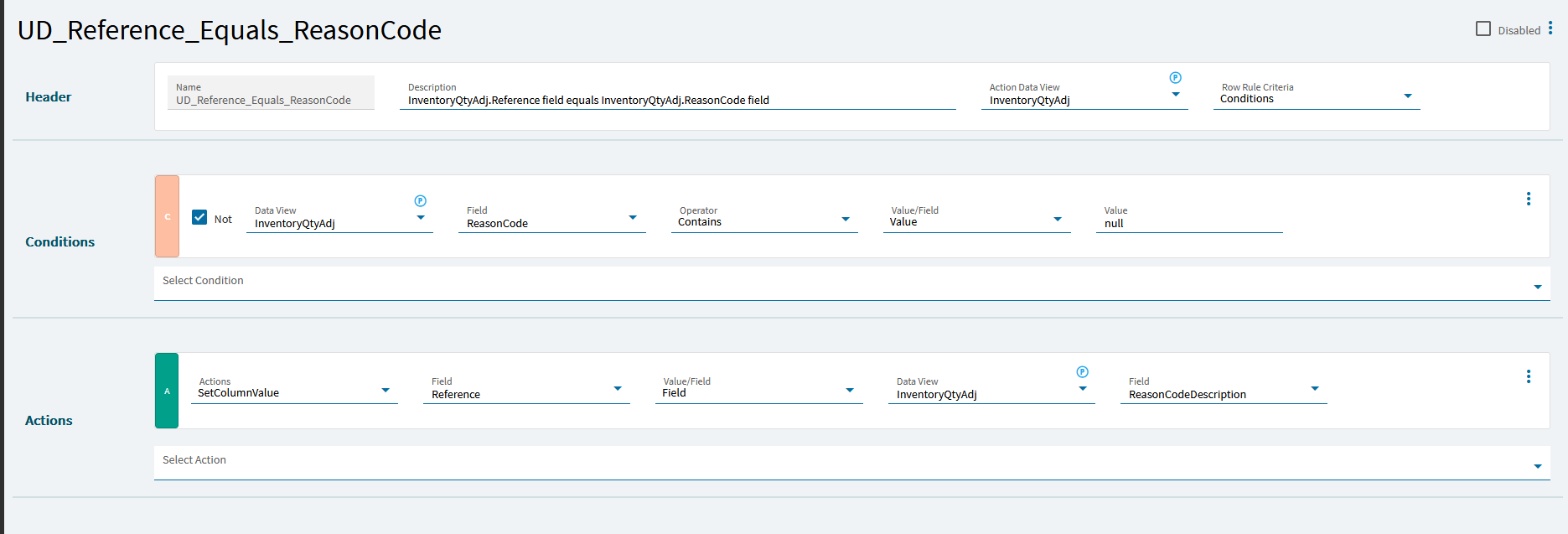
Example: default a field from another field
Section titled “Example: default a field from another field”On an inventory adjustment screen, you want the Reference field to take the reason code’s description automatically whenever a reason code is chosen, and users shouldn’t overtype it.
- Add a rule with Action Data View
InventoryQtyAdj. - Condition: tick Not, Data View
InventoryQtyAdj, FieldReasonCode, OperatorContains, Value/FieldValue, Valuenull. This reads as “reason code is not null”. - Action:
SetColumnValue, FieldReference, Value/FieldField, then Data ViewInventoryQtyAdjand FieldReasonCodeDescription. - In the Layout designer, make the Reference text box read-only (or add a second action,
SettingStyle.DisabledonReference). - Save and preview. Pick a reason code and the reference fills in.
Testing for null
Section titled “Testing for null”The Equal operator with a value of null doesn’t reliably match empty fields. Use Contains with a value of null instead:
- “Field is null”: Operator
Contains, Valuenull - “Field is not null”: same, with Not ticked
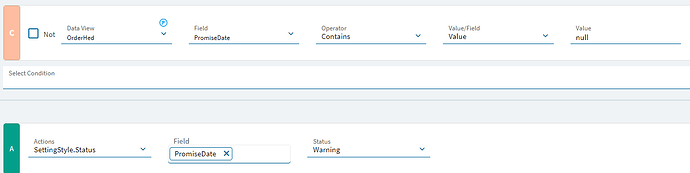
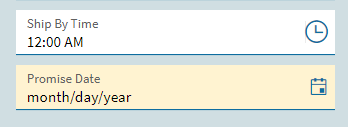
With that rule in place, an empty Promise Date is highlighted:
Copying and adjusting system rules
Section titled “Copying and adjusting system rules”The base application ships its own rules, and you can’t edit those in place. Right-click one in the sidebar and choose Copy. The copy is named Copy of … and starts disabled. Enable it from the rule’s overflow menu once it’s saved.
Custom buttons disabled in read-only (tracker) mode
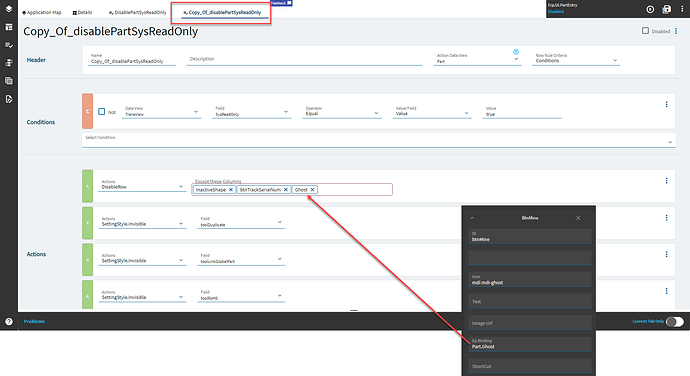
Section titled “Custom buttons disabled in read-only (tracker) mode”When a screen is opened read-only (for example as a tracker), a system rule sets everything read-only whenever TransView.SysReadOnly is true. It uses DisableRow, which catches your custom buttons too.
To keep a custom button clickable:
- Find the system rule whose condition is
TransView.SysReadOnlyEqualtrueand whose action isDisableRowon the main view. - Copy it.
- In the copy’s
DisableRowaction, add your button’s binding column to Except these columns. - Enable the copy, save and test in read-only mode.
Rules win over events
Section titled “Rules win over events”If a rule and an event both set the same property of the same control, the rule wins. For example, a rule disables a field and a button’s event tries to enable it: nothing happens. The rule is re-applied as soon as the data is evaluated again.
Don’t fight it. Let the event change data and let the rule decide the property. For example, the button’s event sets TransView.XX_AllowEdit to true, and the rule’s condition includes “XX_AllowEdit is not true”.
Inspecting rules at runtime
Section titled “Inspecting rules at runtime”With the browser console open, Ctrl+Alt+1 lists every rule as a tree and Ctrl+Alt+2 as a table, grouped by data view, including whether each one currently evaluates true. Use this when a field is disabled or hidden and you can’t tell why. See Debugging.
Sources
This page is written in our own words. It was informed by: