Updatable BAQ grids
An updatable BAQ (uBAQ) lets users edit rows in a grid and save them back through the BAQ’s update logic. In Kinetic, the grid won’t wire the save up for you. You tell it which view holds the rows, which columns are editable, and what to do when the user clicks Save.
Before you start
Section titled “Before you start”Build and test the updatable BAQ in the BAQ designer first, with its update processing and the columns you want editable. If the BAQ doesn’t save correctly on its own, nothing below will fix it.
1. Create a data view for the rows
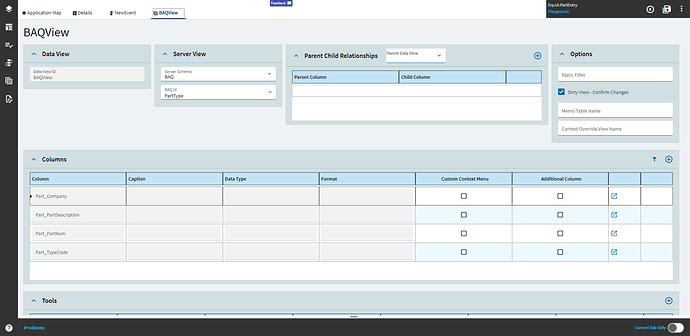
Section titled “1. Create a data view for the rows”In Data Views, add a view, e.g. XX_EditRows, with Server Schema BAQ and BAQ Id your uBAQ. This view holds the rows the grid shows and the save sends back.
2. Add the grid and make it editable
Section titled “2. Add the grid and make it editable”-
Drag a Panel Card Grid (or a plain grid) onto the page.
-
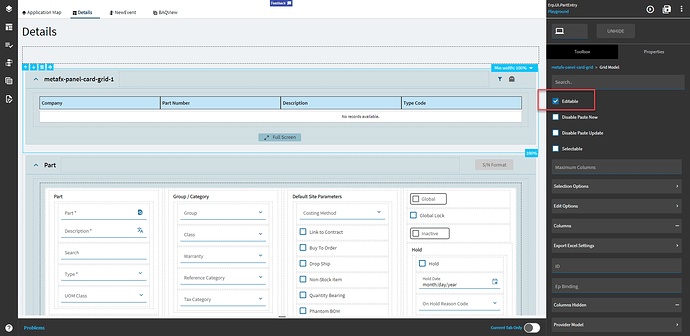
In Data > Grid Model, turn on the grid’s editable option.
-
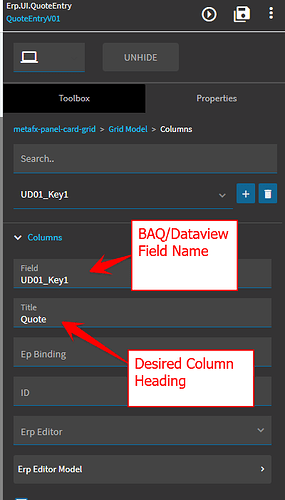
In Data > Grid Model > Columns, add the columns. Field is the BAQ alias and Title is the header. Don’t touch Provider Model > Columns.
-
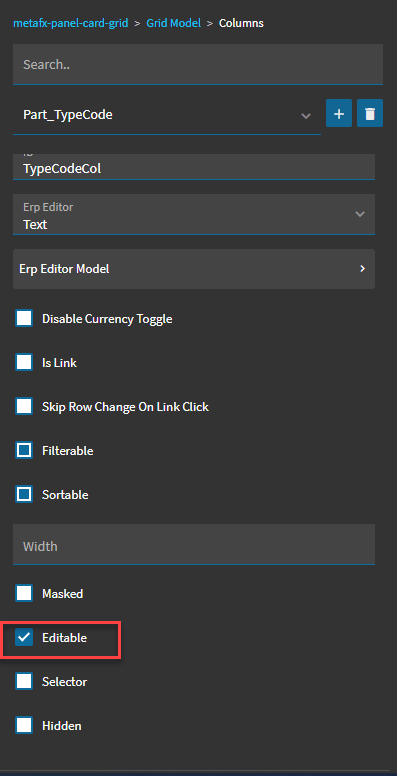
On each column users should change, turn on its editable option.
-
In Grid Model > Provider Model, set Ep Binding to
XX_EditRowsand Baq ID to your uBAQ.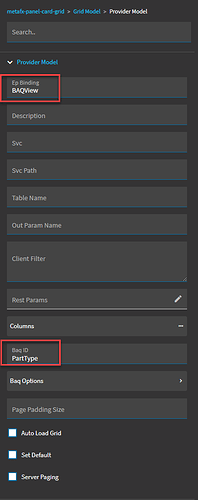
3. Add a Save tool to the grid
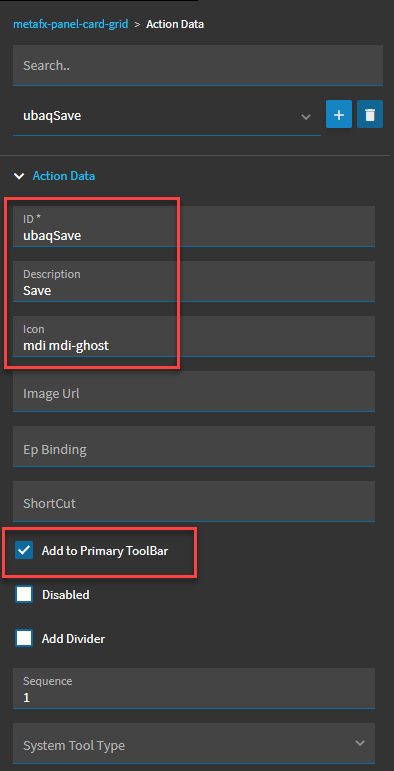
Section titled “3. Add a Save tool to the grid”- Go back to the grid’s top-level properties and open Advanced > Action Data.
- Add a tool:
- ID: e.g.
XX_toolSaveRows. The event refers to it. - Text: the hover text, e.g.
Save changes - Icon: optional, a Material Design Icons class such as
mdi mdi-content-save - Tick Add to Primary ToolBar if it should show on the card’s toolbar
- ID: e.g.
4. Create the save event
Section titled “4. Create the save event”-
Create an event with trigger Type
Control, HookOn Click, TargetXX_toolSaveRows.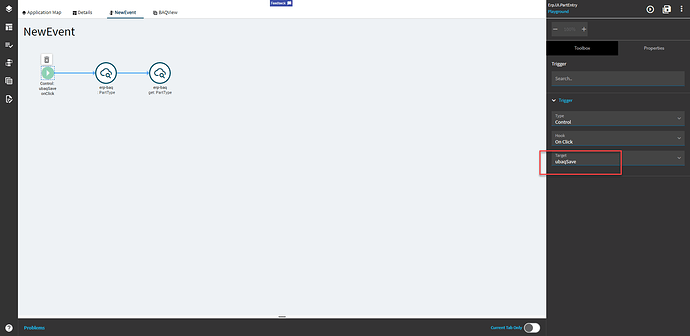
-
Add an
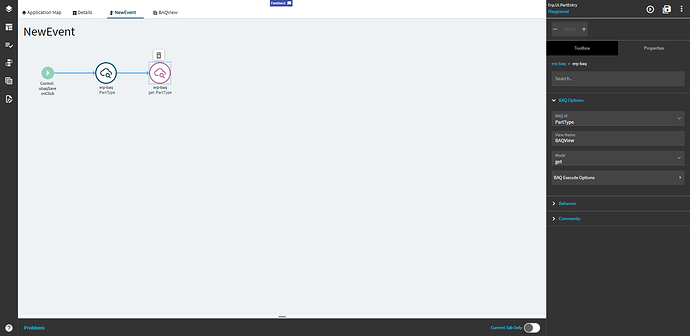
erp-baqwidget: BAQ Id your uBAQ, View NameXX_EditRows, Modeupdate. Under BAQ Update Options, set Operation toupdate. The same panel has Send All Rows and Rollback Data On Error. Test with your uBAQ to see which behavior you need.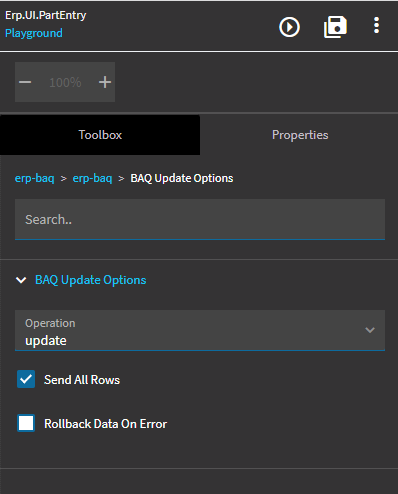
-
On the success path, add a second
erp-baqwith the same BAQ and view ingetmode. This reloads the grid, so users see what the server actually saved, including rows that now drop out of the query.
5. Save, close, reopen, then test
Section titled “5. Save, close, reopen, then test”Save the layer and close and reopen it before previewing. Grids and views set up in the same session often don’t load data in preview until the layer has been reopened. Then edit a row, click your save tool and check the change in the database.
Gotchas
Section titled “Gotchas”- Parent/child views: if the uBAQ view has a parent/child relationship, every relationship column must be among the grid’s columns, or the save can’t match rows.
- Nothing happens on save: check the Network tab for the update call and its response. uBAQ validation errors come back there. See Debugging.
- Grid doesn’t show the change: you’re missing the refresh
erp-baq(get) after the update.
Releases before 2022.2
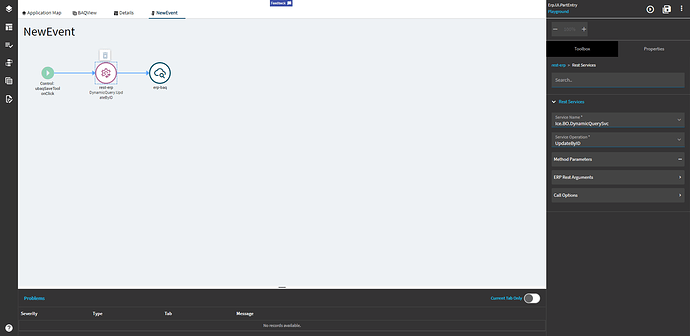
Section titled “Releases before 2022.2”Older releases don’t have the update mode on erp-baq. Use rest-erp to call the BAQ service directly in the save event instead:
- Service Name
Ice.BO.DynamicQuerySvc, Service OperationUpdateByID - Method Parameters:
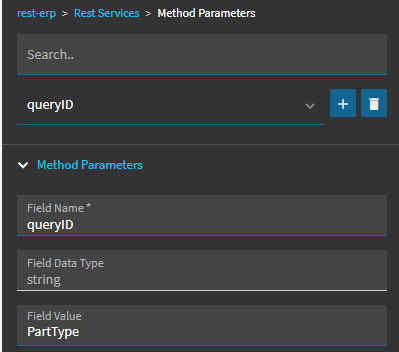
queryID(string) = your uBAQ ID, andqueryResultDataset(object) = the name of the data view holding the edited rows, e.g.XX_EditRows - ERP Rest Arguments > Request Parameters: Parameter Path
queryResultDataset, Parameter NameResults, View NameXX_EditRows, and under Dataset set both Dataset Id and Server Dataset Id toXX_EditRows
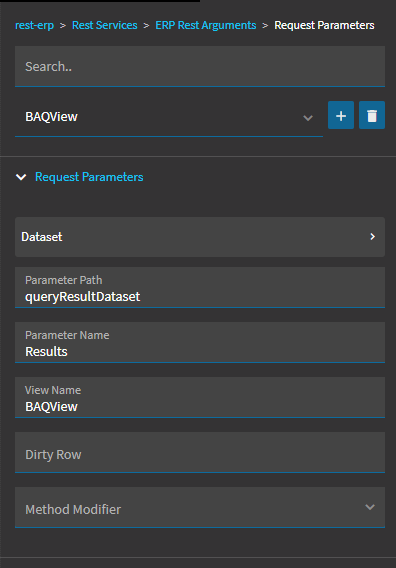
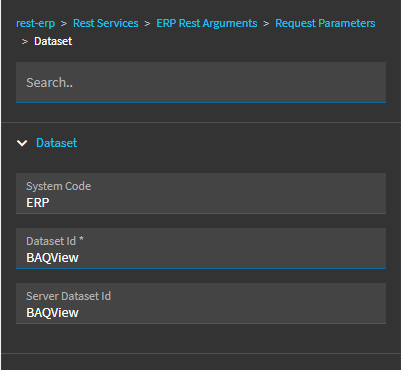
Those parameter path and name values are fixed. The call fails with anything else. Follow it with an erp-baq in get mode to refresh, as above.
Sources
This page is written in our own words. It was informed by: