Charts in dashboards
Application Studio has no general-purpose chart component for dashboard grids. Two workarounds are in use. One builds a chart image URL on the server and shows it in a Website widget. The other uses Epicor Data Discovery’s chart widget, where your release still has it.
Option 1: a chart image from an Epicor Function
Section titled “Option 1: a chart image from an Epicor Function”An Epicor Function takes the grid’s rows, totals them, and returns the URL of a chart image from a chart-rendering web service. A Website widget on the dashboard displays that URL.
1. Data views
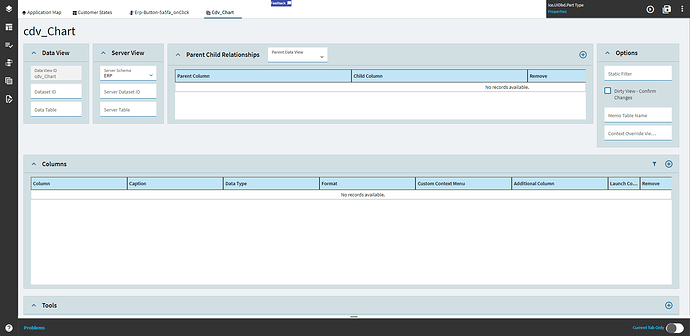
Section titled “1. Data views”Create two views with no server schema:
XX_Chart, with a columnURL, which the Website widget will displayXX_ChartOptions, for the user’s choices, such asChartType
2. Layout
Section titled “2. Layout”-
Add a panel card with a column in it, then drag the Website widget from Toolbox > Widgets into the column. Set its URL to
{XX_Chart.URL}.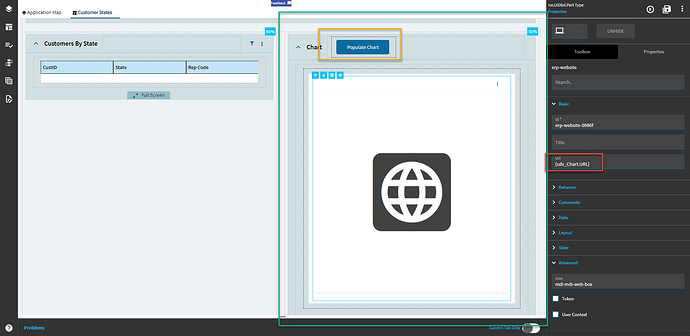
-
Add a combo box bound to
XX_ChartOptions.ChartTypewith a static display/value list (see Combo boxes), e.g. displayPie/ valuep, displayVertical bar/ valuebvs. The values are the chart service’s chart-type codes.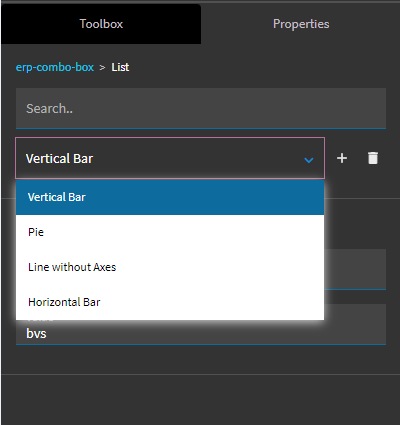
-
Add a button to draw the chart.
3. The function
Section titled “3. The function”Create a function in a library, e.g. XX_Charts.CountBy, with inputs InDS (DataSet), InTable (string), LabelCol (string), ChartType (string) and output OutURL (string):
// Count the rows per distinct value of LabelCol and build a chart image URL.var counts = new Dictionary<string, int>();
foreach (DataRow r in InDS.Tables[InTable].Rows){    var key = Convert.ToString(r[LabelCol]);    counts[key] = counts.TryGetValue(key, out var n) ? n + 1 : 1;}
OutURL = "https://image-charts.com/chart"    + "?cht=" + Uri.EscapeDataString(ChartType)    + "&chs=700x400"    + "&chd=a:" + string.Join(",", counts.Values)    + "&chl=" + string.Join("|", counts.Keys.Select(Uri.EscapeDataString));
cht is the chart type, chs the size, chd the data series and chl the labels. The chart service’s documentation (linked below) lists many more options: axes, legends, colors. Some chart types label their axes with different parameters than a pie chart does.
4. The event
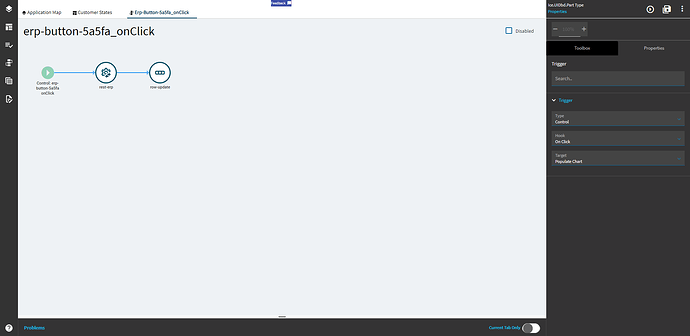
Section titled “4. The event”Create an event on the button’s On Click with:
-
rest-erp:- Service Name empty, Service Operation
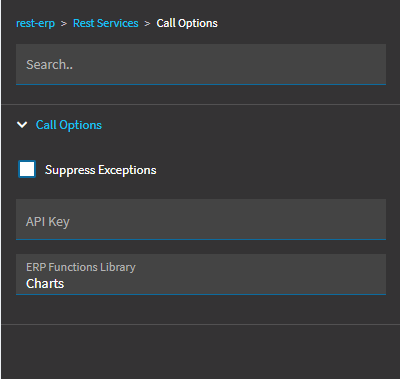
CountBy - Call Options > ERP Functions Library
XX_Charts - Method Parameters:
InTable=Rows,LabelCol= the BAQ column to group by (e.g.Customer_State),ChartType={XX_ChartOptions.ChartType} - ERP Rest Arguments > Request Parameters: Parameter Path
InDS, Parameter NameRows(same asInTable), View Name the view your grid is bound to, and under Dataset the same view as Dataset Id
- Service Name empty, Service Operation
-
row-updatesettingXX_Chart.URLto"{actionResult.OutURL}".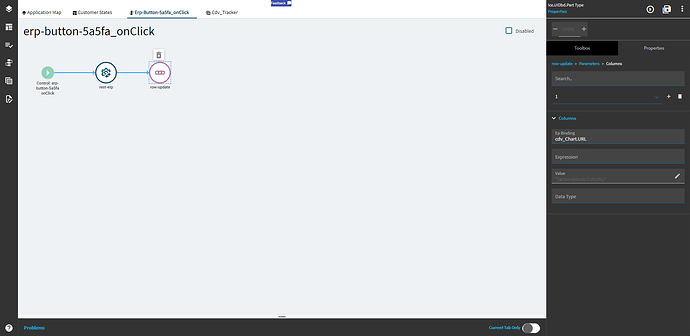
Click the button in preview and the chart appears in the Website widget.
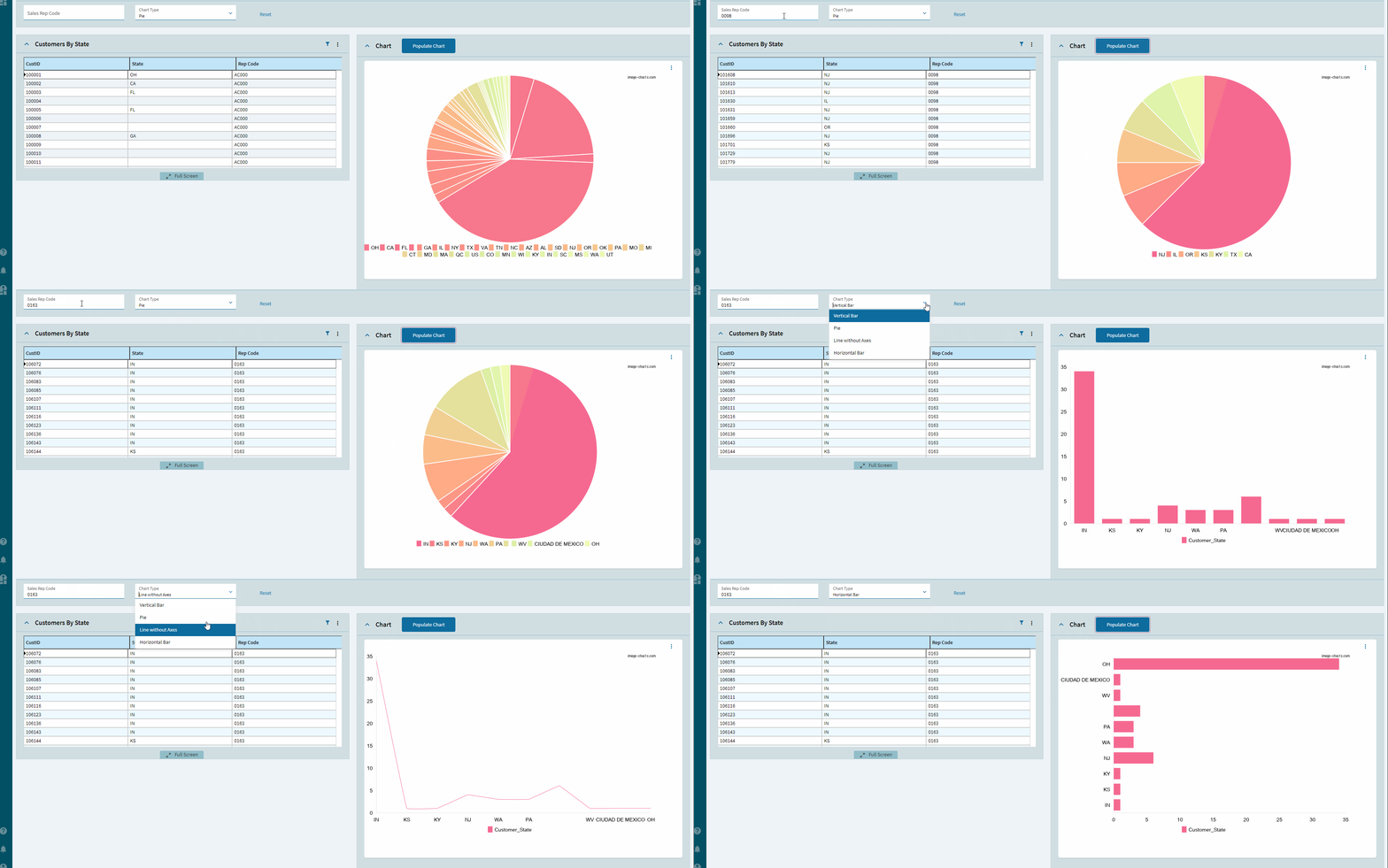
To redraw automatically instead of on a button, trigger the event from DataView > Row Changed or DataTable > Column Changed on the relevant view, though some triggers on views filled by grids have proved unreliable for this.
Option 2: Data Discovery chart widget
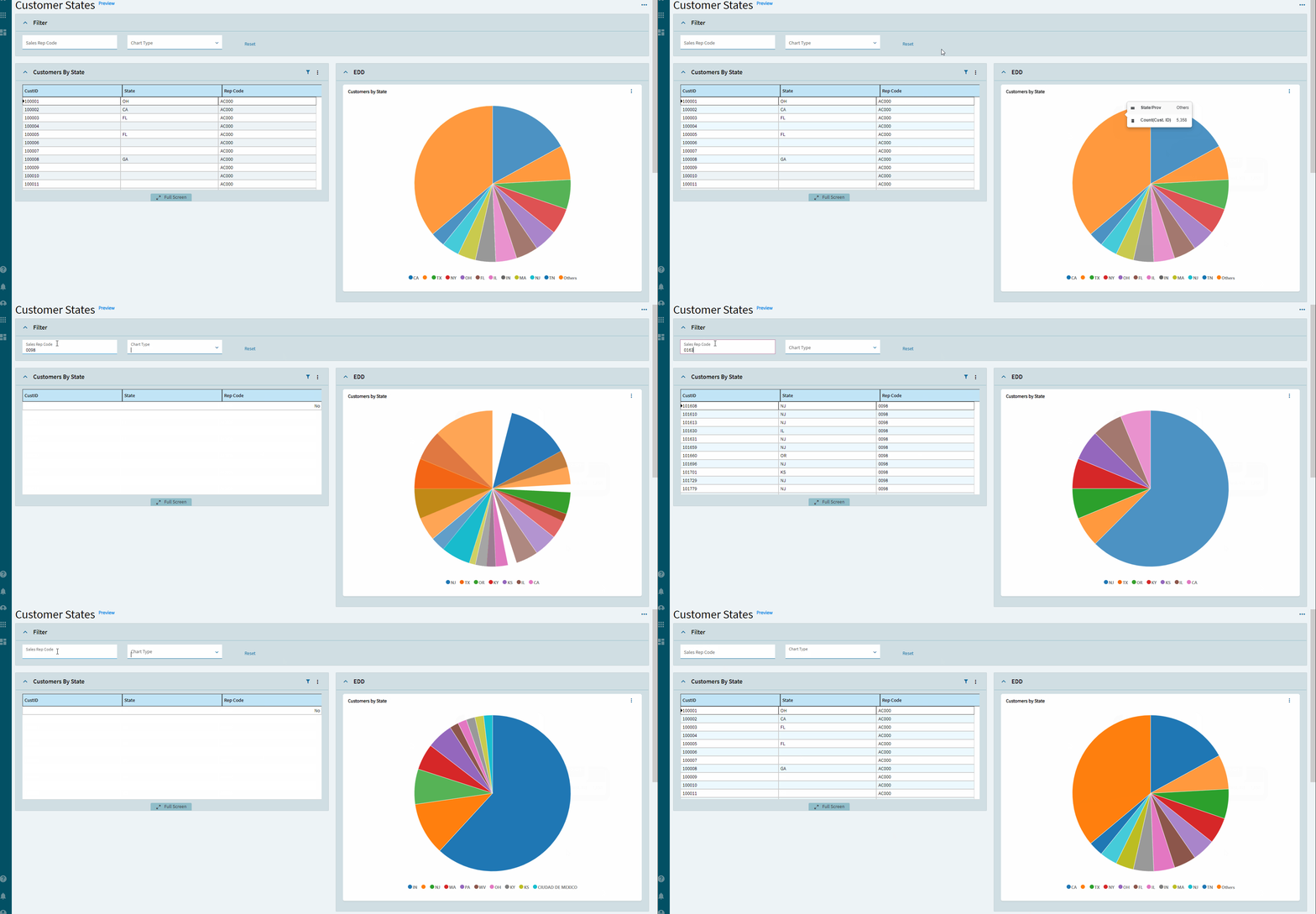
Section titled “Option 2: Data Discovery chart widget”If you have Epicor Data Discovery (EDD), its chart widget can be placed on a dashboard directly.
-
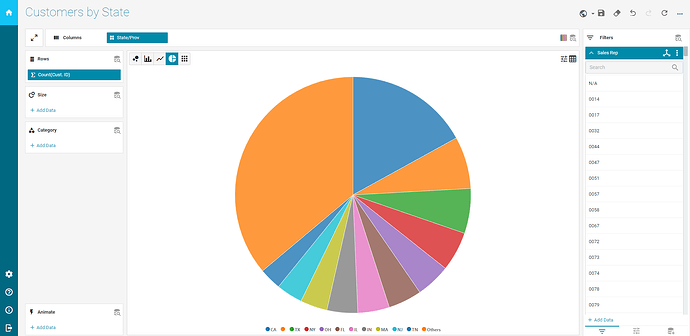
Build an exploration view in Data Discovery.
-
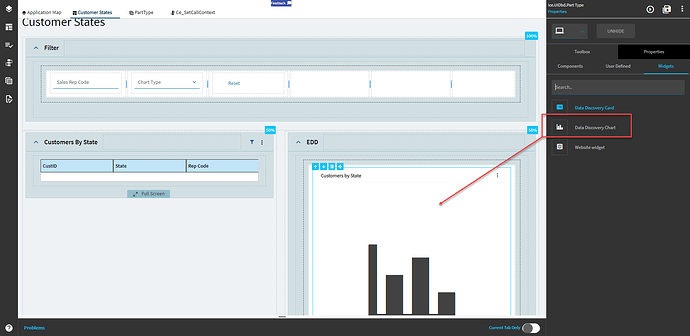
On the dashboard, add a panel card, a column, and the Data Discovery Chart widget.
-
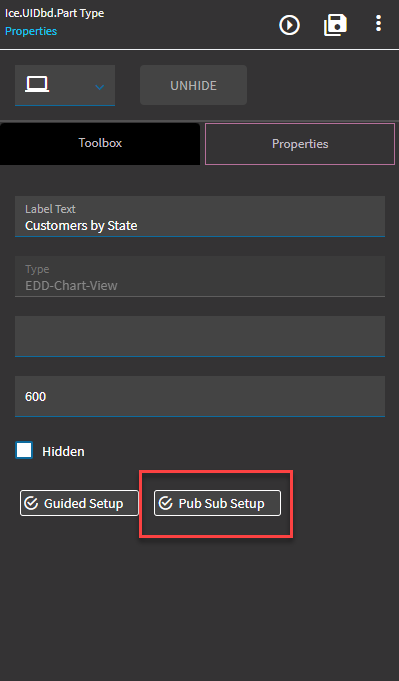
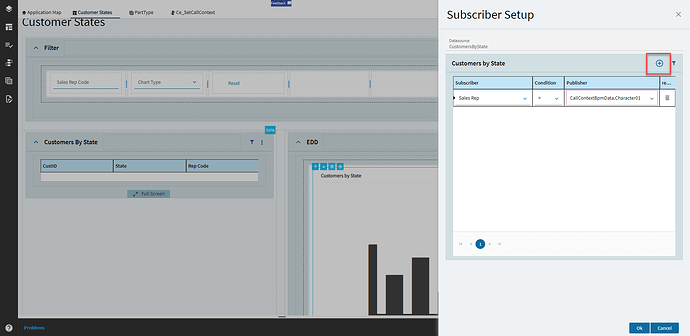
Open the widget’s Pub Sub Setup and add a filter:
- Subscriber: the column in the exploration’s data to filter on
- Publisher: the screen field that supplies the value
-
To filter from an input field, bind the field to a scratch view, then add an event on DataTable > Column Changed for that column with a
row-updatethat copies the value into the publisher field.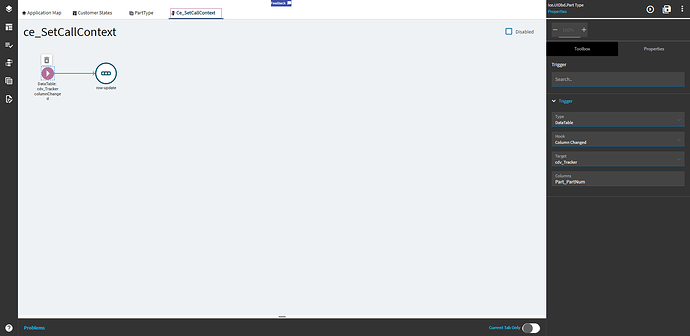
A publisher bound to a grid’s view publishes the selected row’s value, so there’s no way to get back to “all”. Publishing from a separate field (for example a CallContextBpmData column you set with row-update) avoids that.
Sources
This page is written in our own words. It was informed by: