The job lifecycle
A job is Epicor’s record of one production run: a part, a quantity, a method of manufacture (the assemblies, materials and operations copied from the part’s engineering method) and the demand it satisfies. Almost everything the shop floor, scheduling and costing do hangs off the job, so it’s worth knowing what each stage of its life switches on.
Where jobs come from
Section titled “Where jobs come from”Jobs are created from demand. The demand can be a sales order release, a stock shortfall, another job’s material, a transfer order or a forecast.
| Source | How the job appears | Typical screen |
|---|---|---|
| Sales order line for a Non-Stock part (make direct) | A planning suggestion to create a job or link to an existing one | Planning Workbench, Order Job Wizard |
| Stock below minimum, safety stock or forecast | MRP creates an unfirm job | Job Manager, Production Planner Workbench |
| A manufactured material on another job | MRP creates a job for the child part (see Material consumption) | Job Manager |
| Anything else | You create it by hand | Job Entry |
Unfirm jobs are MRP’s proposals. They are regenerated on each MRP run until someone firms them, at which point they become ordinary jobs that MRP no longer deletes.
Demand links
Section titled “Demand links”A job records what it’s for through demand links:
| Link | Meaning |
|---|---|
| Make To Order | The quantity is for a specific sales order release and ships straight from the job |
| Make To Stock | The quantity goes into a warehouse when finished |
| Make To Job | The quantity feeds a material or assembly on another job |
A job can carry more than one link, for example 75 pieces for an order plus 25 for stock. The link type decides where finished quantity goes, which matters for how inventory flows through jobs.
Status flags
Section titled “Status flags”| Flag | What it does | Gotcha |
|---|---|---|
| Firm | Marks the job as a committed plan rather than an MRP suggestion | Unfirm jobs can be deleted and rebuilt by MRP |
| Engineered | Confirms the method is complete. Only engineered jobs can be scheduled, and labor can’t post to a job that isn’t engineered | Every operation needs a resource, resource group or capability before you can tick it. Clearing it after scheduling removes the schedule |
| Scheduled | The job has start and due dates from the scheduling engine | Engineered is a prerequisite |
| Released | The job is ready for the floor. Only released jobs accept labor | Releasing too early fills work queues with jobs whose material isn’t there yet |
| Complete | Production is finished | Remaining unissued backflush material can be issued at completion |
| Closed | No more costs can post. The job’s remaining WIP moves to cost of sales or variance | See Job costing and WIP |
Manufactured materials: stock or make direct
Section titled “Manufactured materials: stock or make direct”When a manufactured part is used as a material on a higher-level part, the child part’s Non-Stock Item flag (Part, Site detail) decides how Epicor plans it:
| Child part setting | What MRP does |
|---|---|
| Non-Stock clear (a stocked part) | Checks inventory first. If there’s enough on hand, the parent job simply issues it from stock. If not, MRP suggests a make-to-stock job to replenish. |
| Non-Stock selected | Plans supply directly for this demand every time, whether or not any are on the shelf. The job material is flagged Make Direct and the child job is linked Make To Job. |
The same idea applies to purchased materials: a non-stock purchased part is bought and received straight to the job instead of into a warehouse.
A material-readiness check before release
Section titled “A material-readiness check before release”Releasing jobs as soon as they’re engineered sends work to the floor that can’t start. A simple discipline is to review upcoming jobs in two windows:
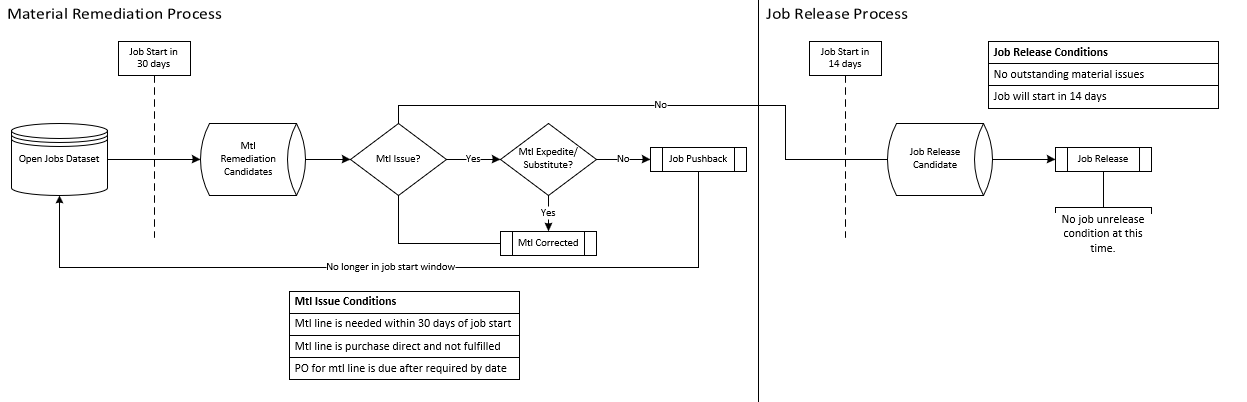
- Remediation window (for example, jobs starting in the next 30 days). Flag a material line as a problem when it’s needed within the window and is still unfulfilled, when a purchase-direct line has no receipt, or when its PO is due after the material’s required date.
- For each problem, expedite the PO or substitute the material. If neither is possible, push the job back so it leaves the window, and review it again later.
- Release window (for example, jobs starting in the next 14 days). Release only jobs with no outstanding material problems.
A BAQ over JobHead, JobMtl and PORel can drive both lists: compare JobMtl.ReqDate with the
linked PO release due date, and JobMtl.IssuedQty with JobMtl.RequiredQty.
Related pages
Section titled “Related pages”Sources
This page is written in our own words. It was informed by: