Send email and auto-print from a BPM
Notifications are one of the most useful things a directive can do: tell a buyer a PO needs approval, tell sales a quote task is done, tell planning that last night’s MRP run failed. This page covers email from widgets and from code, a pattern for process alerts, and the Auto Print widget.
Your system’s SMTP settings must be configured in Epicor before any of this sends mail.
The Send E-mail widget
Section titled “The Send E-mail widget”Add a Send E-mail widget and fill in its template: From, To, CC, Subject and Body. You can insert field values from the tableset and directive variables into any of them, and choose whether to send one email per matching row.
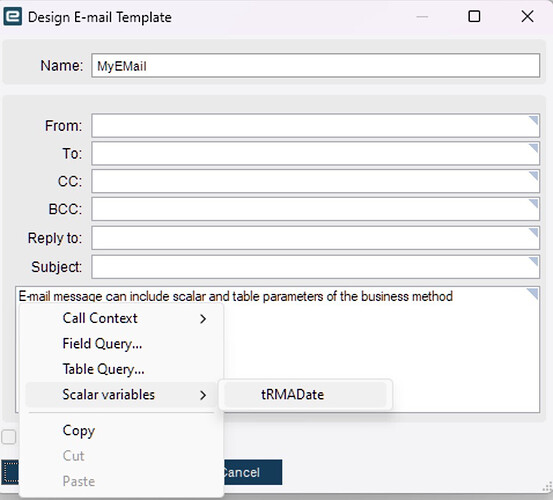
The widget can send synchronously (during the call) or asynchronously (queued, so the user isn’t kept waiting).
Put email in the right stage. Send from post-processing or a Standard data directive, so the email only goes out once the save has succeeded. An email from pre-processing is sent even if the save is later rejected.
Sending from custom code
Section titled “Sending from custom code”Code gives you full control over the body, such as building an HTML table of lines:
var mailer = this.GetMailer(async: false);var message = new Ice.Mail.SmtpMail();
message.SetFrom("erp@example.com");message.SetTo(recipient);message.SetSubject($"Order {orderNum} is on hold");message.SetBody($"<p>Order <b>{orderNum}</b> was placed on hold by {Session.UserID}.</p>");message.IsBodyHtml = true;
mailer.Send(message);
GetMailer(async: false) sends immediately; true queues the send. SetCC is available as well.
Getting recipients from data
Section titled “Getting recipients from data”Hard-coded addresses break when people change roles. Look them up instead: the buyer on a PO from
PurAgent.EMailAddress, the user who made the change from their user account, a contact from the
customer or supplier. See Query the database with LINQ
for a buyer lookup, and always handle an empty result so a missing address doesn’t throw.
Example: email when a CRM task on a quote is completed
Section titled “Example: email when a CRM task on a quote is completed”- Create a Standard data directive on the
Tasktable. - Add a Condition:
Completeof the changed row has been changed fromfalsetotrue, andRelatedToFileof the changed row is equal to"QuoteHed"(the task belongs to a quote).
- Add any lookups you need for the message, for example the customer ID from the task’s customer number, into directive variables.
- On True, add Send E-mail with a subject that includes the customer ID variable and the quote number, so the recipient can tell at a glance which quote it’s about.
The change-based condition means the email is sent once, when the task is ticked complete, not on every later edit.
Example: alert when a scheduled process finishes
Section titled “Example: alert when a scheduled process finishes”Processes run from the System Monitor (MRP, Generate PO Suggestions, scheduling and so on) record their
progress in the SysTask table. A Standard data directive on SysTask can watch for a particular
process finishing:
-
Create a Standard data directive on
SysTask. -
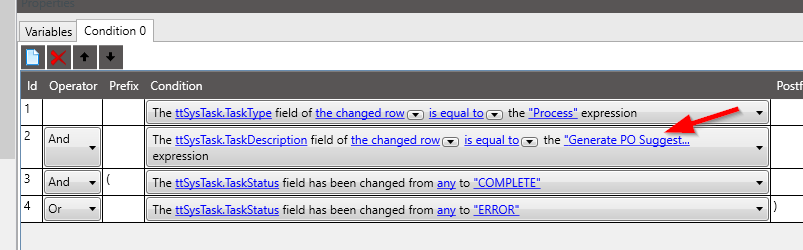
Add a Condition:
TaskTypeequals"Process", andTaskDescriptionequals the process name exactly as it appears in the System Monitor, for example"Generate PO Suggestions", andTaskStatushas changed from any value to"COMPLETE"(or to"ERROR"if you also want to hear about failures).
-
On True, send an email with the task description, status and end time.
This is particularly worth doing for MRP: if an overnight run fails, planners find out at the start of the day rather than when the suggestions look wrong.
Printing a report automatically: Auto Print
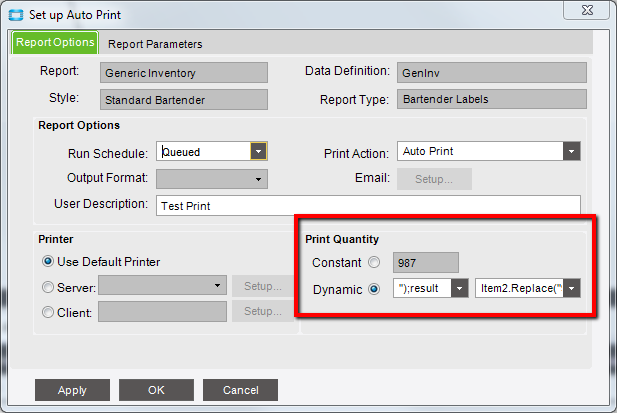
Section titled “Printing a report automatically: Auto Print”The Auto Print widget runs a report (a packing slip after shipment, a traveler after job release) without the user opening the report screen. You pick the report and style, a printer or output option, and then the report’s parameters.
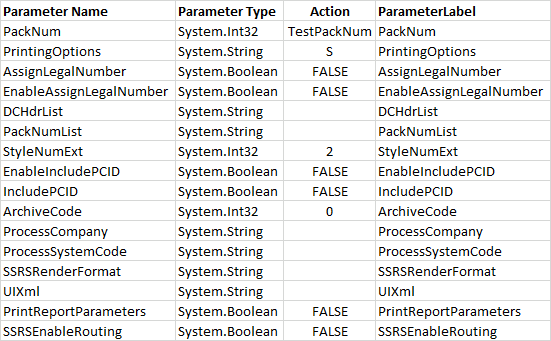
The Report Parameters list comes from the report’s parameter table in its report data definition, so it’s different for every report. In most cases you only change the key parameter (for a packing slip, the pack number) from its default constant to an expression or directive variable that holds the value from the transaction, and leave the rest at their defaults. If you need extra fields available as parameters, they have to be added to the report data definition first.
Related
Section titled “Related”- BPM conditions for sending an email once rather than on every save
- Common BPM problems
Sources
This page is written in our own words. It was informed by: