BAQ data views and parent/child filtering
A common request is “show some extra information about the record I’m looking at”: the sales order behind a job, the customer’s comments on an order, the open POs for a part. The data isn’t in the screen’s own dataset, so you bring it in with a BAQ and filter the BAQ to the current record. Epicor people call this pub-sub. The screen’s data view publishes its current record, and your BAQ view subscribes to it.
There are two ways to do it:
| Approach | Best for | How the filter works |
|---|---|---|
| A. Parent/child data view + refresh event | Showing BAQ values in ordinary fields (text boxes, dates) on an existing screen | The data view relationship matches child rows to the parent’s current row, and an event reloads the BAQ at the right moment |
| B. Grid provider model where clause | Showing the BAQ as a grid, especially on dashboards | The grid adds a WHERE condition built from the current record every time it loads |
A. Parent/child data view refreshed by an event
Section titled “A. Parent/child data view refreshed by an event”This example adds sales-order release details to a job screen. The job’s JobProd rows say which order line the job is making. The BAQ joins that to the order release.
1. Build the BAQ
Section titled “1. Build the BAQ”Create and share a BAQ, say XX_JobOrderInfo, that returns the columns you want to show plus the columns you’ll match on, for example JobProd_JobNum and OrderRel_OrderNum. If a join column isn’t in the display fields, you can’t use it in the relationship.
2. Create the data view
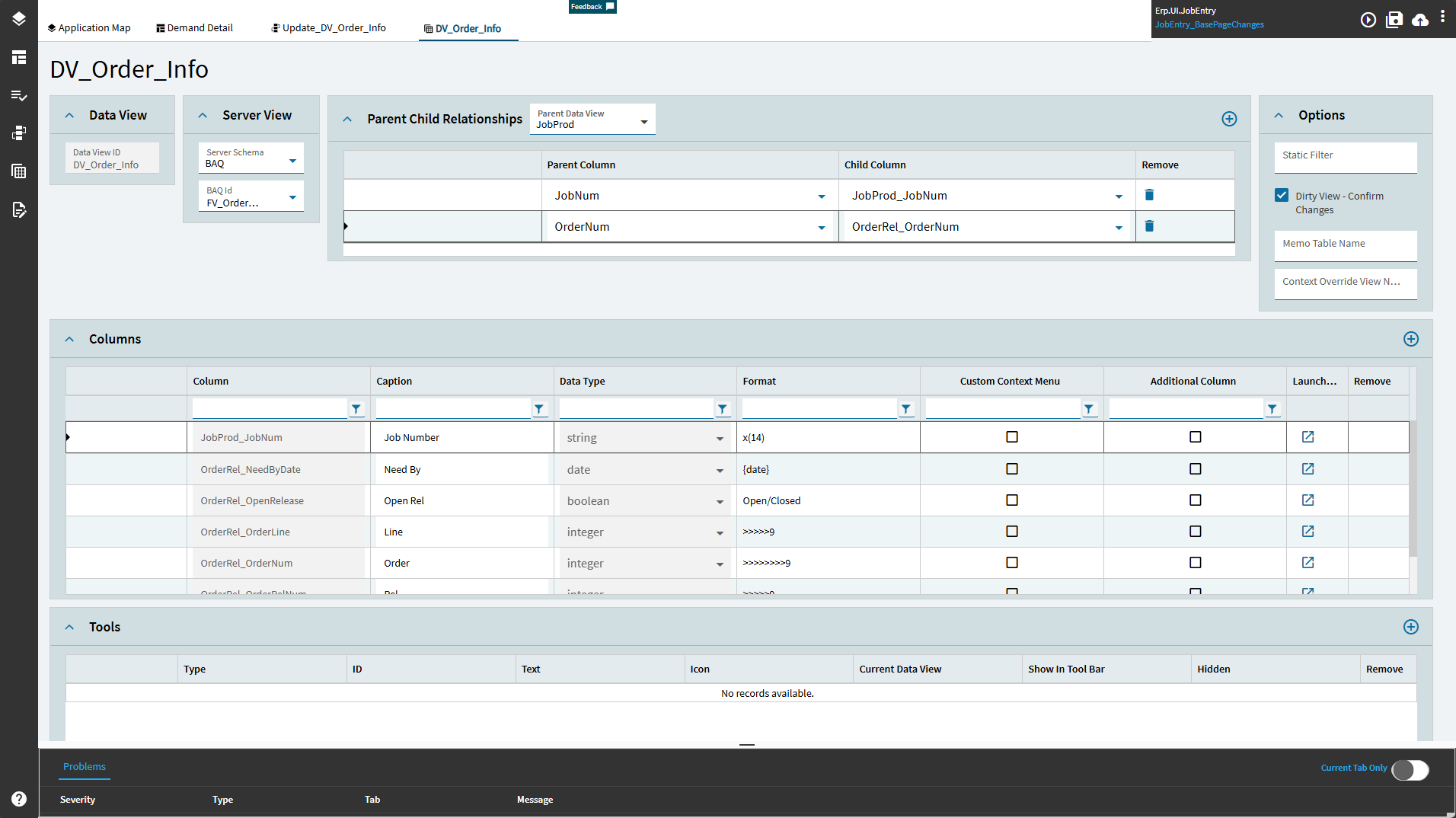
Section titled “2. Create the data view”- Open Data Views and click Add New. Name it
XX_OrderInfo. - Set Server Schema to BAQ and BAQ Id to
XX_JobOrderInfo. - Under Parent Child Relationships, set Parent Data View to
JobProd. - Add a row per matching column, parent on the left and BAQ alias on the right:
| Parent Column | Child Column |
|---|---|
JobNum |
JobProd_JobNum |
OrderNum |
OrderRel_OrderNum |
3. Refresh the view when the parent changes
Section titled “3. Refresh the view when the parent changes”The relationship filters the rows, but something still has to load the BAQ. Add an event that runs the BAQ whenever the context changes:
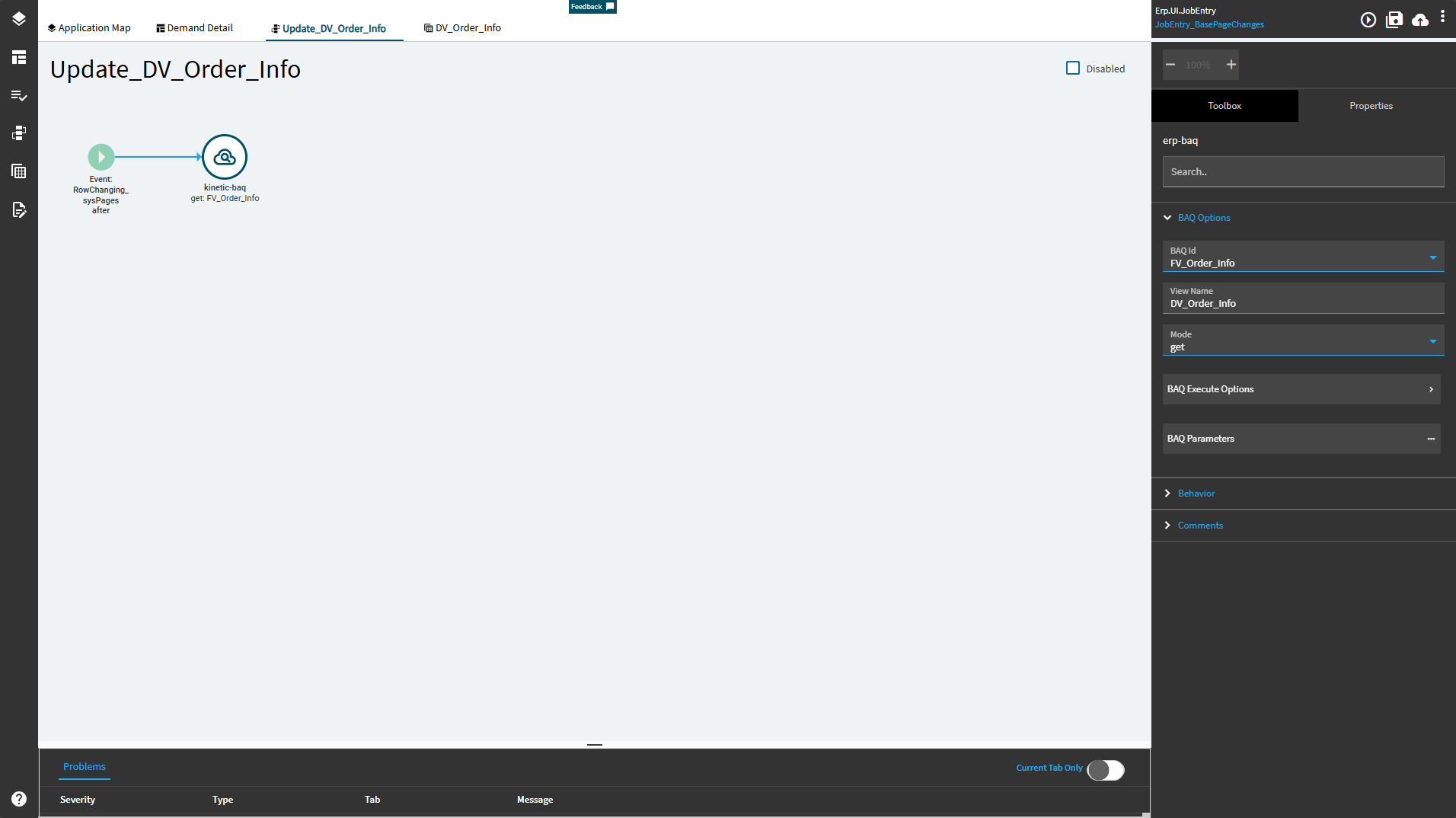
- Open Events, click Add New and name it, for example
XX_RefreshOrderInfo. - Set the trigger to hook the system event that fires when the record or page changes. In this example the trigger is Type
Event, HookAfter, Target the page-change event (RowChanging_sysPages). - Add an
erp-baqwidget. On the canvas it may be labelledkinetic-baq. Set BAQ Id toXX_JobOrderInfo, View Name toXX_OrderInfoand Mode toget.
4. Bind controls to the view
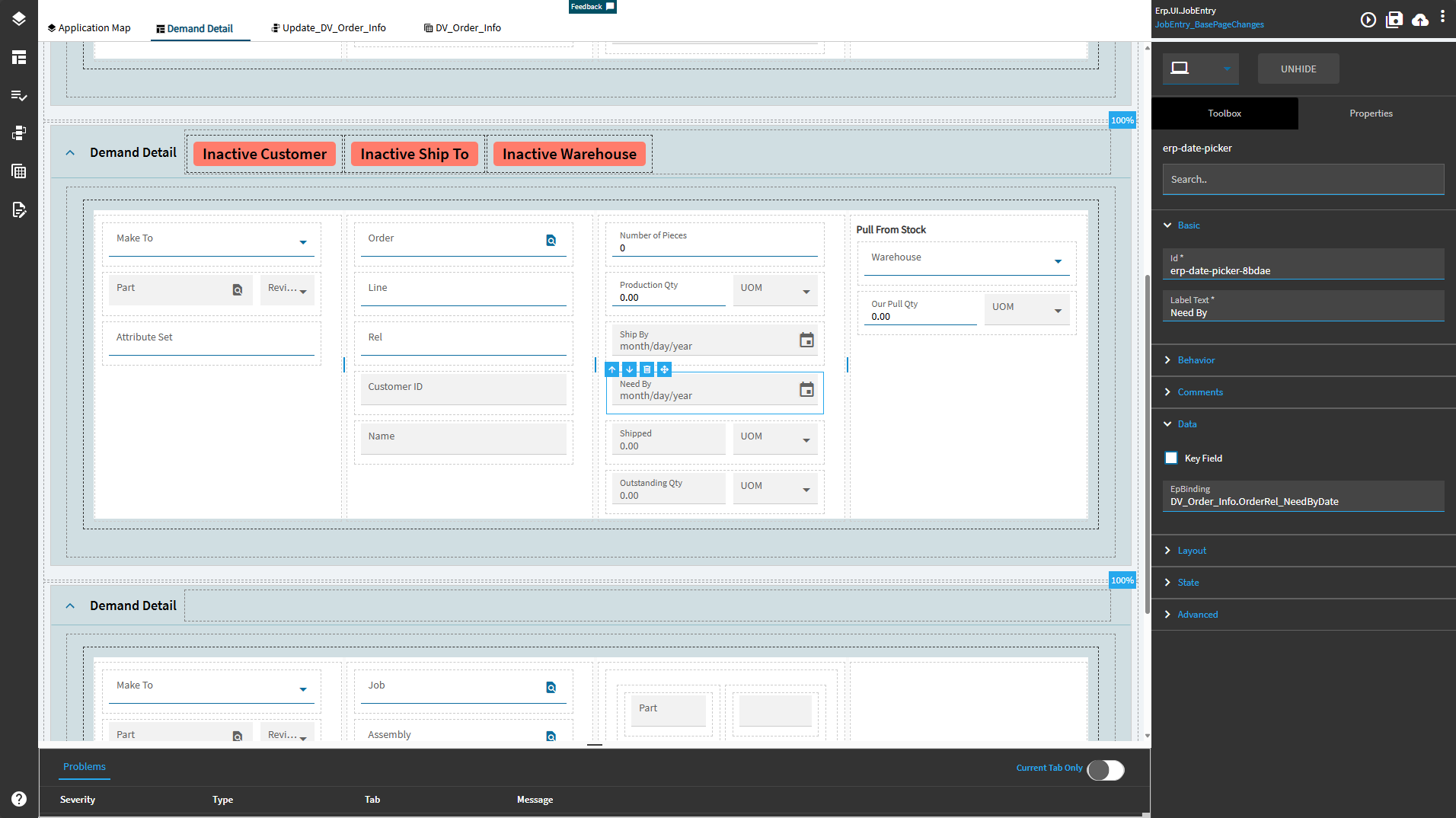
Section titled “4. Bind controls to the view”Add text boxes, date pickers and so on, and set each EpBinding to a column of the new view, for example XX_OrderInfo.OrderRel_NeedByDate. Save, preview and move between records to check it follows along.
Alternative: let a hidden grid load the view
Section titled “Alternative: let a hidden grid load the view”Instead of an erp-baq event, you can drop a panel card grid on the page, point its Grid Model > Provider Model at the view (Ep Binding XX_OrderInfo, BAQ ID XX_JobOrderInfo) and tick State > Hidden. The grid loads the BAQ into the view and your fields bind to it. It’s quicker to set up, but you have less control over when the load happens.
B. Filter a grid with a provider model where clause
Section titled “B. Filter a grid with a provider model where clause”When the BAQ is shown in a grid, the grid can filter itself:
- Select the panel card grid and go to Grid Model > Provider Model.
- Set BAQ ID.
- Open BAQ Options and enter a Where condition that uses the current record:
OrderHed_CustNum = '??{OrderHed.CustNum}'The left side is the BAQ column alias (Table_Field). The right side is a placeholder for a value on the screen, written ??{DataView.Column}, in quotes. The grid substitutes the current value each time it loads.
You can combine conditions with AND, OR and parentheses:
Part_PartNum = '??{Part.PartNum}' AND (PartTran_TranType <> 'ADJ-CST' AND PartTran_TranType <> 'PUR-SUB')Any view works as the source, including KeyFields ('??{KeyFields.PartNum}') and scratch fields on TransView ('??{TransView.XX_JobFilter}').

A grid filtered this way only reloads when it’s asked to. If the grid should follow a different grid’s selected row, add an event on DataView > Row Changed for the parent grid’s view that refreshes the child grid. See Common event patterns.
Gotchas
Section titled “Gotchas”- Use BAQ aliases:
Table_Field, notTable.Field, on the BAQ side of relationships and where clauses. - Relationship columns must be in the grid. If a grid shows a BAQ view that has a parent/child relationship, add every relationship column to the grid’s columns, or the rows won’t match.
- Save and reopen the layer before judging a new BAQ view in preview. Data views added in the current session sometimes don’t load until the layer has been saved, closed and reopened.
Sources
This page is written in our own words. It was informed by: