Foreign key views
Each Classic form loads a fixed set of tables. Job Tracker, for example, knows about JobHead, JobProd and friends, but not the sales order release a job is making. The customization wizards only let you bind controls to columns of data views the form already has, so a field from OrderRel simply isn’t in the list.
A foreign key view (FKV) fixes that for display. It tells the form: “whenever this column in an existing view has a value, fetch the matching record from another business object and expose it as a new view”. A sub-table view (STV) hangs a child table off an FKV. Once they exist you bind controls to them like any other view.
When to use one
Section titled “When to use one”- You want to show a field from a related table: the customer’s credit hold flag on an order line, the order release’s need-by date on a job.
- The link from the form’s data to the other table is a real key: a column that the other business object can
GetByIDwith.
FKVs are read-only in practice. If users need to edit the related table, use an adapter call from a button, an embedded updatable BAQ grid, or a BPM (see Row rules for the same trade-offs).
Add a foreign key view
Section titled “Add a foreign key view”- Open the form in Developer Mode and open Tools > Customization.
- In the Customization Tools Dialog choose Tools > Data Tools. The Custom Data Dialog opens on the Foreign Key View tab, listing the form’s existing views (
NV:entries). - Click New Custom View.
- Enter a View Name, then pick the Parent View Name (the existing view that holds the key) and the Column Name that links to the other table.
- Leave View Type as Foreign Key View. Epicor fills in the Like Column Value, the Adapter Name and the Get By Type from the column’s “Like” definition.
- Click Add, then OK, and save the customization.
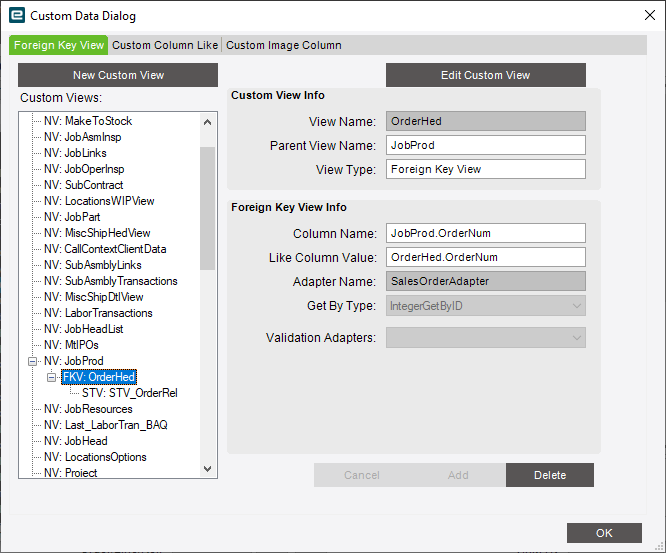
The link only works when the column has a Like property pointing at the other table’s key. If the column you want isn’t offered, use the Custom Column Like tab to add a Like property to it first.
Add a sub-table view
Section titled “Add a sub-table view”An FKV fetches one record through the adapter, but the dataset that adapter returns often has child tables too. To use one of those, add a sub-table view under the FKV.
Suppose you want the order release on Job Tracker. JobProd holds the order number, line and release, but there’s no direct foreign key from it to OrderRel. OrderHed is reachable, though, and the Sales Order dataset contains OrderRel:
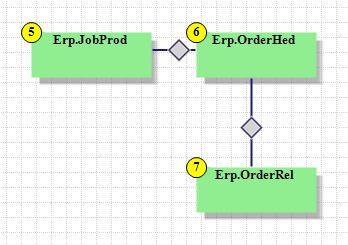
- In the Custom Data Dialog, select your new FKV (here, the
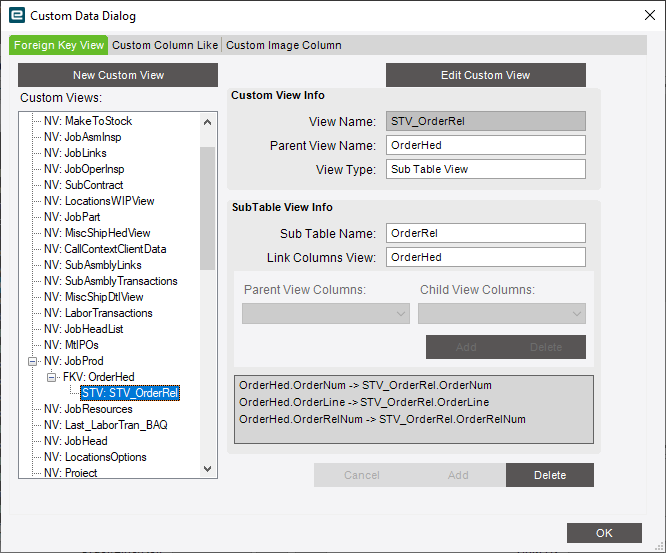
OrderHedview) and click New Custom View again. - Set View Type to Sub Table View.
- Choose the Sub Table Name (
OrderRel). - Build the link: pick a Parent View Column and the matching Child View Column, then click the Add button under those lists. Repeat for every key column (order number, line and release number).
- Click the Add button at the bottom of the dialog, then OK, and save.
Show the fields
Section titled “Show the fields”Add text boxes (or a grid) with the ToolBox and set their EpiBinding to the new view: OrderHed.OrderDate, STV_OrderRel.NeedByDate. The Sheet Wizard is a convenient way to give them their own tab.
Doing it in code
Section titled “Doing it in code”The same thing can be done from the Script Editor with csm.AddForeignKeyView(...), which registers a view backed by an adapter’s dataset, and csm.NotifyForeignKeyView(...) after you refill it. That’s mainly useful when you load the related data yourself with an adapter call. For a fully custom table behind a grid, see Custom grids and data views.