Add a field to a report
The most common reporting request is “can you put this field on the form?”. The field has to make two hops: from the database into the report’s extracted data (the RDD), and from that data into a text box (the RDL). This page covers both, then shows a few real-world variations.
Before you start
Section titled “Before you start”- Check the field isn’t already there. Download the standard report and look through its datasets’
field lists, and check the RDD’s linked fields. The customer PO number on a pack slip, for example, is
already available as
OrderNum_PONum. - Work on copies: a duplicated RDD (
XX_PackSlip) and a copied report style whose Data Definition points at it. See Report data definitions. - You need the SSRS Report Designer security option and Microsoft Report Builder. See the overview.
1. Include the field in the RDD
Section titled “1. Include the field in the RDD”- Open your RDD in Report Data Definition and select the table under Data Sources.
- If the table isn’t in the RDD, add it with New > New Table, then relate it to an existing table
with New > New Relationship (join on
Companyplus the key fields). - On the table’s Exclusions tab, clear ExcludeColumn for the field you want, and for any field you’ll join on.
- Save.
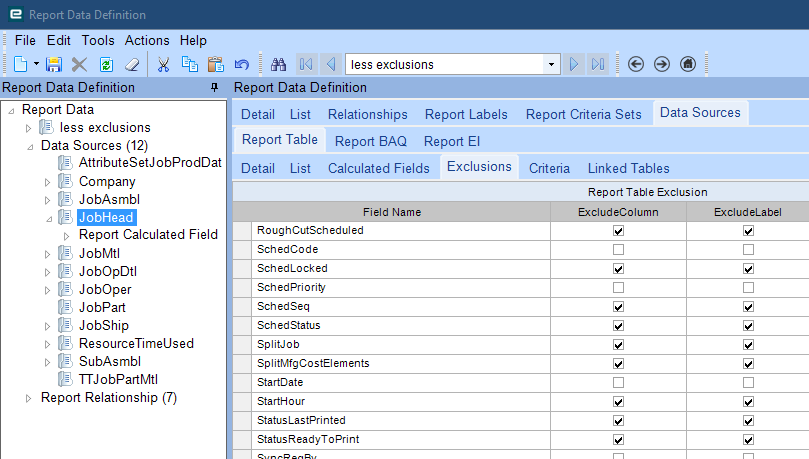
UD fields are listed on their base table (a JobHead UD field such as XX_Inspected_c appears with the
other JobHead columns).
2. Download the report
Section titled “2. Download the report”In Report Style Maintenance, select your style, check its Data Definition is your RDD, and
choose Actions > Download SSRS Report. Open the .rdl in Report Builder.
3. Find the dataset behind the area you’re changing
Section titled “3. Find the dataset behind the area you’re changing”A report has several datasets, one per data region, and you need the one feeding the part of the page where the field should appear.
-
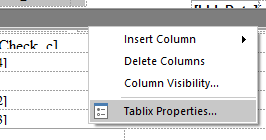
Click inside the table (tablix) in that area, right-click its gray outer edge, and choose Tablix Properties.
-
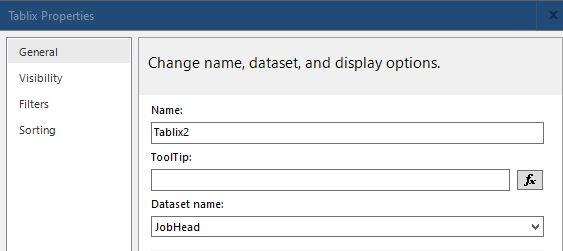
Note the Dataset name.
4. Add the field to the dataset query
Section titled “4. Add the field to the dataset query”-
In the Report Data pane, right-click that dataset and choose Dataset Properties.
-
Next to Query, click the fx button to open the query expression.
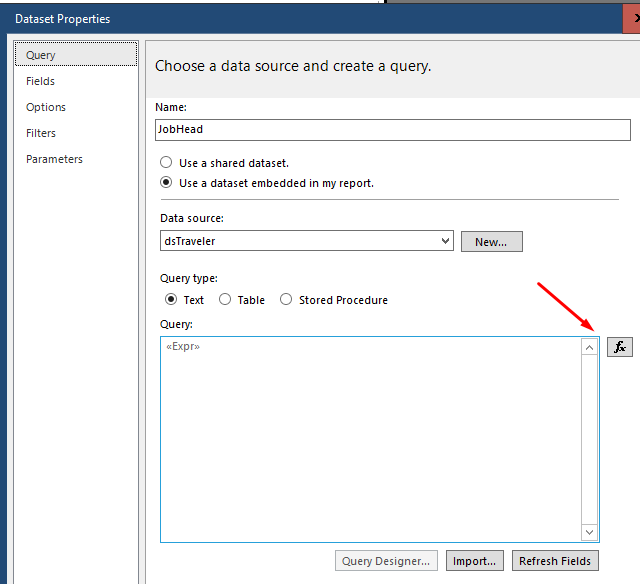
The query is a string expression that builds SQL at run time. Each Epicor table appears as
<Table>_" + Parameters!TableGuid.Value + " with an alias T1, T2, and so on. Find the alias of the
table your field belongs to in the FROM and JOIN clauses, then add <alias>.<field> to the SELECT
list. Putting new fields at the start of the list makes them easy to find later.
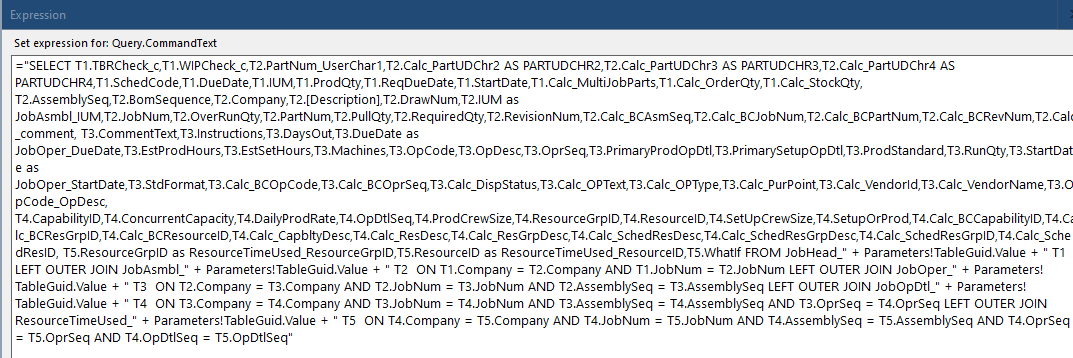
If your field’s table isn’t joined in this query yet, add a join that mirrors the RDD relationship (see the examples below).
5. Add it to the dataset’s field list
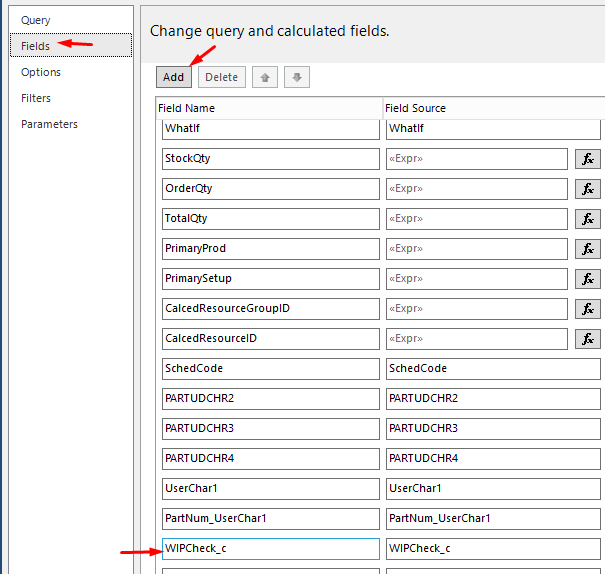
Section titled “5. Add it to the dataset’s field list”On the Fields page of Dataset Properties, click Add, choose a query field, and enter the name in both Field Name (what you’ll use in expressions) and Field Source (the column name the query returns).
6. Put it on the page and upload
Section titled “6. Put it on the page and upload”Drag the field from the dataset onto the layout, save, then in Report Style Maintenance choose Actions > Upload SSRS Report and print a preview with your style.
Gotchas
Section titled “Gotchas”-
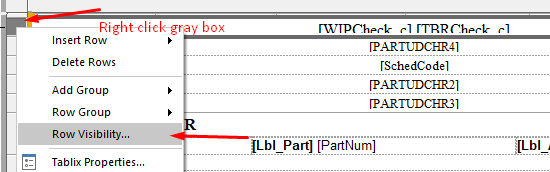
Nothing prints. Check the row’s visibility. Right-click the gray row handle, choose Row Visibility, and make sure the row is shown (or its expression is what you expect).
-
Calculated fields don’t carry over. A
Calc_field only exists in the tables Epicor fills it for. On a new table, rebuild the calculation in the layout by bringing in the fields it’s based on and writing an expression. See SSRS expressions and custom code. -
The report stopped running after you included fields. You may have hit the field limit. Exclude columns you don’t use. See Report data definitions.
-
An expression error mentions a field “not in the Fields collection”. A field used in the layout isn’t in the dataset. See Troubleshooting.
Examples
Section titled “Examples”A UD field from the order release on a pack slip
Section titled “A UD field from the order release on a pack slip”The pack slip’s main query only joins ShipHead and ShipDtl, but ShipDtl carries the full release
key. In the RDD, add OrderRel, relate ShipDtl to OrderRel on Company, OrderNum, OrderLine
and OrderRelNum, and include the UD field. In the RDL, join it the same way:
="SELECT T1.Company, T1.PackNum, T2.PackLine, T2.PartNum, T3.XX_DockCode_c FROM ShipHead_" + Parameters!TableGuid.Value + " T1 LEFT OUTER JOIN ShipDtl_" + Parameters!TableGuid.Value + " T2 ON T1.Company = T2.Company AND T1.PackNum = T2.PackNum LEFT OUTER JOIN OrderRel_" + Parameters!TableGuid.Value + " T3 ON T2.Company = T3.Company AND T2.OrderNum = T3.OrderNum AND T2.OrderLine = T3.OrderLine AND T2.OrderRelNum = T3.OrderRelNum"The real query selects many more columns; add only the new ones and leave the rest alone.
Order promise date on Scheduled Shipments
Section titled “Order promise date on Scheduled Shipments”The SchedShip report’s main dataset reads a report table (OMR50) joined to JobProd, with no order
header. To show OrderHed.PromiseDate:
-
In a copy of the
SchedShipRDD, addOrderHedand relate it toJobProdonCompanyandOrderNum. IncludePromiseDate. -
In the RDL’s main dataset, add a join from the
JobProdalias toOrderHedand select the new column:... , T3.PromiseDateFROM OMR50_" + Parameters!TableGuid.Value + " T1LEFT OUTER JOIN JobProd_" + Parameters!TableGuid.Value + " T2ON T1.Company = T2.Company AND T1.OrderNum = T2.OrderNumAND T1.OrderLine = T2.OrderLine AND T1.OrderRelNum = T2.OrderRelNumLEFT OUTER JOIN OrderHed_" + Parameters!TableGuid.Value + " T3ON T2.Company = T3.Company AND T2.OrderNum = T3.OrderNum" -
Add
PromiseDateto the dataset’s Fields and place it.
Keep the RDL join in line with the RDD relationship. Each extracted table only holds the rows the RDD reached through its relationships, so joining from a different table in the RDL can return nothing.
Order line comments with line breaks
Section titled “Order line comments with line breaks”To print OrderDtl.OrderComment on a report whose dataset already joins OrderDtl, select it with an
alias so it can’t clash with other comment fields, add it to Fields, and display it with an
expression that turns stored line breaks into ones SSRS renders:
' In the dataset queryT2.OrderComment AS OrderDtl_OrderComment
' In the text box=Replace(Fields!OrderDtl_OrderComment.Value, Chr(13), vbCrLf)
Use a field that’s already there
Section titled “Use a field that’s already there”Sometimes the “new” field is already extracted under another name. The pro forma invoice RDD
(ProFormaInvc), for example, already includes SoldToAddressList, so switching the address block
from bill-to to sold-to only means changing which field the text box shows. No RDD change needed.
Sources
This page is written in our own words. It was informed by: