Combo boxes
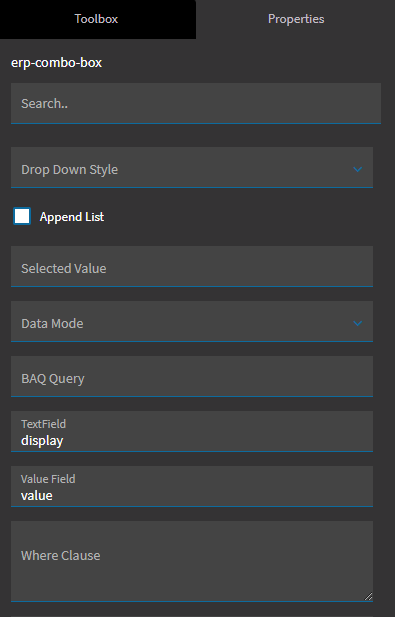
The Kinetic drop-down is the erp-combo-box component. Where its options come from is set under Advanced. The same component handles a fixed list, the results of a BAQ and user-defined codes. Whichever you use, the combo box always needs an EpBinding. The selected value is written to that column, so without it the selection goes nowhere.
Static list
Section titled “Static list”There are two ways to type in a fixed list.
Option 1: a plain array (simplest)
Section titled “Option 1: a plain array (simplest)”When the stored value and the displayed text are the same:
-
Add the combo box and set Data > EpBinding, e.g.
TransView.XX_Status. -
Under Advanced, find data and click the pencil to open the JSON editor.
-
Enter a JSON array of strings:
["Open", "On Hold", "Closed"]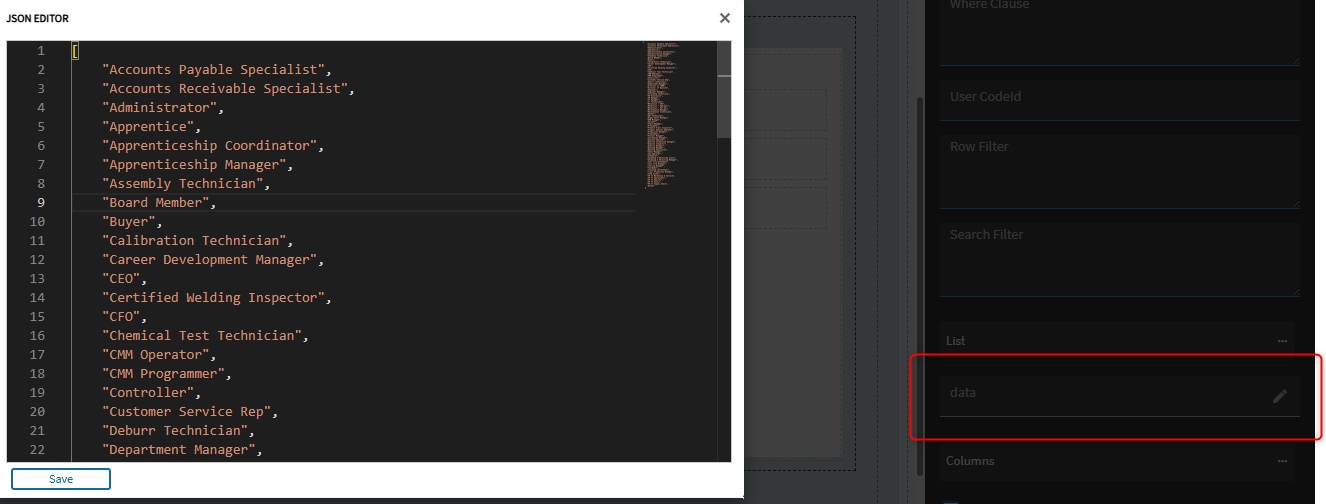
-
Make sure Filterable and Personalizable are ticked, then save and preview.
Option 2: display and value pairs
Section titled “Option 2: display and value pairs”When users should see one thing and the database should store another (for example, show “Vertical bar” but store bvs):
- Under Advanced > List, add a row per option with a display and a value.
- Set TextField to
displayand Value Field tovalue.
Let users type a value that isn’t in the list
Section titled “Let users type a value that isn’t in the list”- At the bottom of Advanced, tick Allow Custom.
- Set Drop Down Style to
DropDown.
DropDown lets users type in the combo’s text area. DropDownList restricts them to the listed options.
Options from a BAQ
Section titled “Options from a BAQ”A BAQ-driven list stays current without anyone maintaining it. Build and share a BAQ that returns one row per option, with a key column and a description column.
- Data > EpBinding: the column to store the selection in, e.g.
TransView.XX_PartClass. - Advanced > Data Mode:
rows. - Advanced > BAQ Query: the BAQ ID, e.g.
XX_PartClassList. - Advanced > TextField: the column users see, e.g.
PartClass_Description. - Advanced > Value Field: the key column stored in the binding, e.g.
PartClass_ClassID.
The combo shows every row the BAQ returns, duplicates included. If you see the same option twice, fix the BAQ (group it or make it distinct) rather than the combo. The Where Clause property can filter the BAQ further.
Options from UD codes
Section titled “Options from UD codes”For lists maintained in User Codes Maintenance, use the reusable combo instead of writing a BAQ:
- Set Data > EpBinding to the field that stores the code.
- In the Reusable Combo group, set Type to
UserCodes.UserCodesComboand Sub Type todefault. The filter properties fill in automatically, with a filter on the code type parameter. - In Filters Params, set the code type:
CodeTypeParam = XX_SOAP(your code type ID, with no quotes or other syntax around it). - Under Advanced, set Drop Down Style to
DropDownListif users must pick from the list.
Hide specific options
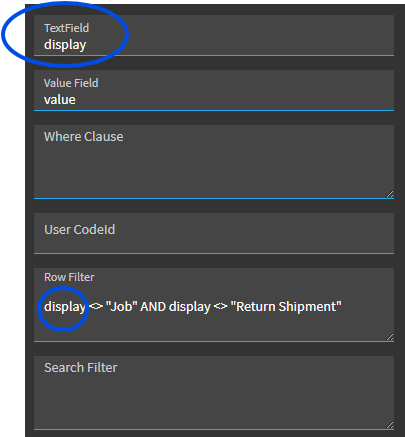
Section titled “Hide specific options”To keep some options out of the list without changing the source, use Advanced > Row Filter. It filters on the list’s own columns, so for a static list with display/value pairs you filter on display (or value):
display <> "Job" AND display <> "Return Shipment"For a BAQ-driven combo, use the BAQ column aliases in the filter instead.
Sources
This page is written in our own words. It was informed by: