Printing and routing
Once a report looks right, the next question is where it goes: a printer by the user, a warehouse printer, a PDF in someone’s inbox, or a different layout for certain customers. Epicor handles this with printer settings, Advanced Print Routing (APR) rules on the report style, and the Auto Print action in BPMs.
Client and server printing
Section titled “Client and server printing”SSRS reports can print in two ways:
- Server printing sends the rendered report from the server to a printer defined in Printer Maintenance (System Management > Reporting > Printer). It’s the reliable choice for anything automated, and for SSRS the printer lists only show printers set up for SSRS.
- Client printing prints on a printer attached to the user’s own machine.
Which ones users may use is a company setting: SSRS Printer Option on the Email and Printing area of company configuration, set to Client and Server Printing or Server Printing Only. Default printers can be set per workstation (Workstation Maintenance) and per company; Epicor looks at the workstation first and falls back to the company.
For automated printing, prefer a server printer. The Auto Print action allows a client printer, but Epicor itself warns that it isn’t recommended for SSRS reports.
Advanced Print Routing
Section titled “Advanced Print Routing”An APR rule (the SSRS Breaking and Routing rule on a report style) runs every time the style prints. It can split the report’s data into pieces (breaks), test each piece, and decide which layout to use and where each piece goes.
Requirements:
- the Advanced Printing license,
- an SSRS style whose Output Location is Database,
- one rule per style. To have several routing behaviours, use several styles.
To create one, select the style in Report Style Maintenance, choose New > New SSRS Breaking and Routing Rule, pick the Break Table whose columns the rule will use, and click Design. When the rule is finished, select Enabled on the style and save.
The designer offers these building blocks:
| Element | What it does |
|---|---|
| Break | Splits the data by one or more columns of the break table (one piece per customer, per pack…) |
| Condition | Tests the data and branches true/false |
| Filter | Keeps only the pieces whose break columns match criteria |
| Alternate Report Style | Renders with another style of the same report |
| Group By | Combines related pieces into one output |
| Sends the output to a specific client or server printer | |
| Print Preview | Shows the output to the user |
| User Action | Does whatever the user picked on the report form (print, preview…) |
| Send E-mail | Emails the output as an attachment using an email template |
| Generate | Generates an electronic report file, visible in the System Monitor |
Example: a different layout for certain parts
Section titled “Example: a different layout for certain parts”Suppose pack slips for one product family need a special layout, and those part numbers all start with the same prefix. Rather than asking users to pick the right style, give the default style a rule:
- Start → Break (on the pack) → Condition.
- In the condition, test the report field, for example “
ShipDtl.PartNumon any row containsPRE” (or begins with, if your condition offers it). - Connect the True branch to Alternate Report Style and pick the special style.
- Leave False unconnected so everything else prints with the default style.
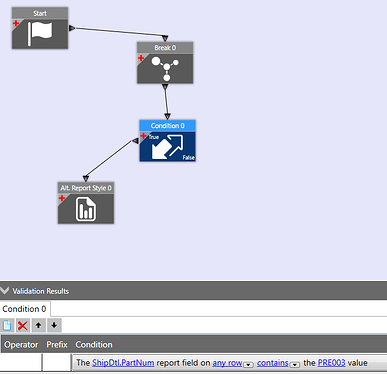
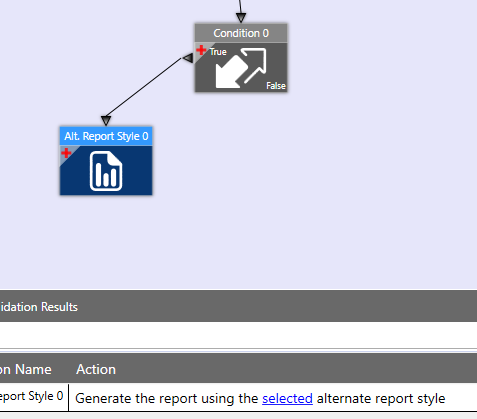
Everything happens in the rule, with no code to maintain. Test it with a part that should match and one that shouldn’t.
Example: email each customer their own document
Section titled “Example: email each customer their own document”Break on the customer column (for example CustID on the Customer table), then connect a Send
E-mail element. In its template, right-click the To, Subject, Attachment Name or Body
field and use Insert Fields to pull values from the break table, such as the customer’s email
address or ID in the attachment name. Each customer’s pages go out as a separate email.
Keeping an email list in user codes
Section titled “Keeping an email list in user codes”Sometimes a report should go to a fixed group of people, and you don’t want to edit the rule each time the group changes. You can keep the addresses in User Codes and route from them:
- Create a user code type (for example
XX_RPTMAIL) with one code per recipient, and put the email address in the code’s description (code IDs are too short for most addresses). - Build a BAQ over
UDCodesfiltered to that code type. - Add the BAQ as a data source in the report’s RDD (a copy, if it’s a standard report).
- In the style’s APR rule, choose the BAQ as the Break Table, break on it, and insert its email column into the Send E-mail template’s To field.
Keep in mind:
- User codes are company-specific, so each company needs its own list (it can use the same code type name).
- The break table is now the code list, so you can’t also break on the report’s own data (per customer, per order) in the same rule.
Auto print from a BPM
Section titled “Auto print from a BPM”To print or email a report when something happens in the data (a shipment is marked shipped, a job is released), use the Auto Print widget in a BPM. It can use a style that has an APR rule, so the routing above still applies. See Send email and auto-print from a BPM.
Related
Section titled “Related”- Troubleshooting for the APR email template error
Sources
This page is written in our own words. It was informed by: