Report data definitions
A report data definition (RDD) is the list of data Epicor extracts when a report runs: which tables or BAQs, which of their columns, and how they join. SSRS only ever sees what the RDD extracted, so any change to a report’s content starts here. This page explains the parts of an RDD you’ll touch most. For the end-to-end process, see Add a field to a report.
Copy before you change
Section titled “Copy before you change”System RDDs are read-only. Open the system definition in Report Data Definition, choose
Actions > Duplicate Report, give the copy an ID with your prefix (XX_PackSlip), and work on the
copy. Then copy the matching report style in Report Style Maintenance and set its Data
Definition to your RDD.
Data sources
Section titled “Data sources”The tree on the left lists the RDD’s Data Sources. Each is one of:
- Report tables: Epicor tables such as
OrderHedorShipDtl, or special tables the report program builds while it runs. The WIP report’sTWiptable is one of these; it has no columns in the RDD you can join on. - Report BAQs: queries used as data sources. See BAQ reports.
You can add another table with New > New Table and pick it as a schema table, then relate it to an existing one (below).
Exclusions and the field limit
Section titled “Exclusions and the field limit”Each table has an Exclusions tab listing every column with ExcludeColumn and ExcludeLabel check boxes. A checked ExcludeColumn means the column isn’t extracted. To use a column, clear its check box.
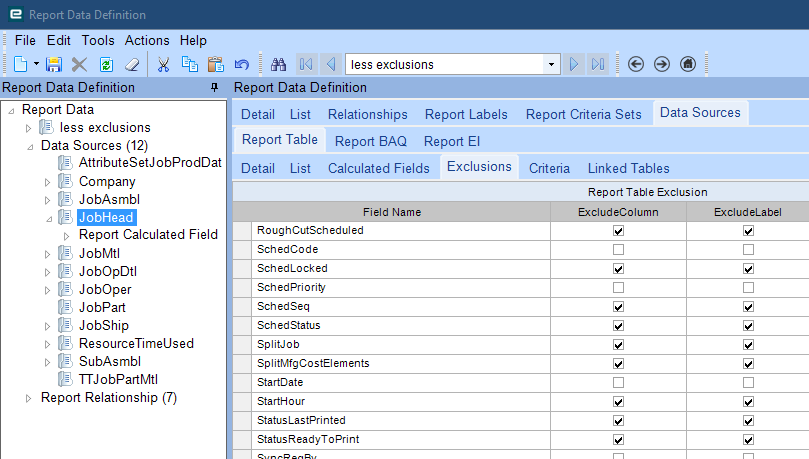
The rule of thumb is exclude everything you don’t use. There is a limit on how many columns a report can extract, and some reports, especially AR invoices, reach it quickly. When a report goes over the limit it stops running, and the fix is to go back and exclude columns until it works again.
What you must keep included:
- every column shown on the report,
- every column used in an expression, filter, sort or visibility rule in the RDL,
- every column used to join tables, in the RDD or in the RDL’s dataset queries.
Relationships
Section titled “Relationships”A relationship joins a parent table to a child table in the RDD. You create one with New > New Relationship, pick the parent table and one of its keys, the child table and the relation type, then map the join fields.
| Relation type | Join | Effect |
|---|---|---|
| Output | Left outer join | Parent rows print even when there’s no matching child row |
| Definition Only | Inner join | Parent rows print only when a matching child row exists |
Two rules save a lot of trouble:
- Always include
Companyin the join. Every Epicor table is split by company, and a join without it can match rows from other companies. - Join fields must have the same data type. An RDD relationship can’t join an integer to a string,
so
ShipDtl.PackNum(int) can’t join to a UD table’sKey1(string). The UD tables have no built-in integer key, so add an integer UD field to the UD table, store the pack number in it, and join on that instead.
Working out which fields to join
Section titled “Working out which fields to join”Epicor’s Dataset Relationships program lists the parent/child joins Epicor itself uses inside each
business object dataset. Search for your parent table (for example OrderHed) and it shows the child
tables and the fields that link them. Set the grid to show at least Parent, Parent Field,
Child and Child Field; the default column layout isn’t much use. It doesn’t list every possible
join, but once you know how a table links to one relative you can usually work out the rest.
Often the shortest join isn’t through the obvious parent. On a pack slip, ShipDtl already carries
OrderNum, OrderLine and OrderRelNum, so you can relate ShipDtl straight to OrderRel on
Company, OrderNum, OrderLine and OrderRelNum without going through OrderDtl.
Linked tables
Section titled “Linked tables”Before adding a table and relationship, check whether the value is available as a linked field. Many columns in an RDD table are foreign keys (a customer number, an order number), and the RDD can pull descriptive columns from the record they point to without a new table.
- Select the table in Data Sources (for example
ShipDtl). - Open Data Sources > Report Table > Linked Tables. On Pick Links, choose the link (for
example
OrderNum). - On Description Fields, move the columns you want (for example
PONum) to Picked.
The linked column appears in the dataset on the source table, named
<link column>_<picked column>. The example above gives ShipDtl.OrderNum_PONum.
Calculated fields
Section titled “Calculated fields”Epicor’s report tables include calculated columns (names starting Calc_) that the report program
fills in; they aren’t stored in the database. They exist only for the tables and reports Epicor built
them for. If a table you add yourself needs a calculated value, rebuild it in the RDL (see
SSRS expressions and custom code) or bring it in from a BAQ.
Related
Section titled “Related”- Add a field to a report
- Troubleshooting for field-limit and missing-field errors
Sources
This page is written in our own words. It was informed by: