Debugging
Kinetic runs in the browser, so most debugging happens in the browser’s developer tools. Epicor adds a set of keyboard shortcuts and console commands that dump what the screen is doing: which events ran, what every condition evaluated to, what’s in each data view, which rules apply. Learn these few tools and you’ll spend far less time guessing.
Open the browser console
Section titled “Open the browser console”Press F12 or Ctrl+Shift+I, or right-click the page and choose Inspect, then select the Console tab. If none of those work, look up your browser’s developer tools shortcut.
Any Chromium browser works. Microsoft Edge is the recommended choice. Its developer tools handle Kinetic’s large logs well and tend to feel faster than the alternatives.
Keyboard shortcuts
Section titled “Keyboard shortcuts”Click inside the Kinetic screen first (not the console), then press:
| Shortcut | What it does |
|---|---|
| Ctrl+Alt+H | Lists all keyboard shortcuts for the current screen, including the debugging ones. You can edit them from here |
| Ctrl+Alt+8 | Turns on detailed debugging. From now on the console logs each event, each widget it runs and how each condition evaluates |
| Ctrl+Alt+V | Dumps all data views, split into system and application views. Views with changes are highlighted (in red), and you can drill in to compare original and changed values |
| Ctrl+Alt+3 | Dumps only data views with unsaved changes |
| Ctrl+Alt+1 | Dumps data rules as a tree |
| Ctrl+Alt+2 | Dumps data rules as a table |
| Ctrl+Alt+L | Lists every component on the screen with all its properties (binding, format, hidden state…). It’s the most detailed “field help” available |
| Ctrl+Alt+I | Invalidates the client cache |
| Ctrl+Alt+D | Opens Application Studio for the current screen |
| Ctrl+Shift+D | Opens Epicor’s built-in Debug Tool panel (log and data view browser) inside Kinetic |
Clear the console (Ctrl+L in the console) before each test so you only see the output from the action you care about.
Reading the event trace
Section titled “Reading the event trace”With Ctrl+Alt+8 on, do the action you’re investigating. The console shows a nested log:
- each event by name, such as
OnClick_toolSave, with the actions it contains - each widget as it runs (
row-update,event-next,condition…) and the parameters it received - for each
condition, the expression as written, the same expression with values substituted, and whether it came outtrueorfalse
That substituted line is the most useful thing in the log. When a condition doesn’t behave, you can see exactly what it compared. It usually turns out to be an empty value, a missing quote or the wrong view.
The trace is also how you find system events to hook. Do the action in the base screen and note the event names. See Extending and overriding system events.
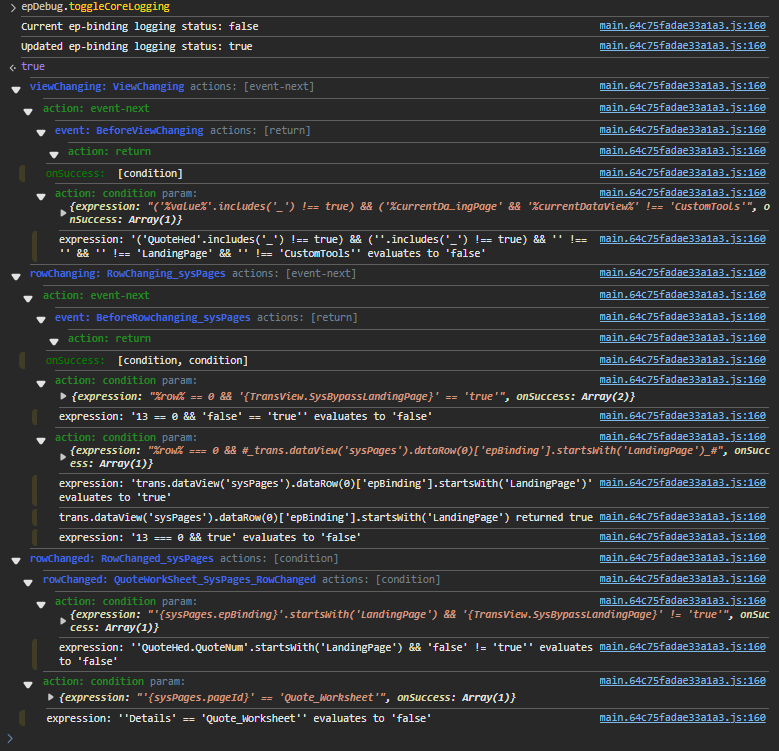
epDebug commands
Section titled “epDebug commands”Type these in the console command line. Run epDebug.Help for the full list.
| Command | What it does |
|---|---|
epDebug.toggleCoreLogging |
Toggles detailed core (ep-binding) logging. The console confirms the old and new status. With it on, the trace includes the substituted expressions and every nested event-next call. Turn it on when the normal trace seems to be missing steps |
epDebug.context |
Dumps the current context: how the screen was launched, including the menu item and any values passed in by the app that opened it |
epDebug.views |
All data views, like Ctrl+Alt+V |
epDebug.viewsDirty / epDebug.viewsChanged |
Only views with unsaved or changed data |
epDebug.dumpViewData('XX_View') |
A snapshot of one view’s data |
epDebug.rules / epDebug.ruleActions |
Data rules per view, and rule results as a tree |
epDebug.context is the fastest way to answer “what did the calling screen actually pass me?” when one app opens another.
Network tab: see every server call
Section titled “Network tab: see every server call”Everything the screen asks the server for (business object methods, BAQs, Epicor Functions) is an HTTP request, mostly POSTs. To inspect them:
- Open the developer tools and switch to the Network tab.
- Clear it, then perform the action.
- Click a request. The URL names the service and method (for example
.../Erp.BO.SalesOrderSvc/GetByID). - Use Payload for the parameters sent, Response for what came back (errors included), and Headers for request details, including the cookies sent with the call.
Use it to:
- find which method fills a grid before writing a BPM (see Add columns to an existing grid)
- copy the exact parameter names a method expects before configuring
rest-erp - read the real error message when a save or function call fails. Failed calls are shown in red
Debugging before the form loads
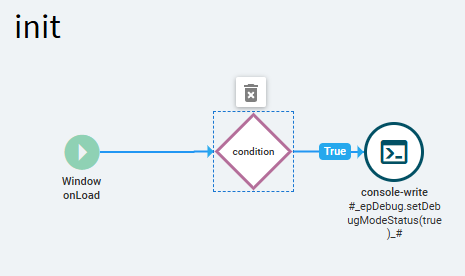
Section titled “Debugging before the form loads”Ctrl+Alt+8 only works once the screen has loaded, so you can’t use it to watch problems that happen during load. The fix is an event that switches debug mode on as the form initializes:
-
In your layer, create an event with trigger Type
Event, HookAfter, Targetinit.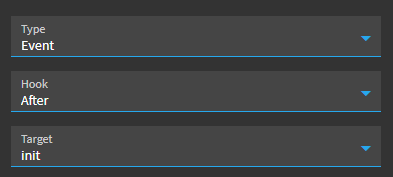
-
Add a
conditionso it only affects you:"{Constant.CurrentUserID}" === "your.userid". -
On the True branch, add a
console-writewidget whose text is:#_epDebug.setDebugModeStatus(true)_# -
Save and reopen the screen. Debugging is on from the start, for you only.
The condition matters. Without it, everyone who uses the layer gets debug logging, which slows the screen. Remove the event (or tick Disabled) before publishing to production, or keep it in a separate test layer.
Other debugging options
Section titled “Other debugging options”- Epicor’s Debug Tool (Ctrl+Shift+D, or overflow menu > Debug Tool) shows a call log and a data view browser inside Kinetic. When you open it on an Application Studio preview, its Autoload toggle reloads the preview each time you save the layer.
- On-premises servers can switch on debug mode globally with a flag in the server’s
sysconfig.json. It slows every session, so only use it on test or pilot environments.
Sources
This page is written in our own words. It was informed by: