Calling BAQs, services and functions
Events reach the server through two widgets. erp-baq runs a BAQ, and rest-erp calls anything else: business object methods and Epicor Functions. Both can write their results into a data view, where grids and fields bound to that view pick them up.
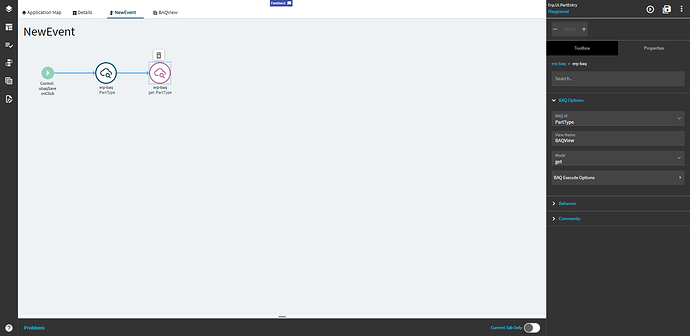
erp-baq: run or save a BAQ
Section titled “erp-baq: run or save a BAQ”On the canvas this widget may be labelled kinetic-baq. Its BAQ Options:
| Setting | Notes |
|---|---|
| BAQ Id | The BAQ to run. It must be shared |
| View Name | The data view that receives the results (or, in update mode, supplies the rows to save) |
| Mode | get to run the query, update to save changes through an updatable BAQ |
| BAQ Execute Options | For get: execution settings |
| BAQ Parameters | For get: values for BAQ parameters |
| BAQ Update Options | For update: Operation (update), Send All Rows, Rollback Data On Error |
A get into a view with a parent/child relationship only keeps the rows that match the parent. That’s how the pattern in BAQ data views works. The update mode is covered in Updatable BAQ grids.
rest-erp: call a business object or function
Section titled “rest-erp: call a business object or function”The rest-erp widget’s settings are nested. Work through them top to bottom:
Rest Services
- Service Name: the business object service, e.g.
Ice.BO.ChgLogSvcorErp.BO.SalesOrderSvc. Leave it empty when calling an Epicor Function. - Service Operation: the method, e.g.
GetByID, or the function’s name.
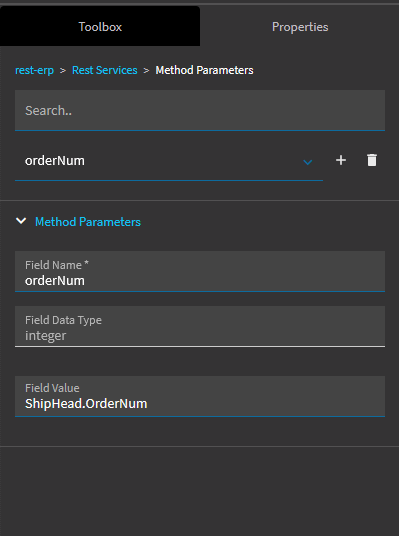
Method Parameters: one entry per simple (non-dataset) parameter:
- Field Name: the parameter name exactly as the method defines it
- Field Data Type: e.g.
string, ordatasetfor a dataset parameter built inline - Field Value: a literal, or a value from the screen
ERP Rest Arguments
- Request Parameters: send a data view as a dataset parameter. Set Parameter Path/Parameter Name to the method’s parameter and View Name to the view that supplies the rows. Under Dataset, set Dataset Id to match.
- Response Parameters: put part of the response into a view. Set Parameter Name to the table in the response, View Name to the target view, and Parse from Response Path to where the data sits in the response (
returnObjfor most methods that return a dataset). Merge Behavior controls how incoming rows combine with rows already in the view.
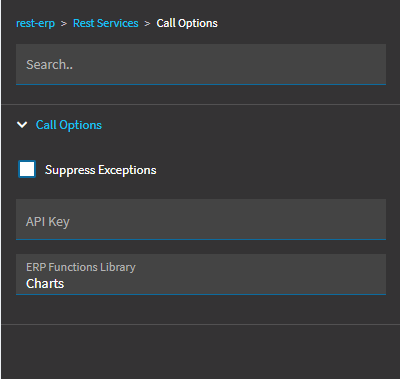
Call Options
- ERP Functions Library: the library ID when calling an Epicor Function
- API Key: not needed for calls made from inside Kinetic
After the widget runs, the next widgets in the chain can read its output as actionResult. For example, a function output parameter OutURL is available as {actionResult.OutURL}.
Example: a change log slide-out
Section titled “Example: a change log slide-out”Many maintenance screens can show a record’s change log. This example builds that by hand on a screen that doesn’t have it, using Ice.BO.ChgLogSvc. Change logging must already be enabled for the table.
-
Create a data view named
XX_ChgLogwith Server SchemaICEandChgLogas both the dataset and table. The response will fill it. -
Add a slide-out page: in the Application Map, add a page with Page Type
SlidingPanel, NameXX_PageChgLog, CaptionChange Log. Edit it and add a panel card grid whose Grid Model > Provider Model > Ep Binding isXX_ChgLog. Add only the columns you need under Grid Model > Columns. Without them the grid tries to show every column and becomes unreadable.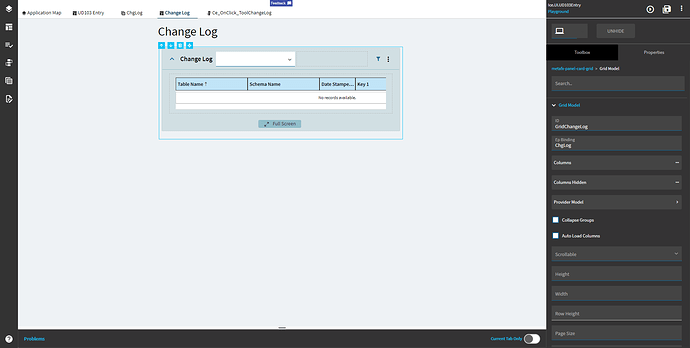
-
Add a tool to open it: select the page header, go to Advanced > Tools, add a tool with ID
XX_toolChgLog, an icon such asmdi mdi-history, and tick Add to Primary ToolBar.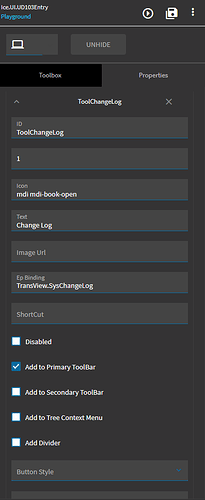
-
Create the event: trigger Control > On Click > XX_toolChgLog.
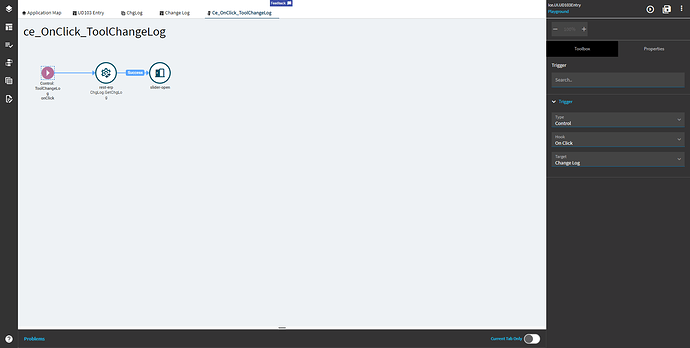
-
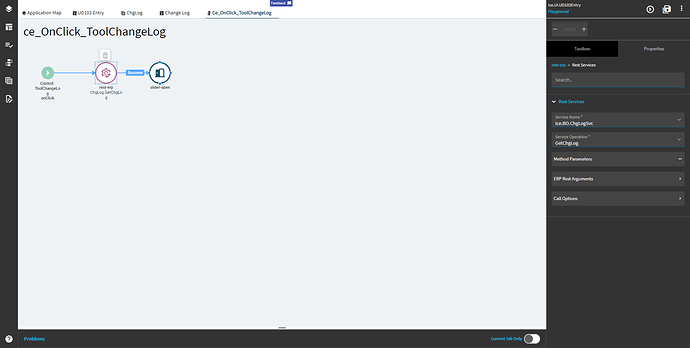
Add
rest-erp:- Service Name
Ice.BO.ChgLogSvc, Service OperationGetChgLog - Method Parameters:
ip_systemCode=ICEforIcetables, typicallyERPforErptablesip_tableName= the table, e.g.UD01ip_sysRowID= the current record’sSysRowID, e.g.{UD01.SysRowID}
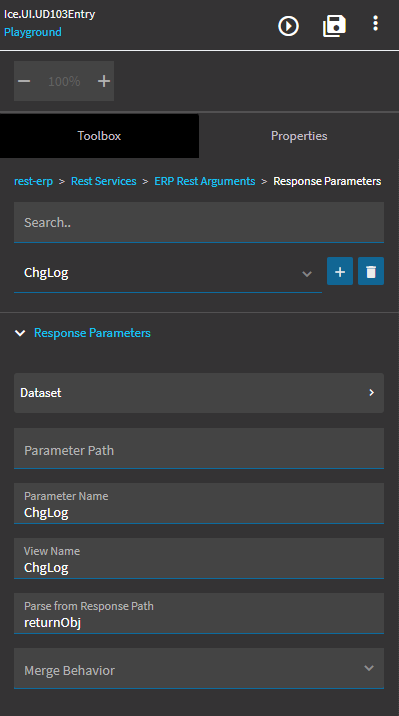
- Response Parameters: Parameter Name
ChgLog, View NameXX_ChgLog, Parse from Response PathreturnObj
- Service Name
-
Add
slider-openon the success path, with PageXX_PageChgLog.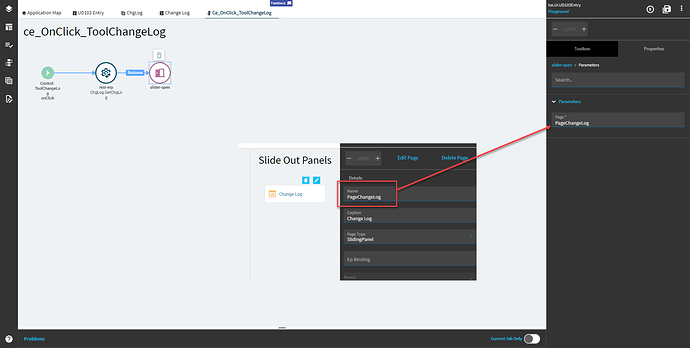
-
Save, preview, open a record and click the tool.
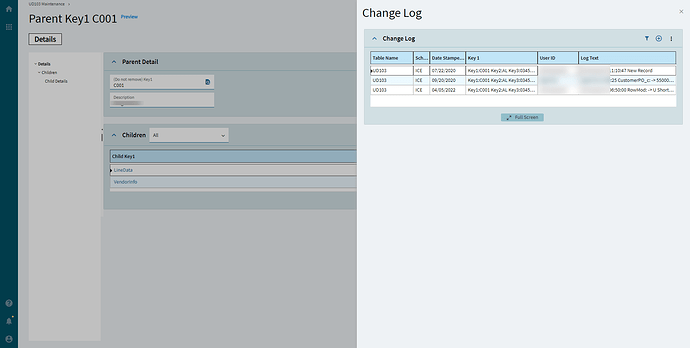
Example: run a BAQ with custom parameters
Section titled “Example: run a BAQ with custom parameters”When erp-baq can’t pass parameters the way you need, call Ice.BO.DynamicQuerySvc directly with rest-erp, using ExecuteByID to run a BAQ (or UpdateByID to save an updatable one on older releases). The full setup is in Dashboard parameters and filters.
Calling an Epicor Function
Section titled “Calling an Epicor Function”-
Leave Service Name empty and set Service Operation to the function name.
-
Under Call Options, set ERP Functions Library to the library ID.
-
Add each input under Method Parameters. For a dataset input, map a view under Request Parameters.
-
Read outputs in later widgets as
{actionResult.OutputName}, for example in arow-update.
The library must be published and available to the calling company. A library marked For Internal Use Only can’t be called over REST, which is what rest-erp uses. If the call fails, the Network tab shows the server’s error message. See Libraries, publishing and security.