Application Studio overview
Application Studio is the designer built into Kinetic for changing screens and building new ones. You use it to add fields, hide things, react to user actions, pull in extra data and build dashboards. There’s no client-side C# like the old Classic customizations. Everything is configured from a small set of building blocks, and your changes are saved in a layer that sits on top of the base application.
This page explains those building blocks and how they talk to each other. The rest of this section goes into each one.
Opening Application Studio
Section titled “Opening Application Studio”There are two ways in:
- From a running screen: open the application, then choose Application Studio from the overflow menu (the three dots at the top right), or press Ctrl+Alt+D.
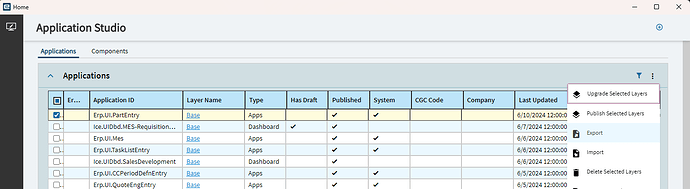
- From the home page: go to System Management > Kinetic Application Management > Application Studio. The grid lists every application and layer. Click a Layer Name link to open it.
You need Customize Privileges on your user account (User Account Security Maintenance) to create layers. Users with only dashboard developer rights can work on the base of dashboards but can’t create layers.
The five designers
Section titled “The five designers”The left sidebar switches between designers. Each one edits a different part of the application.
| Designer | What you change there | Read more |
|---|---|---|
| Application Map | The page structure: landing page, tabs, pages, slide-out panels | Pages, tabs and slide-outs |
| Layout | The controls on a page: panel cards, text boxes, grids, buttons | Layout, controls and toolbars |
| Data Views | The client-side tables the screen works with | Data views |
| Events | Sequences of actions that run when something happens | Events |
| Data Rules | Conditions that continuously style, disable, hide or set fields | Data rules |
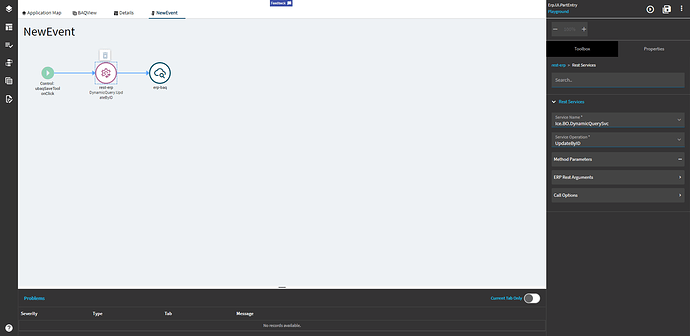
Each item you open appears in its own tab across the top of the designer, so you can have a page layout, an event and a data view open side by side. The Problems panel at the bottom lists validation errors, such as an event with a disconnected widget or an incomplete rule.
Layers
Section titled “Layers”A layer is a named package of changes applied on top of the base application. The base itself is never edited, so when Epicor updates the base screen your layer is reapplied on top. Layers are saved as drafts and only take effect once they’re published and attached to a menu. Details are in Layers.
How a Kinetic screen works
Section titled “How a Kinetic screen works”Almost every problem in Application Studio makes sense once you understand this: Kinetic screens are driven by data, not by controls.
- Data views hold rows of data on the client. Some come from the server (
OrderHed,JobHead), some are scratch areas (TransView), some hold system information (Constant,KeyFields,CallContextBpmData). - Controls don’t hold values. A text box shows whatever is in the data view column named in its EpBinding, for example
OrderHed.PONum. Two controls bound to the same column always show the same value. - When a value in a data view changes, everything subscribed to it reacts. Bound controls redraw, data rules re-evaluate, child data views refilter against their parent, and events with a DataTable > Column Changed trigger fire.
- Events change data, most often with the
row-updatewidget, and that change is what everything else reacts to.
This is a publish/subscribe model: a data view publishes changes and everything bound to it subscribes. It’s also why the most reliable fix is usually “drive it from the data”. React to a column changing rather than to a control losing focus, and hide a field with a rule on its data rather than toggling the control from several events.
user types / event runs row-update │ ▼ data view column changes ──► bound controls redraw │ ├─► data rules re-evaluate (style, disable, hide, set) │ ├─► child data views refilter (parent/child) │ └─► "Column Changed" / "Row Changed" events fire ▼ save sends the changed rows to the server (BO method, BPMs run there)Where to look first when something doesn’t work
Section titled “Where to look first when something doesn’t work”Work down this list before rebuilding anything:
- Are you running the layer you think you are? Drafts aren’t used by menus. Publish the layer and check that the menu item’s Kinetic Customizations field points at it. Preview doesn’t pick up changes automatically either, so click Preview again after saving.
- Save, close and reopen the layer. Some changes, particularly to grids and data views, don’t load properly in a preview launched straight after editing.
- Check the Problems panel in Application Studio for errors on the event or rule you changed.
- Turn on browser debugging. Open the browser console, click into the screen, press Ctrl+Alt+8 and repeat the action. You’ll see each event, every widget it ran and how every condition evaluated. See Debugging.
- Look at the data. Press Ctrl+Alt+V to dump the data views. If the column your control is bound to is empty or missing, the problem is upstream: the event that should have filled it didn’t run or ran at the wrong time.
- Look at the rules. Ctrl+Alt+1 shows data rules as a tree. A rule silently wins over an event that changes the same property.
- Look at the network. In the browser’s Network tab, failed server calls show up in red with the error in the response.
Known symptoms and their fixes are collected in Troubleshooting.
In this section
Section titled “In this section”Foundations
- Layers: create, save, publish, copy, merge, export and import layers, and promote personalizations.
- Layout, controls and toolbars: property groups, containers, hiding controls, toolbar tools and the data tree.
- Pages, tabs and slide-outs: page types, new pages, tabs inside panel cards and slide-out panels.
Data
- Data views: system and custom data views, columns, tools and the current row.
- BAQ data views and parent/child filtering: show BAQ results that follow the current record.
Behavior
- Events: triggers, hooks and widgets, and extending or overriding system events.
- Common event patterns: recipes for typed values, row selection, refreshing, finding rows and focus.
- Expressions and JavaScript:
{View.Column}placeholders,#_..._#JavaScript and working with dates. - Data rules: conditions and actions, null checks, copying system rules.
- Calling BAQs, services and functions: the
erp-baqandrest-erpwidgets.
Controls
- Combo boxes: static lists, BAQ-driven lists, custom values and filtering options.
- Grids and panel card grids: binding a grid, adding columns, sizing, loading and hiding tools.
- Add columns to an existing grid: extend a base grid’s data with a post-processing BPM.
Dashboards
- Build a dashboard step by step: from a BAQ to a menu item and a solution for production.
- Dashboard parameters and filters: filter fields, BAQ parameters and multi-value inputs.
- Updatable BAQ grids: editable grids that save through a uBAQ.
- Charts in dashboards: two ways to show a chart.
When things go wrong
- Debugging: browser console, keyboard shortcuts,
epDebugcommands, network traces and debugging before the form loads. - Troubleshooting: symptoms, causes and fixes.