Images, logos and barcodes
Logos are the first thing people want changed on Epicor forms, and there’s no single “company logo” setting that every report picks up. You set images per report style, or you design your reports to fetch the logo from data. This page covers both, plus part pictures and barcodes.
Replaceable images on a report style
Section titled “Replaceable images on a report style”Several standard forms are built with a replaceable image slot, among them the AR invoice, customer statement, debit memo, packing slip, purchase order, reminder letter, sales order acknowledgment and supplier statement. For those, no RDL editing is needed:
- Open Report Style Maintenance and select the report and style.
- Go to Styles > Style Detail > Companies/Images and click Retrieve above the image list. The list starts empty even when the report has image slots; Retrieve reads them from the RDL.
- Double-click the image’s row, choose the image, and click OK.
- Save.
The image is stored with the style, per company, so a multi-company system can use one style with a different logo in each company.
Retrieve finds nothing
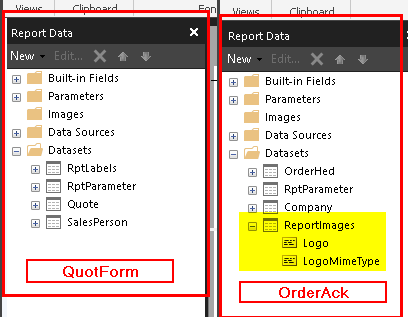
Section titled “Retrieve finds nothing”Retrieve looks for a dataset called ReportImages in the RDL. Forms without one, such as the quote
form (QuotForm), return an empty list. You can add the slot yourself by copying it from a form that
has it, such as OrderAck:
-
Download both reports and open the
OrderAckRDL. -
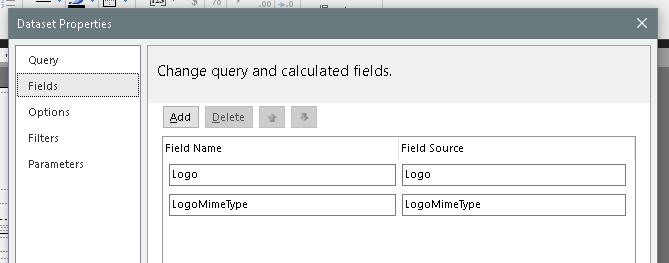
Recreate its
ReportImagesdataset in your copiedQuotFormRDL with the same data source type, query expression and fields. The query only returns rows if Epicor extracted an image for the run, and returns an empty result otherwise, so the report still runs without one.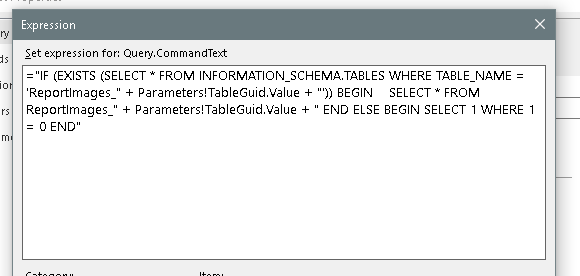
-
Copy the logo image item from the
OrderAcklayout and paste it into yours. It reads the picture fromReportImages, with its MIME type set by the expression=First(Fields!LogoMimeType.Value, "ReportImages"). -
Upload, then Retrieve again in Report Style Maintenance and set up the image.
One logo for many forms, companies or sites
Section titled “One logo for many forms, companies or sites”Setting images style by style gets tedious when you have many custom forms, several companies or a
logo per site. Two approaches put the logo in data instead, where every RDD that includes the table can
reach it. Almost every Epicor RDD already includes the Company table.
A UD field holding the logo’s path
Section titled “A UD field holding the logo’s path”-
Add a UD field such as
LogoPath_ctoCompany(or toPlantfor a logo per site), and put it on Company Configuration (Company Maintenance in the Classic client) or the site screen so an administrator can fill it in. For a site logo, make sure your RDD includes thePlanttable.
-
Store each logo on a file share and enter its UNC path, for example
\\fileserver\share\logos\main.png. Give the account the report server uses read access to the share. -
Include the field in your RDDs.
-
In the RDL, add an Image with Select the image source set to External and a value expression that builds a file URL:
="file:" & First(Fields!LogoPath_c.Value, "Company")
Because the same field is available anywhere the Company table is, BAQ reports and label software can
use it too.
A UD field holding the image itself
Section titled “A UD field holding the image itself”Instead of a path, store the image data in a large text UD field on Company as Base64, filled by a
BPM or function when an administrator uploads the logo. In the RDL, use an Image with the source
set to Database, convert the text back to bytes, and pick the matching MIME type:
=Convert.FromBase64String(First(Fields!LogoBase64_c.Value, "Company"))This works in the cloud, where the report server can’t reach your file shares.
Images from Epicor’s file store
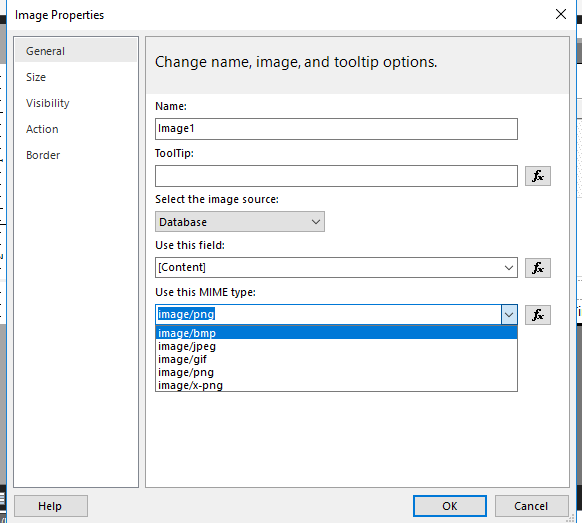
Section titled “Images from Epicor’s file store”When the picture comes straight from a binary column (Epicor’s image store content, for example), use a
Database image with the column as the field and set Use this MIME type to the file’s real
type (image/png, image/jpeg…). SSRS often renders it even with the wrong type, but setting the
right one avoids surprises.
Part pictures
Section titled “Part pictures”If your part images are stored as files rather than inside the database, a report can show them as external images:
- Make sure the part’s image reference resolves to a file path the report server can read, written
as a
file:URL (for examplefile://fileserver/share/parts/PART-1001.png). - Bring that column into the report, through a BAQ in a BAQ-based RDD or a linked field.
- Add an Image with the source External and Use this image set to the column.
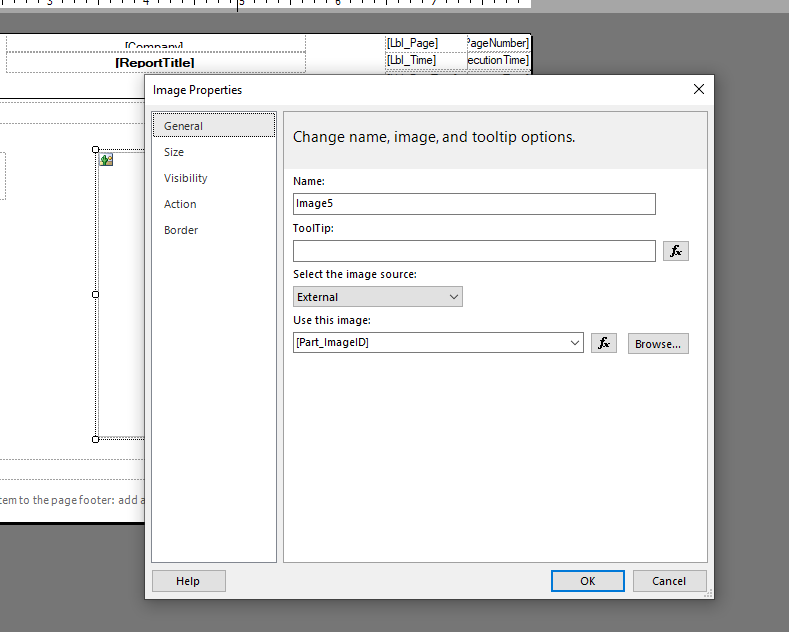
If the images live in the database, use a Database image as in the previous section.
Barcodes
Section titled “Barcodes”The simplest barcode on an Epicor SSRS form is a Code 39 barcode made with a font:
-
Add a text box with the value you want to encode, wrapped in asterisks. Code 39 uses
*as its start and stop characters, and scanners won’t read the code without them:="*" & First(Fields!PartNum.Value, "JobHead") & "*" -
Set the text box font to DataWorks Bar 39 and make it large enough for a scanner (around 24 pt is a good start).
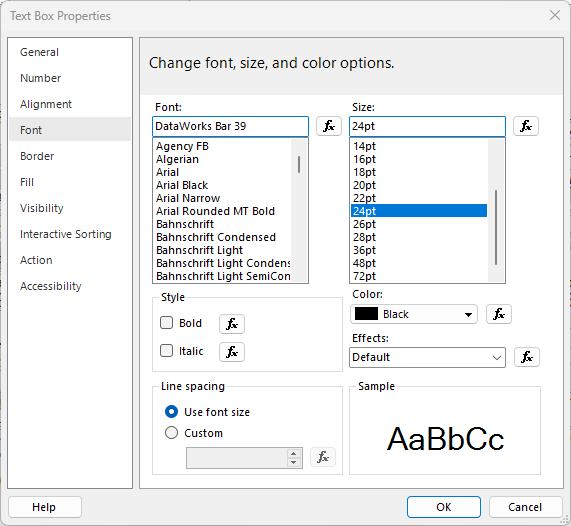
The font has to be installed where the report is rendered, which is the report server, not the user’s PC.
Code 39 only covers upper-case letters, digits, space and - . $ / + %. Convert the value with
UCase() if it might contain lower-case letters, and use a different symbology if your data has other
characters.
Sources
This page is written in our own words. It was informed by: