Scheduled tasks, the System Agent and the task agent
Anything Epicor runs “in the background” (a report sent to print or email, MRP, a BAQ export, a process set) is a task. Tasks are picked up and run by the task agent, a Windows service that sits next to the application server. When you choose a schedule on a report instead of Now, you are asking the task agent to run it later, or again and again.
This page explains the pieces, then walks through scheduling a report and cleaning up afterwards.
The pieces
Section titled “The pieces”| Piece | What it is | Where you manage it |
|---|---|---|
| Task agent | The service that actually runs tasks. On-premises you can run up to three per database, on different machines, for redundancy. | Task Agent Service Configuration on the server (on-prem), or Start/Stop Task Agent in the Cloud Management Portal (cloud) |
| System agent | The record that holds the named schedules (“Weekly - Monday”, “Every 2 hours”) and the account the agent runs processes as. | System Agent Maintenance |
| Schedule | A named timing rule: once, daily, weekly, monthly, hourly, a fixed interval, or at agent start-up. | System Agent Maintenance |
| Scheduled task | One report or process attached to a schedule. | Created from the report or process itself. Reviewed in System Monitor and System Agent Maintenance |
| Process set | A group of tasks that run together on one schedule, in a set order or in parallel. | Process Set Maintenance, then Schedule Process Set |
The distinction that trips people up: System Agent Maintenance creates schedules, not tasks. You cannot add a report to a schedule from there. You attach a report to a schedule from the report’s own screen, and System Agent Maintenance then lets you see and manage what is attached.
Schedule a report
Section titled “Schedule a report”- Open the report as you normally would and fill in its options and filters.
- Tick Recurring if it should run more than once. Without it the task runs a single time and disappears from the schedule.
- Pick the Schedule. The list shows the schedules defined in System Agent Maintenance.
- Enter a User Description that says what the task is and who it is for, for example
Weekly open orders - sales team. It is the only thing that tells tasks apart later in System Monitor. - Choose the output: print, preview, email and so on. When you submit, the task is saved against the schedule.
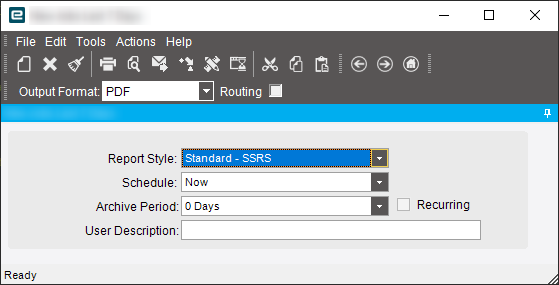
To make a report run on a schedule by default for a user, select the schedule and Recurring, then save them as the report defaults (Actions > Save Defaults in Classic).
Who owns the task
Section titled “Who owns the task”A scheduled task belongs to the user who submitted it, and runs with that user’s report options. You don’t have to be logged in as someone for the task to affect them (an emailed report goes wherever you point it), but the task shows under your name. If you schedule reports on behalf of other people, either submit them while logged in as that user, or put the recipient’s name in the description so whoever cleans up later knows what it is for.
If the task owner leaves the company and their account is disabled, check whether they own scheduled tasks first.
Heavy tasks
Section titled “Heavy tasks”Big reports and processes (MRP, large BAQ exports, costing) belong on schedules that run outside working hours. Two heavy tasks on the same busy-hour schedule is a common cause of “Epicor is slow on Monday mornings”.
Review, change and remove scheduled tasks
Section titled “Review, change and remove scheduled tasks”- System Monitor > Scheduled Tasks lists the future tasks you can see. Security managers can see more than their own. Active Tasks shows what is running now and History Tasks what already ran. History is purged automatically after a set number of days.
- System Agent Maintenance shows each schedule and, on its tasks list, every task attached to it, with the last run time. Deleting a task here removes it from the schedule. Access to this program is normally limited to security managers.
- To change a task’s options (filters, recipients, output), it’s usually simplest to delete it and submit the report again with the new settings.
If a task you deleted keeps coming back, or blocks you from scheduling the same report again, see Troubleshooting.
Restart the task agent
Section titled “Restart the task agent”Restart the task agent when scheduled tasks stop starting, tasks sit in Active Tasks without progressing, or as part of maintenance such as a data model regeneration.
On-premises
- On the server that hosts the Epicor Administration Console, open Task Agent Service Configuration (from the console’s application server node, or from the Start menu, where it is listed with its version number).
- Right-click the task agent for the environment you want and choose Stop Agent.
- Give it a moment to finish its current work, then right-click and choose Start Agent.
If several versions of Epicor are installed on the same server, each has its own copy of Task Agent Service Configuration. Make sure you open the one that matches the environment.
Epicor Cloud
Open the tenant instance in the Cloud Management Portal and use Stop Task Agent and Start Task Agent on the Summary tab.
The account the agent runs as
Section titled “The account the agent runs as”The task agent and the system agent log in with an Epicor account, and processes such as MRP and scheduling run as that account. Use a dedicated service user that has access to every company and site, has session impersonation rights, and whose password does not expire. If the password expires or the account is locked, every scheduled task stops.
Related pages
Section titled “Related pages”- Send email and auto-print from a BPM, including an alert when a scheduled process finishes
- Email delivery and SPF if scheduled reports aren’t arriving
- Troubleshooting for stuck and phantom tasks