Performance and timeouts
A BAQ that takes a minute in the designer takes a minute every time a dashboard opens, for every user. Before raising a timeout, make the query cheaper; raise the timeout only for queries that are genuinely big, such as year-end history.
“Execution Timeout Expired”
Section titled ““Execution Timeout Expired””Symptom. The query stops after about 30 seconds and the execution messages say:
Severity: Error, Table: , Field: , RowID: , Text: Execution Timeout Expired. The timeout period elapsed prior to completion of the operation or the server is not responding.The wait operation timed out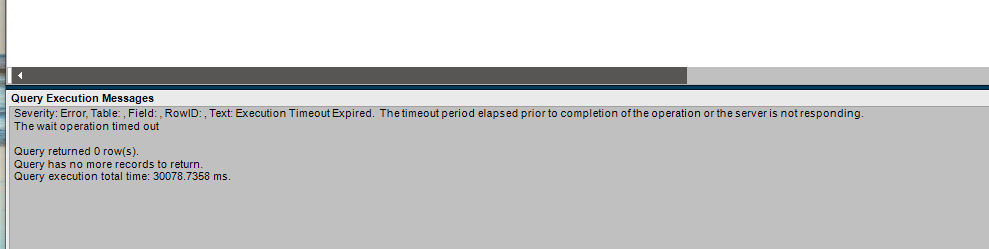
Cause. The query ran longer than its time limit.
Fix. Give this query a longer limit:
- Open Execution Settings (Kinetic: Overflow menu; Classic: Actions menu).
- Click New and start typing to pick the query timeout setting (shown as
queryTimeoutor Timeout). - Enter a value in seconds, such as
600for ten minutes.0means no limit; avoid it for anything users run. - The timeout is always saved with the query, whether or not you tick Persist in Query.
A per-query limit can’t exceed the application server’s maximum unless the query’s owner is a security manager. On-premises, the server-wide limits are in the Epicor Administration Console under the application server settings. Cloud users will need Epicor to change them.
Then work through the rest of this page, because a query that needs ten minutes usually has a fixable cause.
Make the query cheaper
Section titled “Make the query cheaper”- Join on keys, company first. Every join should start with
Company, then the key columns of an index. When Analyze warnsThere is no index for <table> which can be used in the join with <table>, the join doesn’t line up with any index and SQL Server may scan the whole table. - Filter early, on the first table. Criteria on the first table go into the
WHEREclause and cut rows before the joins do their work. A BAQ overPartTranorTranGLCwith no date criteria reads years of history. - Don’t wrap filtered or joined columns in functions.
YEAR(OrderHed.OrderDate) = 2025andCONVERT(nvarchar, Key1) = ...stop SQL Server using an index on that column. Filter with a range (OrderDate >= '2025-01-01' AND OrderDate < '2026-01-01', or better, a constant or parameter), and convert the other side of a join. - Aggregate before you join. Summarise detail rows in an inner subquery, then join the smaller result, instead of joining everything and grouping at the end.
- Return only what’s used. Every display column is work, especially wide text columns. Remove the ones nobody looks at.
- Fix duplicates at the join, not with Distinct.
DISTINCThides extra rows after they’ve been produced. - Avoid correlated subqueries in calculated fields. A calculated field that runs its own
SELECTfor every row is a loop in disguise. Use a joined inner subquery instead. - Build lists with
STRING_AGGrather than the olderFOR XML PATHtechnique on SQL Server versions that support it. Epicor’s BAQ guide recommends the swap for queries that became slow after an upgrade.
Diagnose with the designer’s tools
Section titled “Diagnose with the designer’s tools”- Test each subquery. When a query has several subqueries, the designer lets you test one at a time. The slow one is usually obvious.
- Cancel a runaway test. Kinetic can cancel a test that’s taking too long. On-premises, the SQL account Epicor uses needs the
ALTER ANY CONNECTIONandVIEW SERVER STATEpermissions for this. - Get the execution plan. Get Query Execution Plan downloads a
.sqlplanfile you can open in SQL Server Management Studio. Look for table scans on big tables and for thick arrows (many rows) feeding joins. - ShowStatistics. Setting this execution setting to
trueadds SQL Server’s time and I/O statistics to the execution messages. - Index hints. Analyze may suggest a table hint. Only apply it if the execution plan proves it helps; a hint that suits today’s data can hurt tomorrow’s.
Other execution settings worth knowing
Section titled “Other execution settings worth knowing”| Setting | What it’s for |
|---|---|
QueryOption |
Adds an OPTION (...) hint. RECOMPILE builds a fresh plan each run, which helps queries whose best plan varies a lot by parameter or company but costs CPU; use it on queries that don’t run often. MAXRECURSION n raises the limit for recursive CTEs. MAXDOP n limits parallelism. |
QueryMaxResultSet |
Caps the rows the query returns. Always saved with the query. |
RemoveTestRowLimit |
The designer only returns 10,000 rows when testing. Set this to true to see them all while testing; it doesn’t affect real runs. |
TransactionIsolation |
Sets the isolation level for this query. See NOLOCK below. |
UseAlternateCompanySecurity |
For queries carried over from much older versions (before 10.2.700) that became slow after upgrading. |
| Use Primary Database | If your SQL Server has an Always On read-only replica, clearing this runs the query there, away from users’ transactions. Updatable BAQs always use the primary. |
NOLOCK and reading uncommitted data
Section titled “NOLOCK and reading uncommitted data”In hand-written SQL you’ll often see WITH (NOLOCK) after table names. It tells SQL Server to read the table without waiting for locks held by other transactions. That avoids waiting, but it also means the query can see data that is halfway through being written and may be rolled back: a “dirty read”. It can also skip rows or read the same row twice while pages are moving. For a quick look that’s harmless; for figures someone will make decisions on, it isn’t.
Two things make it less relevant in Epicor than people expect:
- You can’t add table hints like
NOLOCKin the BAQ designer. The equivalent is theTransactionIsolationexecution setting with the valueReadUncommitted, which applies to the whole query. Epicor’s default (NotSet) uses the provider’s normal isolation level. - Epicor databases use row versioning. With snapshot-based isolation, readers see the last committed version of each row instead of waiting for writers, and writers don’t wait for readers. Reports don’t block data entry, and the thing
NOLOCKwas meant to fix mostly doesn’t happen. ForcingReadUncommittedthen buys little and still risks dirty reads.
To see what your database actually has, a DBA can run:
SELECT name, snapshot_isolation_state_desc, is_read_committed_snapshot_onFROM sys.databasesWHERE name = DB_NAME();If you do write NOLOCK in SQL outside Epicor (an SSRS dataset, a SQL job), always use WITH (NOLOCK) with the brackets. Writing FROM Erp.Part NOLOCK without them makes NOLOCK a table alias, not a hint: the query silently runs with normal locking.
When the server is the bottleneck
Section titled “When the server is the bottleneck”If many heavy queries run at once (dashboards opening at 8 a.m., scheduled exports on the hour), SQL Server may run short of memory for sorting and hashing. Queries then queue before they even start, which your DBA will see as RESOURCE_SEMAPHORE waits. The cure is the same list as above, because queries that read and sort fewer rows need smaller memory grants. Staggering schedules and pointing read-only reporting at a replica help too.
Sources
This page is written in our own words. It was informed by: