How inventory flows through jobs
A job sits between two inventory movements: material goes in from stock or purchasing, and finished parts come out to stock, to another job or to a customer. Epicor can do both ends manually or automatically. Getting the automation right is what lets a chain of jobs pull from and feed each other without anyone keying transactions.
The two ends of a job
Section titled “The two ends of a job”| Direction | Manual way | Automatic way | Transaction type |
|---|---|---|---|
| Material in | Issue Material | Backflush when labor is reported on the related operation | STK-MTL |
| Purchased material in | Receipt to job in Receipt Entry | — | PUR-MTL |
| Finished parts to stock | Receipt to Inventory (Job Receipt to Inventory) | Auto Receive on the last operation | MFG-STK |
| Finished parts to another job | Job Receipt to Job | — | MFG-WIP / WIP-MFG |
| Finished parts to a customer | Ship from the job in Customer Shipment Entry | — | MFG-CUS |
See Inventory transaction types for what each code does to the GL.
Material in: backflushing
Section titled “Material in: backflushing”Backflushing is Epicor issuing the material for you. When someone reports a completed quantity on an operation, every backflushed material related to that operation is issued at that quantity times Qty/Parent (plus any scrap factor).
For a material to backflush:
- The part must be flagged Backflush (Part, Site detail) and the job material shows Backflush selected.
- The material must have a Related Operation, and that operation must have labor quantity reported against it.
- The part must have somewhere to come from: a backflush warehouse on the operation’s resource or resource group, or failing that the part’s primary warehouse and primary bin.
- Lot-tracked, serial-tracked and dimension-controlled parts can’t be backflushed.
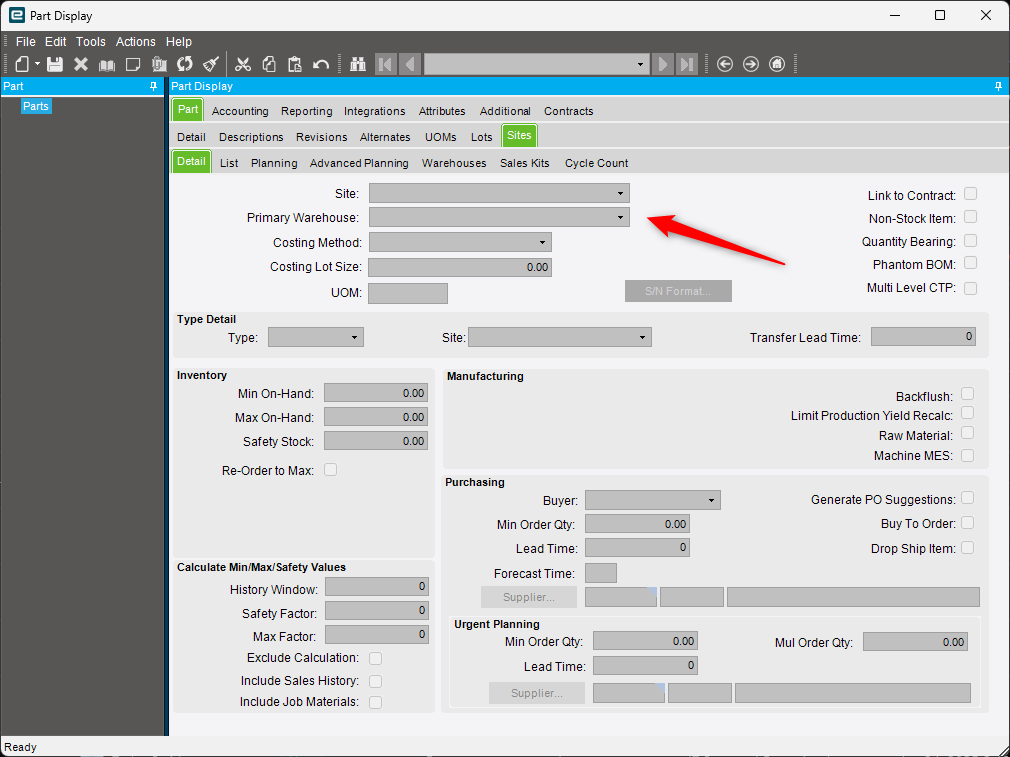
Anything still unissued when the job is completed can be backflushed at completion.
Common ways backflushing goes wrong:
| Situation | Result |
|---|---|
| Material is issued manually and flagged backflush | It’s issued twice |
| The Backflush flag is changed while jobs are in progress | Issue errors and mismatched quantities on open jobs |
| A substitute is used on the floor but not recorded | The planned part is consumed in the system, the real one isn’t |
| Labor is reported late, or rework is reported as production | On-hand drifts away from what’s physically on the shelf |
Parts out: Auto Receive and Auto Move
Section titled “Parts out: Auto Receive and Auto Move”Auto Receive is a check box on a job operation (normally the last operation of the top assembly).
When labor on that operation reports more than the quantity needed for linked sales orders, the surplus
is received into inventory automatically as an MFG-STK transaction, at the part’s current cost.
For example, a job makes 100 pieces: 75 linked to a sales order and 25 to stock. If operators report 110 on the Auto Receive operation, Epicor receives 35 to stock (110 minus the 75 needed for the order).
Where it goes:
- To the warehouse on the job’s Make To Stock demand link, which defaults from the part’s primary warehouse.
- To the part’s primary bin in that warehouse, or the first bin if none is set.
Auto Move is set on the resource (Resource Group Maintenance, Resources card). When selected, completed quantity on that resource moves on to the next operation or to the receiving location without a separate move request.
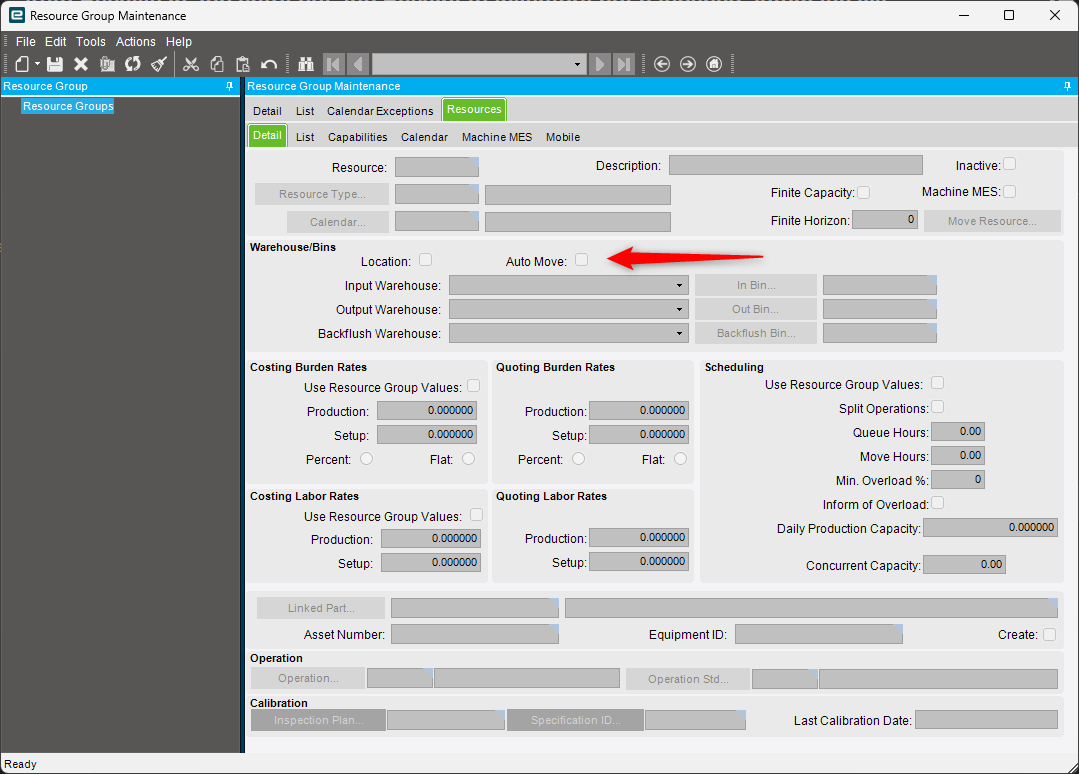
Auto Receive doesn’t work in some cases:
- Make Direct quantities. They aren’t meant for stock; they stay as part WIP until shipped. You can see them in Job Tracker.
- Service jobs, intersite jobs, and parts with Track Multiple UOMs.
- Jobs whose Make To Stock link is set to ship miscellaneous from WIP.
- Serial-tracked parts unless the job has a single Make To Stock demand link. Otherwise you get:
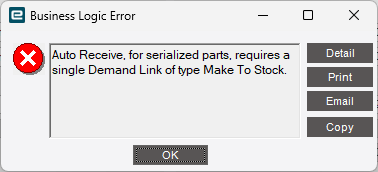
Chaining jobs together
Section titled “Chaining jobs together”With both ends automated, jobs can feed each other through stock:
- Job A makes a subassembly to stock. Its last operation has Auto Receive, so completed quantity lands in the subassembly’s primary warehouse and bin.
- Job B uses the subassembly as a backflushed material related to the operation where it’s fitted. Reporting labor on that operation issues it from the same warehouse and bin.
- Repeat for as many levels as you need. Each job stays independent, and MRP raises new jobs or POs when stock drops below what’s planned.
Backflushing doesn’t stop a bin going negative, so this only works if labor reporting is accurate and timely. Negative on-hand in these bins is almost always a sign that labor or receipts are behind.