Build a dashboard step by step
Kinetic dashboards are Application Studio applications of type Dashboard. There’s no separate dashboard designer as in Classic. This walkthrough builds the simplest useful dashboard: one BAQ in one grid, with no parameters, tabs or editing. It then puts it on a menu and packages it for production. Once this works, add filters and parameters, editable grids or charts.
Before you start
Section titled “Before you start”- A shared BAQ that returns exactly the columns you want, with sensible aliases and labels. Note each column’s alias (e.g.
OrderHed_OrderNum) and label. - Customize privileges on your account.
- A test or pilot environment. Build there and move the result to production at the end.
1. Create the dashboard application
Section titled “1. Create the dashboard application”- Open the Application Studio home page (System Management > Kinetic Application Management > Application Studio). Filtering the grid to Type = Dashboard makes existing dashboards easier to find.
- Click + (top right), choose type Dashboard and enter an ID such as
XX_OpenOrders. Kinetic adds the dashboard prefix for you. - In the Application Map, select the main page and set its Name and Caption. The caption is the title users see.
2. Add and bind the grid
Section titled “2. Add and bind the grid”-
Select the main page and click Edit.
-
From Toolbox > Components, drag a Grid (panel card grid) onto the page.
-
Open Properties, click inside the grid (“No records available”) and go to Data > Grid Model > Provider Model.
-
Set Baq ID and tick Auto Load Grid.
-
Go back up to
metafx-panel-card-grid, open Advanced and tick Auto Fill Container so the grid uses the whole page. Tick Expand at Runtime as well. A collapsed card doesn’t load, so without it users have to expand the card before any data appears.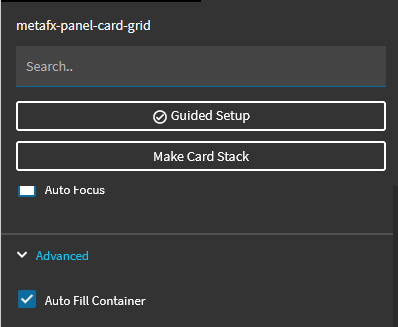
-
Under Grid Model, tick Resizable, Sortable, Filterable and Advanced Filter.
-
Click Preview. Data should appear, though probably with every column in no particular order.
3. Define the columns
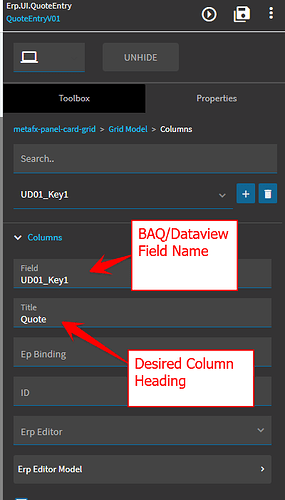
Section titled “3. Define the columns”- Go to Data > Grid Model > Columns (not Provider Model > Columns).
- For each column you want, in display order, click + and set:
- Field: the BAQ alias, exactly, e.g.
OrderHed_OrderNum - Title: the header text, usually the BAQ label
- Field: the BAQ alias, exactly, e.g.
- Preview every few columns. One misspelled field can stop the whole grid loading, and it’s much easier to find if you’ve only added two since the last good preview.
4. Save, publish, and add a layer
Section titled “4. Save, publish, and add a layer”- Save, then Publish from the overflow menu. This publishes the dashboard’s base.
- Close the designer. Close and reopen the Application Studio home page. New applications don’t appear in the grid until it’s reopened.
- Click the dashboard’s Base link and choose Use Layer.
- Click the layer name at the top right, enter a layer name and description, and Save Layer.
- Preview, Save and Publish the layer.
- Reopen the home page. You should now see both a Base row and a layer row for the dashboard.
A menu item that points at the dashboard with no published layer tends to error, so create the layer even if it’s empty. It’s also where later changes belong.
5. Put it on a menu
Section titled “5. Put it on a menu”- If the dashboard needs its own security, create a security ID in Menu Security Maintenance first.
- In Menu Maintenance, add a menu item as usual: menu ID, name, parent menu, order sequence, security.
- Set Program Type to Kinetic App and pick the dashboard application.
- In Kinetic Customizations, click the search button and choose the layer you created. The field looks disabled but isn’t.
- Save, then log out and back in to see the new menu item.
Move it to production
Section titled “Move it to production”Use the Kinetic version of Solution Workbench. The Classic one doesn’t handle Kinetic apps.
- Create a solution with an ID and description and save it.
- Add the dashboard as element type KineticApp. The Dashboard element type is for Classic dashboards.
- Add the Menu element for your menu item, and the Security element if you created one.
- Review the element list before building. Related items are sometimes ticked automatically, so remove anything you didn’t mean to include.
- Build the solution, copy the file to production and install it there with Solution Workbench.
- Log out and back in on production to see the menu item.
If something goes wrong
Section titled “If something goes wrong”- The grid throws a SQL error about invalid columns after using the Basic Application Wizard on a BAQ with subqueries: the wizard added subquery columns to the grid. Remove every column that isn’t in the BAQ’s top level. See Grids.
- The dashboard opens empty until the user expands the card: tick Expand at Runtime on the grid in your layer.
- The BAQ parameter prompt doesn’t appear on open: same cause. For a BAQ with parameters, the prompt slides out when the card expands. See Dashboard parameters.
- Data doesn’t load in preview after changing the grid or a view: save, close and reopen the layer, then preview again.
Sources
This page is written in our own words. It was informed by: