Data views
A data view is a client-side table that a Kinetic screen works with. Every bound control, grid, data rule and most event widgets point at a data view. If you understand which views a screen has and what’s in them, most of Application Studio falls into place.
Each data view wraps one data table. Views that come from the server (such as OrderHed on Sales Order Entry) are filled by business object calls. Others exist only in the browser to hold screen state.
System data views you’ll use constantly
Section titled “System data views you’ll use constantly”| Data view | What it holds | Typical use |
|---|---|---|
TransView |
Scratch fields for the current screen, plus framework flags such as SysReadOnly |
Filter inputs, temporary values, flags your events and rules share. You can bind to any new column name, such as TransView.XX_Filter |
KeyFields |
The key values of the current record | Filtering BAQs by the current record, for example '??{KeyFields.PartNum}' |
Constant |
Session constants such as CurrentUserID |
Conditions like “only for this user” |
CallContextBpmData |
The BPM call-context fields (Character01, Number01…) sent to and returned from the server |
Passing values to a BPM, or reading values a BPM sent back |
sysPages |
The page currently shown | Events that react when the user changes page |
LandingPage |
The rows in the landing page grid | Customizing the landing grid |
ReportParam |
Report options on report and BAQ report forms | Setting report filters from events |
Press Ctrl+Alt+V in a running screen (with the browser console open) to list every data view and its contents. System views and application views are listed separately, and views with unsaved changes are highlighted. See Debugging.
Anatomy of a data view
Section titled “Anatomy of a data view”Open the Data Views designer from the sidebar and select a view (or click Add New). The designer has these sections:
| Section | Settings |
|---|---|
| Data View | Data View ID, the name everything else refers to |
| Server View | Server Schema (for example BAQ) and the dataset or BAQ Id that fills the view |
| Parent Child Relationships | Parent Data View and pairs of Parent Column / Child Column. The view then only shows rows matching the parent’s current row |
| Options | Static Filter, Dirty View – Confirm Changes (prompt the user about unsaved changes), Memo Table Name, Context Override View Name |
| Columns | Column, Caption, Data Type, Format, plus Custom Context Menu and Additional Column flags |
| Tools | Toolbar tools tied to the view: Type (for example New), ID, Text, Icon, Show In Tool Bar, Hidden |
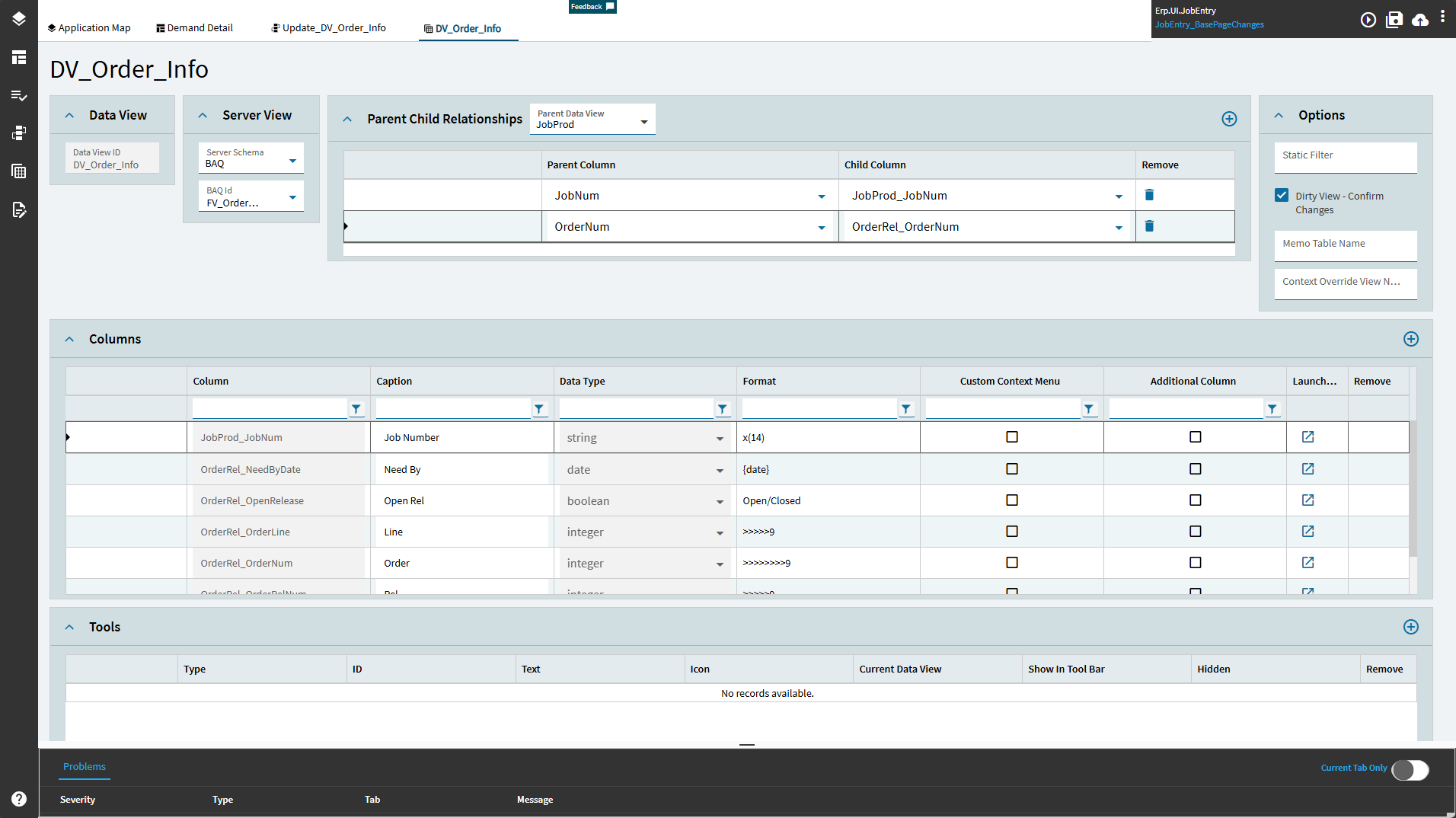
You can edit system views (add columns, tools or relationships), but you can only delete views you created.
Create a custom data view
Section titled “Create a custom data view”- In the sidebar, open Data Views and click Add New.
- Set the Data View ID. Use your prefix, for example
XX_OrderInfo. - If the view will be filled from a BAQ, set Server Schema to BAQ and pick the BAQ Id. For a scratch view, leave the server settings empty.
- Add a parent/child relationship if the rows should follow another view’s current record.
- Save.
A custom view starts out empty. Something has to fill it: an event with erp-baq or rest-erp, or a grid whose provider model points at it. BAQ data views walks through both.
The current row
Section titled “The current row”Every data view has a current row. {OrderDtl.PartNum} in an expression means “the PartNum of the current OrderDtl row”. Selecting a row in a grid changes the current row of the grid’s view, and that change is itself an event you can hook (DataView > Row Changed).
To move the current row from an event, find the row with row-find and select it with row-current-set. See Common event patterns.
Columns and aliases
Section titled “Columns and aliases”When a view is filled from a BAQ, its column names are the BAQ’s field aliases, which use an underscore: OrderHed_OrderNum, not OrderHed.OrderNum. Use that form in bindings (XX_OrderInfo.OrderHed_OrderNum), in parent/child column pairs and in grid column definitions. Mixing up Table.Field and Table_Field is one of the most common reasons a column comes up blank.