Tracker filters with a BAQ combo
A plain tracker prompt is a text box: users have to know and type the exact value. A BAQCombo replaces it with a drop-down whose options come from a BAQ, for example a list of supervisors, warehouses or part classes. Because the list is a query, it updates itself as the data changes.
Before you start
Section titled “Before you start”- A dashboard with the query you want to filter.
- A second, shared BAQ that returns the options: one row per option, with a value column (the key you filter on) and a display column (what users read). Make it return distinct rows; the combo shows every row it gets, duplicates included.
-
Add a tracker view for the query you want to filter (right-click the query, New Tracker View). Leave the column you’ll filter with the combo out of the tracker (not visible). If the tracker shows it, it becomes a native control that you can’t turn into a combo. Save the dashboard.
-
Customize the tracker view: right-click it in the tree and choose Customize Tracker View. The Customization Tools Dialog opens.
-
From Tools > ToolBox, pick BAQCombo and draw it on the tracker panel. Add an EpiLabel next to it.
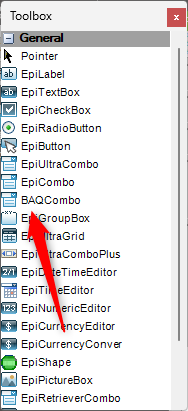
-
With the combo selected, set these properties:
Property Set to DynamicQueryID The options BAQ, e.g. XX_SupervisorListDisplayMember The column users see, e.g. EmpBasic_NameValueMember The column holding the key, e.g. EmpBasic_EmpIDIsTrackerQueryControl (Misc) True, so the combo acts as a filter for the trackerQueryColumn (Misc) The column of the dashboard’s query to filter, e.g. EmpBasic_SupervisorIDDashboardCondition (Dashboard) Usually EqualsDashboardPrompt (Dashboard) True. If it’s leftFalsethe combo is greyed out.DashboardHonorNull (Dashboard) True -
Save the customization, close the dialog, and Save the dashboard.
-
Test on the Dashboard tab: pick a value and click Refresh. Then redeploy the dashboard (Tools > Deploy Dashboard).
- You can add as many BAQ combos as you like. They combine with and, so each extra filter narrows the results; it’s easy to end up with none.
- The same IsTrackerQueryControl / QueryColumn / DashboardCondition properties work on ordinary controls too. Two text boxes on the same column with
GreaterThanOrEqualToandLessThanOrEqualTogive you a range search. - Since the tracker is a customization, you can also add labels, group boxes and tidy the layout while you’re there.
- In Kinetic, the equivalent is an
erp-combo-boxdriven by a BAQ; see Combo boxes and Dashboard parameters and filters.
Sources
This page is written in our own words. It was informed by: