Designing queries
Most BAQ problems come from the shape of the query rather than from any one field: a join that drops rows, a table in the wrong position, a subquery in the wrong order. This page covers the structural decisions. Filters are on Parameters and filtering and expressions on Calculated fields.
Tables and joins
Section titled “Tables and joins”Drag tables onto the canvas. When Epicor’s data dictionary knows how two tables relate, the designer draws the join for you. Click the line between them to see or change the join fields on the Table Relations tab. The Dictionary panel lists every predefined relation between the pair, which helps when there’s more than one (a quote’s sold-to customer versus its ship-to customer, for example).
When there’s no predefined relation, drag a line between the tables yourself and add the fields on Table Relations. Two tables with no join fields at all become a cross join: every row of one paired with every row of the other. That is almost never what you want.
Relation types
Section titled “Relation types”The designer offers four relation types. The names describe which rows survive:
| Designer option | SQL | Keeps |
|---|---|---|
| Matching rows from both tables | INNER JOIN |
Only rows that have a partner in the other table. This is the default between standard tables. |
| All rows from the left table | LEFT OUTER JOIN |
Every row of the left table; the right table’s columns are blank where there’s no partner. This is the default between a standard table and its extension (_UD) table. |
| All rows from the right table | RIGHT OUTER JOIN |
Every row of the right table; the left table’s columns are blank where there’s no partner. |
| All rows from both tables | FULL OUTER JOIN |
Every row from both sides, paired where possible. |
A worked example makes the difference obvious. JobProd links jobs to the sales orders they’re making parts for; a make-to-stock job has no order (OrderNum 0).
OrderHed
| OrderNum | CustNum |
|---|---|
| 10001 | 12 |
| 10002 | 15 |
| 10003 | 12 |
JobProd
| JobNum | OrderNum |
|---|---|
| JOB-000121 | 10001 |
| JOB-000122 | 10003 |
| JOB-000123 | 0 |
Joining them on Company and OrderNum:
| Relation | Rows returned (OrderNum / JobNum) |
|---|---|
| Matching rows | 10001 / JOB-000121, 10003 / JOB-000122 |
All rows from OrderHed |
10001 / JOB-000121, 10002 / blank, 10003 / JOB-000122 |
All rows from JobProd |
10001 / JOB-000121, 10003 / JOB-000122, blank / JOB-000123 |
| All rows from both | all four combinations above: both matches, order 10002 with no job, JOB-000123 with no order |
If a report “loses” records, the usual cause is a matching-rows join to a table that doesn’t always have a partner. Switch it to All rows from the table you care about.
Table order
Section titled “Table order”The Table List tab numbers the tables in the subquery. The first one becomes the FROM table in the generated SQL, and the rest are joined to it in order. Order matters for two reasons:
- Outer joins are read relative to it. “All rows from the left table” means the table earlier in the list.
- Criteria placement depends on it. Criteria on the first table go into the
WHEREclause; criteria on any other table go into that table’sONclause. For an outer join this changes the result. See Parameters and filtering.
Use the up and down arrows on the Table List tab to reorder, then check the Query Phrase to see the SQL you’ve produced.
Subqueries
Section titled “Subqueries”Every BAQ has exactly one TopLevel subquery; it’s the outer SELECT whose columns the users see. Add more subqueries when one SELECT can’t express what you need. Set each one’s type in the SubQuery List (Kinetic: Overflow > SubQueries; Classic: Query Builder > SubQuery Options).
| Type | Use it for |
|---|---|
| TopLevel | The main query. One per BAQ. |
| InnerSubQuery | A derived table: aggregate or filter something first, then drag the subquery onto another subquery’s canvas and join to it like a table. Also used by IN and EXISTS criteria. |
| CTE | A common table expression. Like an inner subquery, but defined once at the top of the SQL and reusable by several subqueries. Required for recursion and often used as the input to a pivot. |
| Union / UnionAll | Append this subquery’s rows to the previous one’s. Union removes duplicate rows; UnionAll keeps them and is faster. |
| Intersect | Keep only rows returned by both. |
| Except | Keep rows from the previous subquery that this one doesn’t return. |
A common pattern: aggregate a detail table in an InnerSubQuery (for example total shipped quantity per order line), then join that subquery to the header table in the TopLevel. Aggregating first keeps the TopLevel free of GROUP BY on every display column.
Union rules
Section titled “Union rules”For Union, UnionAll, Intersect and Except, each subquery must return the same number of columns, in the same order, with compatible data types. The column names come from the first subquery. If one side has nothing to put in a column, add a calculated field with a constant of the right type (0, '', NULL) so the columns still line up.
Subquery order and CTE load order
Section titled “Subquery order and CTE load order”The SubQuery List is a sequence, and the SQL is built from it top to bottom. Two rules follow from that:
- Set-operation subqueries (Union, UnionAll, Intersect, Except) attach to the subquery above them. Put each one directly below the TopLevel or CTE it extends.
- A CTE can only use CTEs that come before it. If
CTE_Breads fromCTE_A, thenCTE_Amust be higher in the list. Get this wrong and the query fails, because SQL Server meets a reference to a CTE it hasn’t defined yet.
The fix is always the same: open the SubQuery List and use the arrows to reorder it so that every CTE sits below the CTEs it depends on, with its union members immediately below it. If you’re pivoting a CTE, put that CTE first.
Recursive queries
Section titled “Recursive queries”A recursive CTE is how a BAQ walks a hierarchy of unknown depth: a multi-level bill of materials, a chain of parent and child records, or a list that needs splitting into one row per item. In the designer it’s two subqueries:
- A CTE subquery, the anchor, that returns the starting rows. For an indented BOM, that’s
PartMtlfiltered to the top-level part, with a calculatedBomLevelof1. - A UnionAll subquery directly below it, the recursive member. Put
PartMtland the CTE itself on its canvas and join them so the CTE’s material becomes the next row’s parent (PartMtl.PartNum = CTE.PartMtl_MtlPartNum). Its calculatedBomLevelis the CTE’s level plus 1. Its display columns must match the anchor’s.
Then drag the CTE onto the TopLevel canvas and display its columns. The generated SQL has this shape:
WITH Bom AS ( SELECT PartMtl.Company, PartMtl.PartNum, PartMtl.MtlPartNum, PartMtl.QtyPer, 1 AS BomLevel FROM Erp.PartMtl AS PartMtl WHERE PartMtl.Company = 'EPIC06' AND PartMtl.PartNum = 'PART-1001' UNION ALL SELECT PartMtl.Company, PartMtl.PartNum, PartMtl.MtlPartNum, PartMtl.QtyPer, Bom.BomLevel + 1 FROM Erp.PartMtl AS PartMtl INNER JOIN Bom ON PartMtl.Company = Bom.Company AND PartMtl.PartNum = Bom.MtlPartNum)SELECT * FROM BomA real BOM query also has to pick a revision at each level (usually the approved one); leaving revisions out repeats each component once per revision.
SQL Server stops a recursive CTE after 100 levels. If a legitimate query needs more, add the execution setting QueryOption with the value MAXRECURSION 0 (no limit) or a higher number. If you hit the limit unexpectedly, the data probably loops (a part that is its own grandparent), and removing the limit will just make the query run until it times out.
Recursion is also useful for splitting delimited lists into rows. Epicor stores some multi-value data as a list in one column; the [Ice].num_entries and [Ice].entry functions (see Calculated fields) combined with a recursive counter turn each entry into its own row.
Referenced queries
Section titled “Referenced queries”Row limits and distinct rows
Section titled “Row limits and distinct rows”Each subquery’s Result Set Rows option sets ALL (default), DISTINCT, TOP n or DISTINCT TOP n. TOP only makes sense with a sort order; add With Ties to include rows that tie with the last one. With All or Distinct you can instead use Offset and Fetch to return one page of a sorted result.
Reach for Distinct carefully. If a join is producing duplicate rows, DISTINCT hides the symptom but the query still does the work of producing them. Fixing the join (a missing key field, usually) is faster and more honest.
Sorting
Section titled “Sorting”Set the sort on the TopLevel subquery’s Sort Order tab. Sorting a lower subquery is refused with an error, because SQL Server doesn’t allow ORDER BY inside a subquery without TOP. Dashboards and grids can re-sort anyway; the BAQ’s sort is the default order.
A custom sort order
Section titled “A custom sort order”To sort by a business order rather than alphabetically (main site first, then the rest), add an int calculated field that ranks each value, sort on it and don’t display it:
CASE Plant.Plant WHEN 'MAIN' THEN 1 WHEN 'WEST' THEN 2 ELSE 99ENDThat ranking lives only in this BAQ. If several queries need the same order, store the rank somewhere they can all read, such as a user-defined column on the table or a user code, and sort on that.
Numbers stored as text
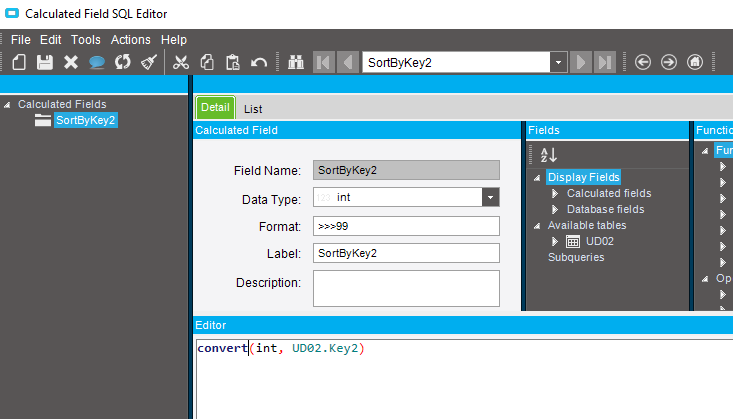
Section titled “Numbers stored as text”Key fields on UD tables and many “number” columns are really text, so they sort as 1, 10, 11, 2, 20. Add an int calculated field that converts the value, and sort on that field instead:
TRY_CONVERT(int, UD02.Key2)TRY_CONVERT returns NULL when a value isn’t a number, instead of failing the whole query the way CONVERT does. Non-numeric values then sort together at the start.
To number rows (1, 2, 3 within each group), use ROW_NUMBER(); see Calculated fields.
Sources
This page is written in our own words. It was informed by: