Menu Maintenance and Classic/Kinetic paths
Every program on the Epicor menu is a record in Menu Maintenance (System Setup > Security Maintenance > Menu Maintenance). A menu item can point at a Classic program, a Kinetic application, or both, and a handful of settings decide which one opens in which client. When a menu item works in the desktop client but not in the browser (or the other way round), the answer is almost always in these fields.
The fields that matter
Section titled “The fields that matter”| Field | What it does |
|---|---|
| Program Type | What the item is. Kinetic App items have only a Kinetic version; there is no Classic program behind them. |
| Classic Program | The Classic .dll the item runs in the desktop client. |
| Kinetic Application | The Kinetic app ID the item runs in the browser, for example Erp.UIRpt.SalesOrderAck. |
| Classic Customization / Kinetic Customization | The Classic customization or Kinetic layer to open instead of the base program. |
| Form To Use | Desktop client only: open the Classic or Kinetic version, or let the user choose. |
| Launch Classic Form | Browser client only: open the Classic form (through the Edge Agent and the local desktop client) instead of the Kinetic app. |
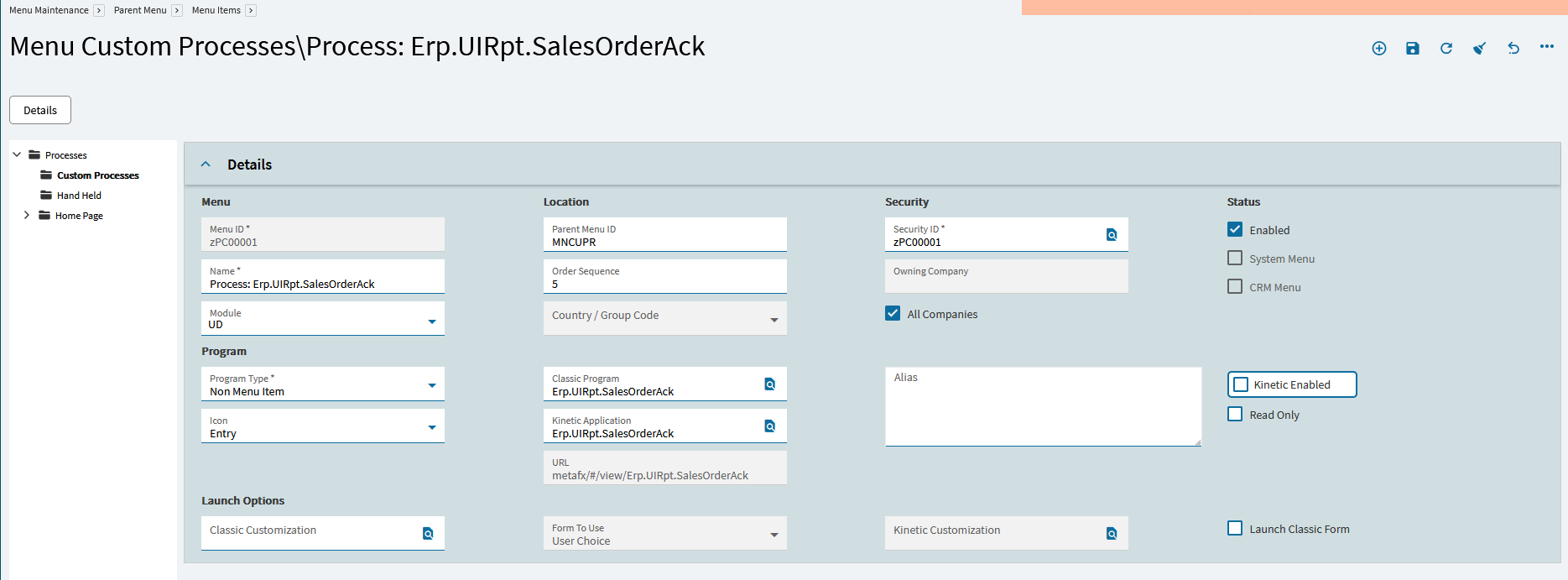
A browser can only open items that have a Kinetic application, unless Launch Classic Form is set and the user has the Edge Agent and desktop client installed.
Switch between Classic and Kinetic in the desktop client
Section titled “Switch between Classic and Kinetic in the desktop client”In the Kinetic desktop client, hold Alt while you open a program from the menu to open the other version of it (Classic instead of Kinetic, or the reverse). This only works when the menu item has both a Classic program and a Kinetic application. Kinetic App items have no Classic version to switch to.
It’s a quick way to compare the two versions of a screen, or to get to a Classic customization that hasn’t been rebuilt as a Kinetic layer yet.
Put a BAQ report on the menu (Kinetic)
Section titled “Put a BAQ report on the menu (Kinetic)”- Create a new menu item under the folder where it should appear.
- Set Program Type to Kinetic App.
- In Kinetic Application, search for apps whose ID starts with
Ice.UIRpt.. BAQ reports are listed there by their report ID, for exampleIce.UIRpt.XX_OpenOrders. - Set the security, save, and log out and back in to see the item.
Custom processes that don’t open in the browser (2025.2)
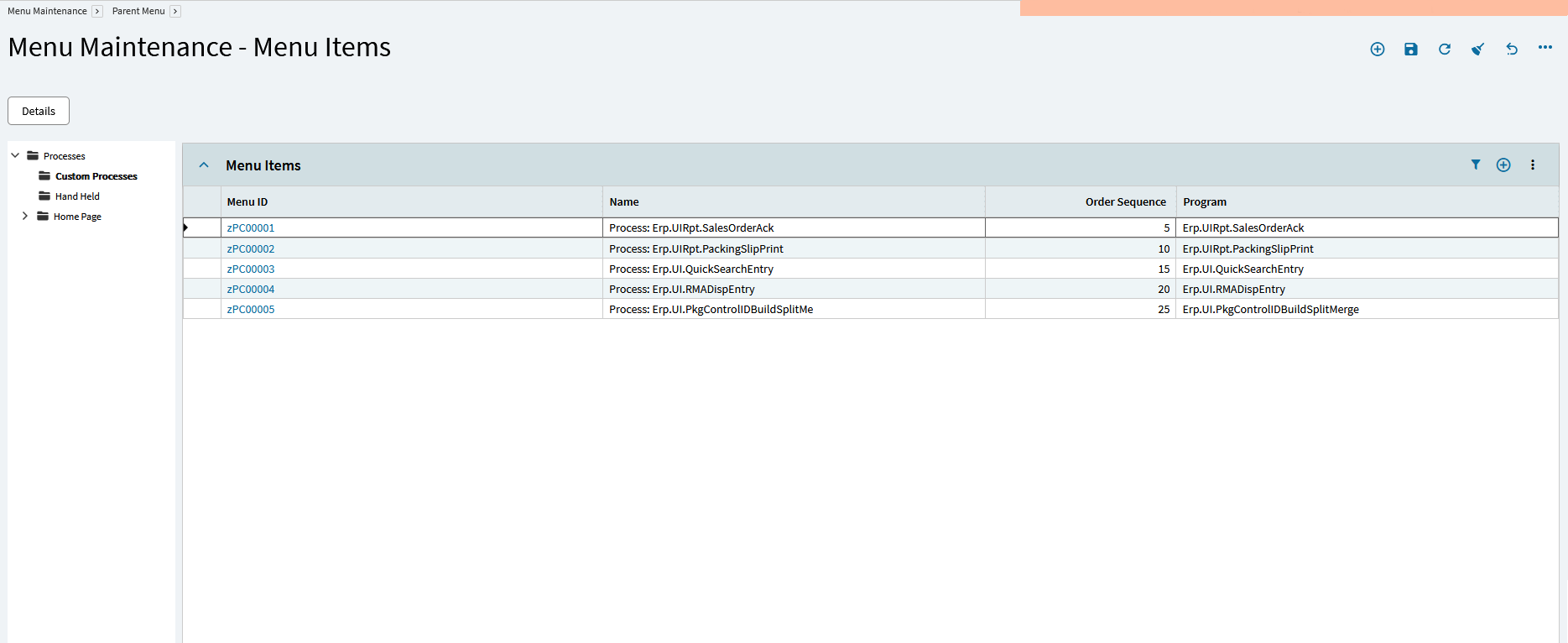
Section titled “Custom processes that don’t open in the browser (2025.2)”In 2025.2, the standard items under the Menu Custom Processes folder were shipped with a Classic
program but without a working Kinetic path, so they fail to load in the browser client. Fix each item
by giving it its Kinetic application (the same ID as the Classic program, for example
Erp.UIRpt.PackingSlipPrint) and saving. Epicor corrected the base menu items in 2026.1.
After changing menus
Section titled “After changing menus”Menus are cached per session. Users must log out and back in to see new or changed items.