Dashboard parameters and filters
Classic dashboards had tracker views: type a value, click refresh, and the grid filters. Kinetic has no tracker view, so you build the equivalent from fields, data views and where clauses. This page covers three levels: filtering with where clauses, BAQs with real parameters, and inputs that take several values.
Filter fields and where clauses
Section titled “Filter fields and where clauses”The simplest filter is an input field plus a grid where clause that reads it.
-
Add a panel card for the filters, and inside it a text box, combo box or date picker per filter.
-
Bind each input to a data view column that holds filter values, for example
TransView.XX_CustID.KeyFieldsworks too and is the usual choice when the value identifies “the current record”. -
On the grid, set Grid Model > Provider Model > Baq Options > Where to use them:
Customer_CustID = '??{TransView.XX_CustID}' -
Save and preview. Enter a value and reload the grid.
Where-clause syntax, AND/OR combinations and the ??{} / ?{} question are covered in BAQ data views.
To reload as soon as a filter changes, add an event with trigger DataTable > Column Changed on the filter column that refreshes the grid.
BAQs with parameters
Section titled “BAQs with parameters”If the BAQ itself has parameters, the out-of-the-box behavior is a BAQ Parameters slide-out that appears when the grid’s card expands. Users fill it in and click OK. If that’s all you need, tick Expand at Runtime on the grid so the prompt appears as soon as the dashboard opens.
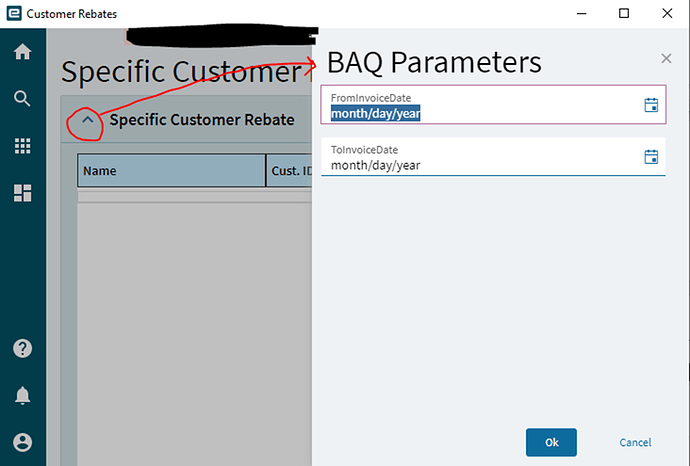
When you want your own parameter inputs on the page (a drop-down, defaults, re-running on change), bypass the prompt and run the BAQ yourself through Ice.BO.DynamicQuerySvc.
1. A placeholder view and a grid bound to it
Section titled “1. A placeholder view and a grid bound to it”-
Create a data view, e.g.
XX_Results, without a BAQ server schema. If it’s a BAQ view, the framework shows the parameter slide-out again.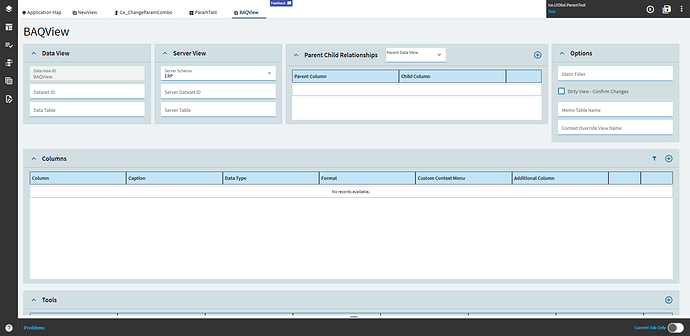
-
On the grid, remove the existing provider settings and set Grid Model > Provider Model > Ep Binding to
XX_Results. Define the grid’s columns as usual.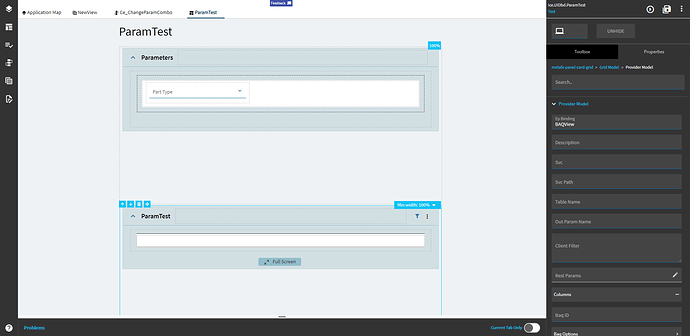
-
Create a second view for the inputs, e.g.
XX_Params, and add a combo box or text box bound toXX_Params.PartType.
2. A reusable action that runs the BAQ
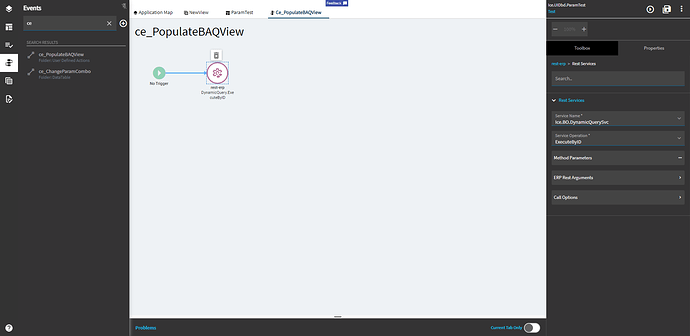
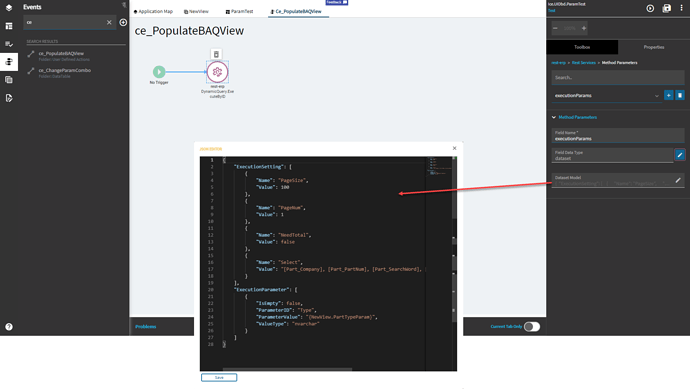
Section titled “2. A reusable action that runs the BAQ”Create an event with no trigger (it appears under User Defined Actions), named e.g. XX_RunQuery, containing one rest-erp widget:
- Service Name
Ice.BO.DynamicQuerySvc, Service OperationExecuteByID - Method Parameters:
queryID(string): your BAQ ID, e.g.XX_PartsByTypeexecutionParams(dataset): the parameter values and execution settings, entered in the dataset editor:
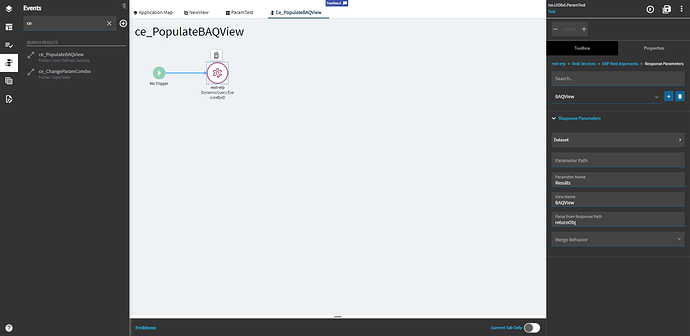
{ "ExecutionSetting": [ { "Name": "PageSize", "Value": 500 }, { "Name": "PageNum", "Value": 1 } ], "ExecutionParameter": [ { "ParameterID": "PartType", "ParameterValue": "{XX_Params.PartType}", "ValueType": "nvarchar", "IsEmpty": false } ]}- ERP Rest Arguments > Response Parameters: Parameter Name
Results, View NameXX_Results, Parse from Response PathreturnObj
Add one ExecutionParameter entry per BAQ parameter. ParameterID must match the parameter name in the BAQ.
3. Run it on load and when the parameter changes
Section titled “3. Run it on load and when the parameter changes”-
On load: an event hooked After the form’s load event, with a
row-updatethat sets a default inXX_Params.PartType, thenevent-next→XX_RunQuery.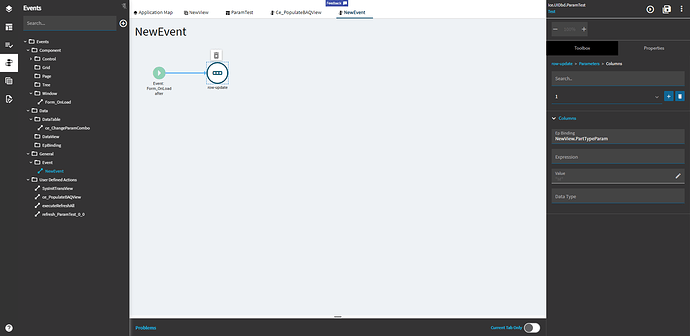
-
On change: an event with Type
DataTable, HookColumn Changed, TargetXX_Params, ColumnsPartType, containing justevent-next→XX_RunQuery.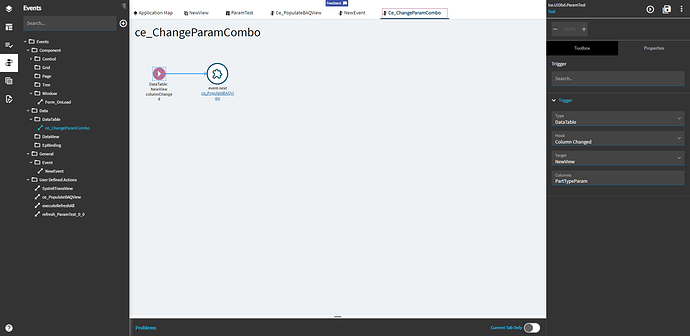
Let users enter several values
Section titled “Let users enter several values”Some filters take a list, such as several job numbers or part numbers. On report forms, list-type filters accept a tilde-separated list (JOB-000123~JOB-000124). Two ways to collect one:
Option A: search chip selector
Section titled “Option A: search chip selector”The chip selector (ep-search-chip-selection) shows each chosen value as a chip, with a search button to add more. It’s what Epicor uses on Job Traveler.
-
Add the component and set EpBinding, e.g.
TransView.XX_Jobs. Under Advanced, optionally set Plural Label Text, Singular Label Text and Empty Label Text (for example “Jobs selected”, “Job selected”, “No job selected”).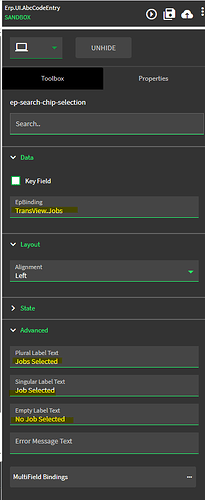
-
Create an event: Type
EpBinding, HookOn Search, TargetTransView.XX_Jobs. -
Add
search-showwith LikeJobHead.JobNum, Select ModeMultiSelect, Search Formdefault, Sort By ColumnJobNum, and a Validation so typed values are checked:{ "validateFilter": "JobNum = '%value%'", "errorMessage": "That job number doesn't exist" }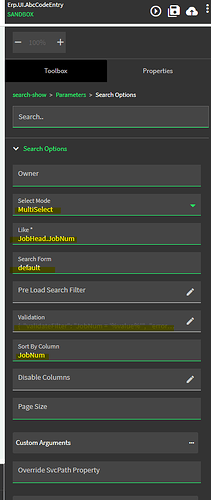
-
Add
search-value-setwith Ep BindingTransView.XX_Jobsand ValueactionResult.JobNum.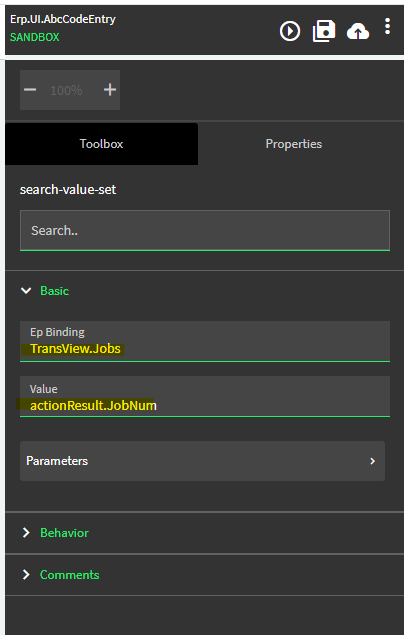
Option B: a paste box
Section titled “Option B: a paste box”Users who copy a column out of Excel want to paste it. Add a multi-line text box for pasting and turn its contents into a tilde list:
-
Add a text box bound to
TransView.XX_PasteBox.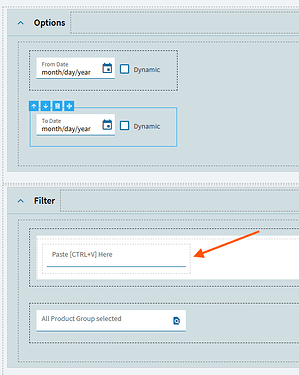
-
Create an event: Type
DataTable, HookColumn Changed, TargetTransView, ColumnsXX_PasteBox. -
Add a
row-updatethat writes the cleaned list into the filter, e.g. Ep BindingReportParam.Filter1with Expression:"{TransView.XX_PasteBox}".split("\\n").map(v => v.trim()).filter(v => v !== "").join("~")This splits on line breaks, trims stray carriage returns and spaces, drops blank lines and joins the rest with
~. Note the doubled backslash (see Expressions).
Pasting with Ctrl+V works. The right-click “paste insert” from Classic isn’t available.
Sources
This page is written in our own words. It was informed by: