Troubleshooting
Known Application Studio problems, grouped by where they show up. If your problem isn’t here, start with the checklist in the overview and the tools in Debugging.
Layers
Section titled “Layers”Users don’t see my changes
Section titled “Users don’t see my changes”Cause: the layer was saved but not published, or the menu item doesn’t point at it. Saving an already published layer creates a new draft, and users keep the previously published version.
Fix: Publish from the overflow menu. Check the menu item’s Kinetic Customizations field in Menu Maintenance, then have users log out and back in. See Layers.
Preview doesn’t show the change, or a new grid or view loads no data
Section titled “Preview doesn’t show the change, or a new grid or view loads no data”Cause: preview doesn’t refresh itself, and grids or data views added in the current session sometimes don’t load until the layer is reopened.
Fix: save, close Application Studio, reopen the layer, then preview.
Imported layer is empty
Section titled “Imported layer is empty”Cause: the imported layer has the System (base) flag set, so its changes aren’t applied as a customization.
Fix: ask Epicor Support for a data fix to clear the flag. See Layers.
Events and rules
Section titled “Events and rules”Event change to a property has no effect
Section titled “Event change to a property has no effect”Symptom: an event sets a control’s property (for example disabled to false), the trace shows the widget ran, but the control doesn’t change.
Cause: a data rule also controls that property on that field, and rules take priority over events.
Fix: let the event change data (a flag in TransView) and add that flag to the rule’s condition, so only the rule sets the property. Press Ctrl+Alt+1 to find the rule. See Data rules.
Custom buttons are disabled when the screen is read-only
Section titled “Custom buttons are disabled when the screen is read-only”Cause: the system read-only rule disables the whole row when TransView.SysReadOnly is true, and that includes your buttons.
Fix: copy the system rule and add your buttons’ bindings to Except these columns in its DisableRow action. See Data rules.
A data rule testing for null never fires
Section titled “A data rule testing for null never fires”Cause: Equal with a value of null doesn’t match empty fields reliably.
Fix: use Contains with the value null, and tick Not for “is not null”.
An on-blur event errors when the screen opens
Section titled “An on-blur event errors when the screen opens”Symptom: focus starts in a field with an on-blur event. Clicking elsewhere before typing fires the event with no value and it fails.
Fix: trigger on DataTable > Column Changed for the field’s binding instead. It only fires when the value actually changes. See Common event patterns.
row-find returns “Errors in criteria parser”
Section titled “row-find returns “Errors in criteria parser””Cause: the expression uses JavaScript comparison (==, ===).
Fix: use a single = with plain View.Column references, e.g. OrderDtl.OrderLine = TransView.XX_LineNum. See Find a row and make it current.
The screen shows old values after an event calls a function
Section titled “The screen shows old values after an event calls a function”Cause: the function changed the record on the server, but the screen’s data views weren’t reloaded.
Fix: finish the event with event-next calling the application’s own refresh event. See Common event patterns.
Data and expressions
Section titled “Data and expressions”A calculated date doesn’t appear in a date column
Section titled “A calculated date doesn’t appear in a date column”Symptom: a row-update expression that produces a date works into a string column, but a date or datetime column stays empty, or gets the wrong day.
Cause: the date column doesn’t accept a bare YYYY-MM-DD string reliably.
Fix: append a time, as in ...split("T")[0] + "T00:00:00", or do the date conversion in a BAQ calculated field instead. See Expressions.
BAQ fields show the previous record’s values, or nothing
Section titled “BAQ fields show the previous record’s values, or nothing”Cause: the event that loads the BAQ view is hooked to the wrong system event. It runs before the parent row changes, or not at all. Less often, the BAQ’s joins or the parent/child column pairs are wrong.
Fix: trace with Ctrl+Alt+8, find the system event that runs after the parent row is current, and hook your refresh After it. Then check the joins and relationship columns. See BAQ data views.
A static combo box shows [object Object] or no options
Section titled “A static combo box shows [object Object] or no options”Cause: TextField and Value Field aren’t set to the lower-case names a static list uses.
Fix: set TextField to display and Value Field to value, exactly. See Combo boxes.
Grids and dashboards
Section titled “Grids and dashboards”Grid throws a SQL error about columns after using the wizard
Section titled “Grid throws a SQL error about columns after using the wizard”Cause: the Basic Application Wizard added columns from the BAQ’s subqueries to the grid. The grid asks the BAQ for them, but they don’t exist at the top level.
Fix: delete every column in Grid Model > Columns that isn’t a top-level display field of the BAQ, or re-run the grid wizard on releases that offer it. See Grids.
The whole grid stops loading after adding columns
Section titled “The whole grid stops loading after adding columns”Cause: a misspelled Field in Grid Model > Columns, or columns added under Provider Model > Columns by mistake.
Fix: compare each Field to the BAQ alias (Table_Field), and remove anything you added to the provider model’s column list.
Dashboard is empty until the user expands the card, or the parameter prompt doesn’t appear
Section titled “Dashboard is empty until the user expands the card, or the parameter prompt doesn’t appear”Cause: a collapsed grid card doesn’t load, and the BAQ parameter prompt only slides out when the card expands. Deploying a Classic dashboard with “auto refresh on load” doesn’t carry that behavior over.
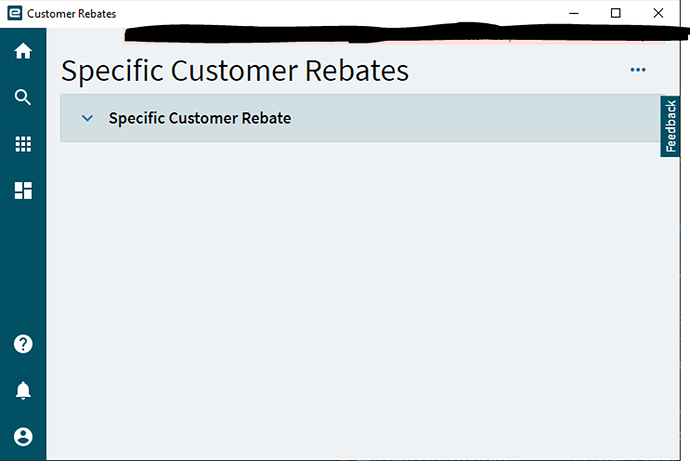
Fix: in a layer, select the grid and tick Expand at Runtime.
Child grid shows rows for every parent
Section titled “Child grid shows rows for every parent”Symptom: a second grid should show only the rows for the row selected in the first, but it shows everything.
Cause: the where clause isn’t being applied, often because of the placeholder form, or because nothing reloads the child grid when the parent row changes.
Fix: check the where clause uses the BAQ alias on the left and a quoted placeholder on the right. Check the placeholder form too: '??{View.Column}' accepts an empty value, while '?{View.Column}' only takes a value if one exists. Add a DataView > Row Changed event on the parent’s view to refresh the child. See BAQ data views.
Sources
This page is written in our own words. It was informed by: